


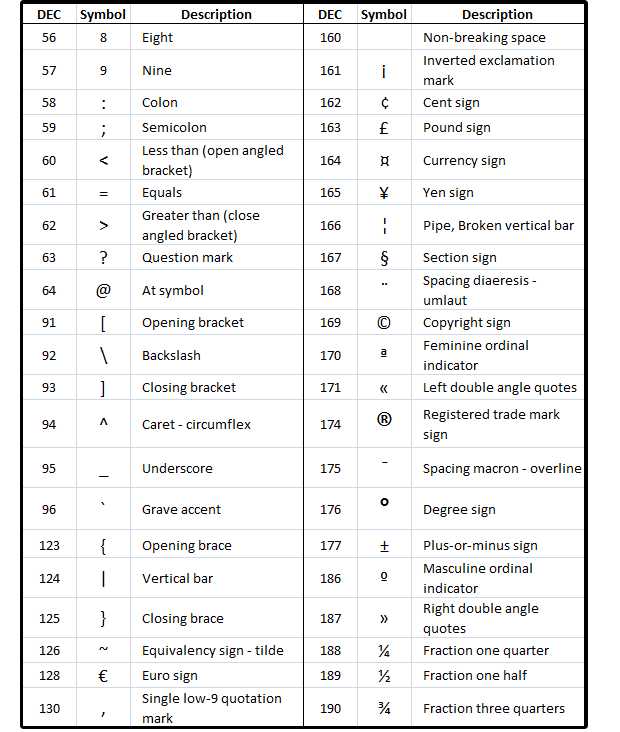
Want to add a little flair to your writing or make your messages more precise? Knowing how to type symbols and special characters can make your documents stand out and communicate your message clearly. Whether you’re inserting emojis, currency symbols, or accented characters, there’s a quick way to access them without hassle. The key is to learn some simple shortcuts, use special keyboard functions, or leverage your device’s character map—making your typing more efficient and expressive.
In short, you can type symbols and special characters by using keyboard shortcuts, character maps, or built-in features on your device. This guide will walk you through the easiest ways to include these characters in your texts and documents seamlessly, no matter what device you’re using.
Dès que vous souhaitez embellir votre texte ou saisir des caractères spécifiques, il est essentiel de connaître rapidement les méthodes pour taper des symboles et des caractères spéciaux. Que ce soit pour insérer des emojis, des accents, ou des symboles monétaires, il existe plusieurs astuces simples à apprendre. En utilisant des raccourcis clavier, la table des caractères spéciaux, ou les fonctionnalités intégrées de votre appareil, vous pouvez insérer ces caractères en un clin d’œil et enrichir votre écriture instantanément. Ce guide vous aidera à maîtriser ces techniques pour rendre votre saisie plus fluide et expressive, peu importe votre type d’appareil.

How to type symbols and special characters
Understanding the Importance of Symbols and Special Characters
Symbols and special characters are essential parts of written language. They help us communicate ideas clearly and add meaning to our text. From currency signs to mathematical symbols, they make writing more precise and expressive.
They are often used in typing, coding, and creating documents. Knowing how to type these characters saves time and improves accuracy. Learning their shortcuts can make your work faster and more efficient.
Common Symbols and Special Characters You Might Need
Here are some popular symbols and their uses:
- Copyright sign (©): Shows ownership of content
- Registered trademark (®): Indicates a registered trademark
- Degree symbol (°): Used for temperature or angles
- Ellipsis (…) : Shows omitted parts in a quote or pause
- Plus-minus sign (±): Used in math for ranges
- Dollar sign ($): Represents currency
- Euro (€): Currency symbol for Europe
- Pound (£): Currency in the UK
- Yen (¥): Currency in Japan
Knowing where to find and how to type these symbols is very helpful.
How to Type Symbols and Special Characters Using Keyboard Shortcuts
Keyboard shortcuts are the quickest way to type symbols on your computer. They vary depending on your device and operating system.
Using Windows Keyboard Shortcuts
Most Windows shortcuts involve pressing the Alt key along with a specific number code.
- Hold down Alt
- Type the number code on the numeric keypad
- Release Alt
For example, to type the copyright symbol (©), press Alt + 0169. Make sure to use the numeric keypad, not the numbers at the top of your keyboard.
Using Mac Keyboard Shortcuts
Mac users can use *Option* (or *Alt*) key combinations:
- ©: Press Option + G
- ®: Press Option + R
- ° (Degree): Press Option + Shift + 8
- €: Press Option + Shift + 2
These shortcuts are quick and easy once memorized.
Typing Special Characters with the Character Map and Emoji & Symbols Panel
If you prefer a visual method, Windows and Mac offer tools to browse and select special characters.
Using Windows Character Map
Follow these steps:
- Open the Start menu and search for “Character Map”
- Open the app and browse symbols
- Select a character and click “Copy”
- Paste it into your document
This method allows finding less common symbols not easily accessible via shortcuts.
Using Mac Emoji & Symbols Panel
On Mac:
- Press Control + Command + Space
- The panel opens with various symbols and emojis
- Double-click a symbol to insert it
This panel presents a wide range of symbols, emojis, and special characters.
How to Type Symbols in HTML and Coding
When coding or designing websites, you often need to insert symbols using HTML entities.
HTML Entities for Common Symbols
Here are some examples:
| Symbol | HTML Entity | Description |
|---|---|---|
| © | © | Copyright sign |
| ® | ® | Registered trademark |
| € | € | Euro symbol |
| ¥ | ¥ | Yen sign |
| ± | ± | Plus-minus sign |
| ° | ° | Degree symbol |
Using HTML entities ensures your symbols display correctly across all browsers and devices.
Special Tips for Typing Symbols on Mobile Devices
Mobile devices differ from computers but also provide ways to input symbols easily.
Using On-Screen Keyboards
Most smartphones have a special symbols keyboard:
- Tap the “?123” key to access symbols
- Press and hold certain keys for more options (like the dollar sign or emojis)
- Switch back to letters when finished
This method is very straightforward for quick symbol insertion.
Using Text Replacement Features
Many phones support creating shortcuts:
- Set a specific phrase to automatically change into a symbol
- For example, typing “(c)” can automatically convert to ©
- This saves time in repetitive typing
Settings for text replacement are available in your device’s language and input options.
Additional Resources and Tools for Typing Symbols
To expand your symbol typing skills, consider these resources:
- Online Unicode charts for a wide range of characters
- Extensions and plugins for browsers that insert symbols
- Dedicated software or apps for inserting special characters easily
Exploring these options can make your work with symbols much simpler.
Practice and Memorization for Efficiency
The best way to get comfortable with typing symbols is consistent practice. Memorize common shortcuts for frequently used symbols. Use visual tools like character maps when needed.
Over time, typing symbols will become second nature, speeding up your writing process.
Summary of Tips to Remember
- Use keyboard shortcuts for quick access
- Make use of character maps and symbol panels
- Insert symbols via HTML entities in web development
- Customize text replacement on mobile devices
- Practice regularly to improve speed and accuracy
Mastering these methods ensures you can type any symbol or special character effortlessly.
How to Make Symbols with Your Keyboard | Keyboard Shortcuts for Special Characters #symbols
Frequently Asked Questions
What are the common methods to insert special characters using a keyboard?
You can insert special characters through keyboard shortcuts, such as pressing specific key combinations (like Alt codes on Windows), or by using the character map or emoji panel on your device. Some software applications also allow you to type certain symbols directly by using built-in menu options or shortcuts.
How can I type symbols that aren’t readily available on my keyboard?
To type symbols not present on your keyboard, you can use Unicode or ASCII codes by holding down the Alt key and typing the corresponding number on the numeric keypad. Alternatively, insert symbols via the Insert menu in your word processor or copy them from online sources and paste them into your document.
Are there specific shortcuts for common mathematical or currency symbols?
Yes, many software programs offer shortcuts for widely used symbols. For example, pressing Ctrl + / followed by a letter can generate various accented characters. On Windows, holding the Alt key and typing certain numeric codes creates symbols like the euro (€) or pound (£). Mac users can press Option plus a key to produce similar characters.
Can I customize shortcuts for frequently used special characters?
In most text editing applications, you can create custom shortcuts or replace text with symbols using macro features or autocorrect settings. This allows you to quickly insert specific symbols without navigating through menus each time.
What tools or apps can help in typing a wide range of symbols and special characters?
Tools like character map utilities, emoji panels, and third-party keyboard apps help you access a broad assortment of symbols. These tools let you search for characters by name or category and easily insert them into your documents or messages.
Final Thoughts
How to type symbols and special characters is straightforward once you know the shortcuts. Use keyboard shortcuts or the character map for quick access. You can also rely on built-in tools like the emoji keyboard or special character menus.
Learning these methods saves you time and enhances your writing efficiency. Practice regularly to become more comfortable with inserting symbols. With these tips, typing symbols and special characters becomes effortless.



