


Using Ethernet can dramatically improve your video call quality by providing a more stable and faster internet connection. To achieve this, simply connect your computer or device directly to your router with an Ethernet cable, ensuring a consistent and reliable link. Using Ethernet eliminates Wi-Fi interruptions and reduces lag, making your virtual meetings smoother and more professional. The key is choosing a good quality cable, ensuring your device’s Ethernet port is enabled, and keeping your network equipment updated for optimal performance.
For stable video meetings, connect your device directly to your router with an Ethernet cable for the most consistent internet. Prioritize quality cables and ensure your network settings are optimized to reduce disruptions. This simple switch can drastically improve your online meeting experience.
Getting a stable video connection is crucial for productive online meetings, especially when Wi-Fi signals fluctuate or get congested. Ethernet provides a direct, wired connection that minimizes latency, packet loss, and dropouts. To use Ethernet effectively, start by plugging one end of a reliable Ethernet cable into your device’s Ethernet port and the other into your router or network switch. Make sure your device recognizes the wired connection—sometimes you might need to enable it in your network settings. Using Ethernet is especially useful in busy homes or offices with many devices competing for bandwidth, as it delivers a dedicated connection that keeps your meetings smooth and interruption-free. With a simple setup, you can enjoy clearer video, faster data transfer, and a more dependable virtual communication experience.

How to use Ethernet for stable video meetings
Understanding the importance of Ethernet for video calls
Using Ethernet instead of Wi-Fi can significantly improve your video meeting experience. Ethernet connections are more reliable because they avoid common Wi-Fi issues like interference and signal dropouts. When you connect via Ethernet, you often get faster speeds and lower latency, which leads to smoother video and audio.
Advantages of Ethernet over Wi-Fi
Ethernet offers several benefits for video meetings. It provides a stable connection that minimizes lag and buffering. Ethernet also reduces the chances of disconnections during important calls. Plus, it ensures consistent upload and download speeds that are critical for high-quality video streaming.
Choosing the right Ethernet cable
Selecting the correct Ethernet cable is essential for optimal performance. The most common types are Cat5e, Cat6, and Cat6a cables. For most home and office setups, Cat6 cables are recommended because they support higher speeds and better shielding against interference. Always opt for high-quality cables to avoid issues like signal loss or slow speeds.
Understanding Ethernet cable categories
- Cat5e: Suitable for speeds up to 1 Gbps, common in many homes.
- Cat6: Supports speeds up to 10 Gbps over shorter distances, more future-proof.
- Cat6a: Offers even higher speeds and better noise resistance, ideal for demanding uses.
Checking your current internet setup
Before connecting via Ethernet, review your existing network hardware. Ensure your modem and router support high speeds and are functioning correctly. An outdated router or modem can limit the benefits of a wired connection, so consider upgrading if necessary.
Connecting your device with Ethernet
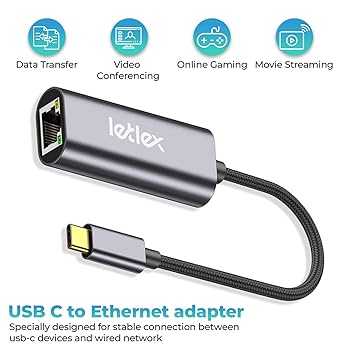
Connect one end of the Ethernet cable to your device’s Ethernet port. Plug the other end into an available port on your router or switch. Most modern computers and laptops have built-in Ethernet ports; if not, you may need an Ethernet adapter.
Using Ethernet adapters and extension cords
If your device lacks an Ethernet port, use a USB-to-Ethernet adapter or a Thunderbolt Ethernet adapter. For longer distances, consider Ethernet extension cords or network switches to extend connectivity without losing signal quality.
Configuring network settings for optimal performance
Once connected, ensure your device recognizes the Ethernet connection. In your device’s network settings, set the connection to obtain IP addresses automatically unless you prefer static IPs. Disable Wi-Fi during calls to avoid competing signals and ensure the Ethernet connection is prioritized.
Testing your Ethernet connection
Conduct speed tests using online tools like Speedtest.net to verify your upload and download speeds. Check for packet loss or latency issues that can impact video quality. A stable Ethernet connection should show consistent high speeds with minimal lag.
Optimizing your network for video conferencing
Adjust your router settings to prioritize video traffic if possible. Many routers have Quality of Service (QoS) options to assign higher priority to video conferencing applications. This helps ensure your calls stay smooth even when multiple devices are connected.
Managing network interference and congestion
Ensure your Ethernet cables are kept away from sources of interference such as power lines or wireless devices. Avoid running Ethernet cables parallel to electrical wiring, which can cause signal degradation. Limit other network-heavy activities during your meetings, like large downloads or streaming.
Upgrading your network hardware for better stability
If you experience frequent disconnections or slow speeds, consider upgrading your router to a model with advanced features. Mesh Wi-Fi systems with Ethernet backhaul can also improve overall stability. Using managed switches can help segment your network and improve performance during multiple simultaneous video calls.
Using Ethernet with different devices
Ethernet can connect desktops, laptops, smart TVs, and even gaming consoles. Make sure each device has the appropriate port and adapter. For tablets and smartphones, Ethernet adapters are usually necessary for wired connections.
Connecting multiple devices simultaneously
To support several devices, use a network switch connected to your router. This allows multiple Ethernet cables to run to different devices without sacrificing speed or stability. Properly managing your network traffic ensures each device gets enough bandwidth for smooth video meetings.
Troubleshooting common Ethernet issues
If you encounter problems, check your Ethernet cable for damage or loose connections. Restart your router and device to refresh network settings. Update network drivers or firmware if you notice persistent issues. Contact your internet provider if speed tests reveal slow or inconsistent speeds.
Maintaining your Ethernet setup
Regularly inspect your cables and connections for wear or damage. Keep cables organized and away from potential sources of interference. Periodically run speed tests and check device settings to ensure ongoing optimal performance.
Additional tips for better video meeting quality
Use a wired connection whenever possible, especially in critical meetings or presentations. Keep your device close to the router to reduce cable length and potential interference. Use high-quality cables and hardware to minimize troubleshooting in the future.
Related topics you might find helpful
- Wi-Fi vs. Ethernet: Understanding which connection works best for different scenarios
- Setting up a home network: Creating a reliable network environment for work and entertainment
- Improving Wi-Fi stability: Tips for better wireless performance when Ethernet isn’t an option
- Router placement: Positioning your router for maximum coverage and speed
Implementing Ethernet for your video meetings can make a noticeable difference in quality and reliability. By choosing the right cables, configuring your network properly, and maintaining your setup, you ensure smoother, interruption-free video calls. Remember, a stable connection helps keep your meetings productive and stress-free, especially during important work or virtual gatherings.
Can A USB Ethernet Adapter Improve Video Conferencing On A Laptop? – Your Computer Companion
Frequently Asked Questions
How can I ensure my Ethernet connection is properly configured for video calls?
Make sure your Ethernet cable is securely plugged into both your computer and the router. Check that your network settings prioritize wired connections over Wi-Fi. You can do this by setting Ethernet as the primary network interface in your device’s network preferences. Additionally, disable Wi-Fi temporarily during calls to avoid automatic switching that might cause instability. Confirm that your network adapter drivers are up to date to maintain optimal performance.
What steps should I take if my Ethernet connection drops during a video meeting?
If your connection drops, first verify that the Ethernet cable is tightly connected on both ends. Test the cable with another device to rule out any faults. Restart your router and computer to reset the network connection. Disable any unnecessary background applications that might consume bandwidth. If issues persist, consider switching to a different Ethernet port or updating your network drivers. For ongoing problems, contact your internet service provider for assistance.
How can I improve Ethernet speed for smoother video conferences?
Use a high-quality, Cat 6 or higher Ethernet cable to ensure faster data transfer rates. Position your router in a central location away from interference to optimize signal quality. Limit the number of devices connected to the network during meetings to reduce bandwidth congestion. Regularly update your router’s firmware and network drivers to benefit from performance improvements. Consider enabling Quality of Service (QoS) settings on your router to prioritize video traffic.
Is it necessary to configure specific network settings for stable video meetings?
Yes, configuring your network settings can significantly enhance connection stability. Assign a static IP address to your device to prevent IP conflicts. Adjust your router’s MTU settings for optimal packet size. Disable any VPNs or firewall settings that might interfere with your connection during meetings. Ensuring your network is free from over-traffic and interference helps maintain a steady video stream.
What equipment should I consider for a reliable Ethernet setup?
Use a quality Ethernet cable suitable for your network speed, such as Cat 6 or higher. Employ a reliable router with good bandwidth management features. A network switch could help if you need to connect multiple devices without congestion. For added stability, consider using a surge protector with your networking equipment. Ensure all devices and cables are well-maintained and replace any worn or damaged components promptly.
Final Thoughts
Using Ethernet for stable video meetings ensures a reliable internet connection. Connect your computer directly to your router with an Ethernet cable for optimal performance. This reduces interruptions and improves video and audio quality.
Ensure your Ethernet port is functioning correctly and replace any damaged cables. Prioritize a wired connection over Wi-Fi whenever possible for consistent results.
In conclusion, how to use Ethernet for stable video meetings is simple. It offers a dependable connection that significantly enhances your virtual communication experience.



