


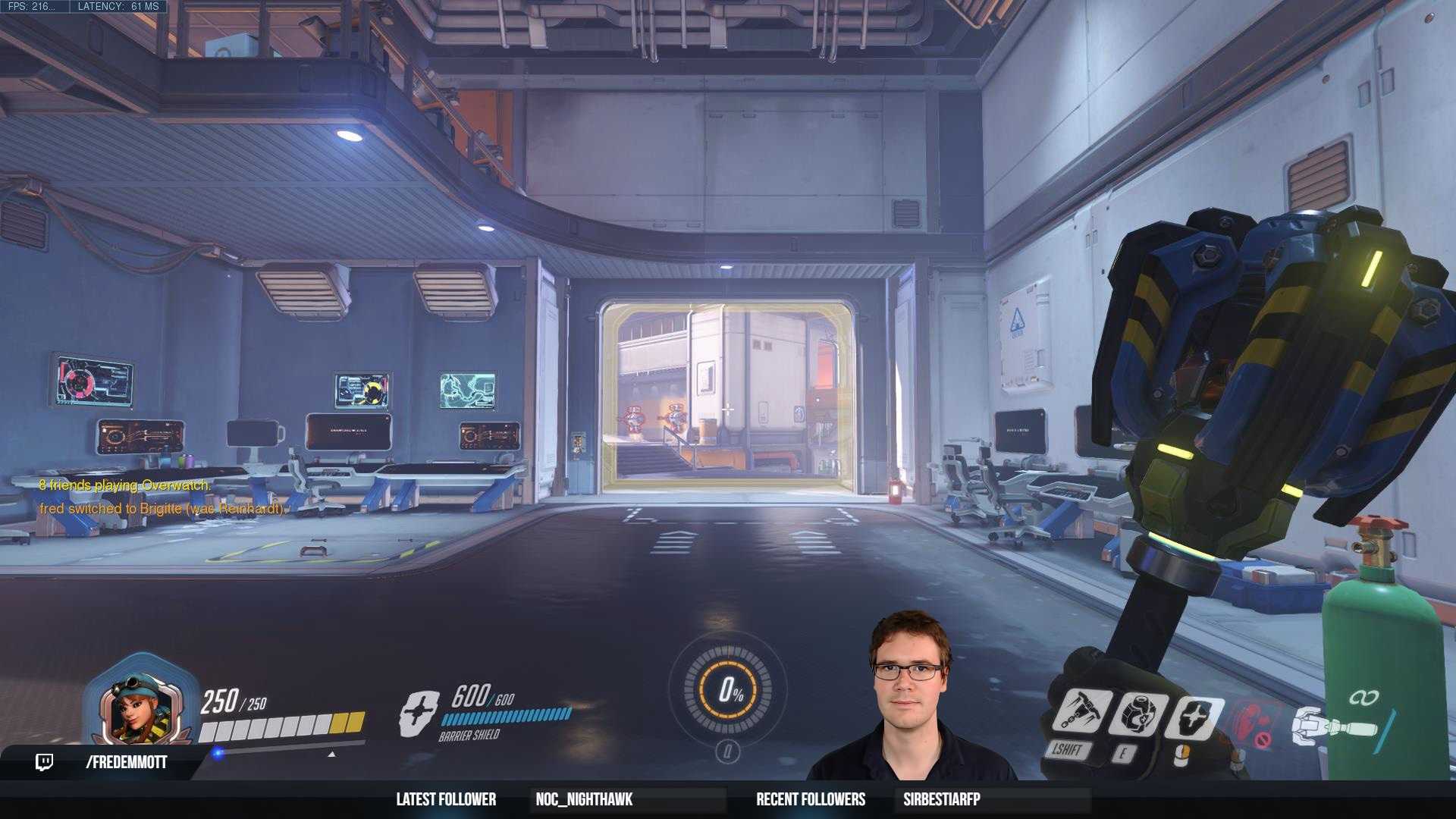
To effectively use a green screen with your webcam, set up your green backdrop in a well-lit area, ensure your webcam has good resolution, and use software like OBS or Zoom to chroma key your background. Position yourself at a suitable distance from the green screen to avoid shadows, adjust the lighting evenly, and select the green screen as your virtual background in your chosen application. This simple setup allows you to transform your video background instantly, making your virtual meetings or streams more professional and fun.
Getting started with a green screen isn’t as complicated as it might seem. You just need a smooth, wrinkle-free green fabric or paper backdrop, proper lighting to eliminate shadows, and compatible software that supports chroma keying. Position yourself correctly in front of the green screen and select the background you want within your video app. With a little practice, you’ll be seamlessly blending into any scene you choose, whether for work, gaming, or creative projects. This setup is a game-changer for anyone wanting to spice up their virtual presence.

How to Use Green Screen with Webcam: A Complete Guide
Using a green screen with your webcam can make your videos look professional and visually impressive. It allows you to change your background easily and create fun, engaging content. This guide covers everything you need to know about setting up and using a green screen with your webcam.
Understanding How a Green Screen Works
A green screen is a bright green backdrop that you place behind yourself while recording. When paired with special software, the green color can be replaced with any background you choose. This technique is called chroma keying.
Chroma keying works by detecting a specific color—in this case, green—and removing it from the video. The software then overlays your image on a different background, creating a seamless visual effect.
Choosing the Right Green Screen
The first step in using a green screen is selecting the right one. There are several options available to suit different needs and budgets.
- Material: Look for a smooth, wrinkle-free fabric or professional vinyl that stays flat and avoids shadows. Avoid materials that easily fold or crease.
- Size: Ensure the green screen is large enough to cover your entire background area. Larger screens provide more flexibility.
- Color: Most green screens use a bright green hue, but blue screens are also available. Choose based on your environment and clothing choices.
Investing in a quality green screen improves the overall effect and makes post-production easier.
Setting Up Your Green Screen Properly
Lighting Is Key
Proper lighting prevents shadows and ensures the green color appears even. Use multiple light sources to illuminate the green background uniformly. Avoid placing lights directly on the green screen to prevent hotspots.
Positioning Your Green Screen
Place the green screen flat and taut to prevent wrinkles. It should be several inches away from you to avoid shadows cast on the screen. Keep the green backdrop at least two feet behind you for best results.
Camera Placement and Framing
Position your webcam at eye level for natural shots. Frame yourself properly, keeping enough space around your head and shoulders. Ensure the green screen fills the frame behind you without showing gaps.
Choosing the Right Software for Chroma Keying
Many programs support green screen effects. Some options are free, while others require a purchase. Your choice depends on your needs and technical skill level.
- Popular Free Options: OBS Studio, VSDC Free Video Editor, and ManyCam.
- Paid Software: Adobe Premiere Pro, Final Cut Pro, and Ecamm Live offer advanced features.
Ensure the software is compatible with your operating system and webcam before downloading.
Configuring Your Webcam with Green Screen Software
Once your green screen is set up and the software installed, you need to connect your webcam and configure settings. Adjust the resolution and frame rate for smooth video quality.
Test the green screen effect by recording short clips. Fine-tune lighting and positioning if shadows or green spill appear.
How to Apply the Chroma Key Effect Step-by-Step
- Open your chosen software and select your webcam as the video source.
- Locate the chroma key or green screen feature within the software.
- Activate the chroma key effect and select the specific green color or use the eyedropper tool to pick the green background.
- Adjust the similarity or threshold sliders to remove all green areas while keeping your image clear.
- Preview the video and make adjustments until the background replaces smoothly.
- Insert your desired background image or video behind your live feed.
Troubleshooting Common Green Screen Problems
Green Spill or Color Bleeding
This occurs when green reflects onto your skin or clothing. Use proper lighting and distance to minimize spill. You can also fine-tune the chroma key settings to remove residual green.
Shadows and Wrinkles
Shadows create uneven backgrounds. Keep the green screen tight and well-lit. Use diffused lights to spread illumination evenly across the backdrop.
Low-Quality Removal
If the background doesn’t remove cleanly, check your lighting, increase the similarity threshold, and ensure your green screen is evenly lit. Upgrading your software can also improve results.
Enhancing Your Green Screen Setup
Adding Additional Lighting
Use softboxes or ring lights to illuminate your face evenly. Proper lighting helps chroma key software produce a cleaner background replacement.
Using a Green Screen in Different Environments
For small spaces, consider portable green screens or collapsible backdrops. Adjust your setup to fit the available space without compromising lighting quality.
Recording Tips for Better Results
- Keep your clothing away from green; avoid wearing green clothing.
- Maintain consistent lighting during filming.
- Check your background after each recording for shadows or wrinkles.
Additional Tips for Creative Green Screen Use
- Experiment with different backgrounds to match your content theme.
- Use animated backgrounds for dynamic videos.
- Combine green screen effects with other editing techniques for professional results.
Remember, patience and practice can significantly improve your green screen videos. Experiment with setups and software settings to find what works best for you.
Setting up Facecam & Green Screen for the perfect setup
Frequently Asked Questions
What are the key steps to properly set up a green screen with my webcam?
First, position your green screen behind you, ensuring it is smooth and free of wrinkles. Mount your webcam at eye level for the best framing. Light the green screen evenly with soft, diffuse light sources to avoid shadows. Make sure your room lighting complements the green screen lighting, and keep a consistent distance between you and the screen to prevent shadows and color spill. Finally, adjust your webcam settings to achieve a clear, sharp image for optimal chroma keying.
How can I avoid shadows and uneven lighting when using a green screen with my webcam?
Use multiple light sources placed at different angles to illuminate the green screen evenly and minimize shadows. Softboxes or diffusers help to spread light softly across the surface. Keep the green screen flat and taut to prevent wrinkles that cause uneven lighting. Position yourself at a consistent distance from the screen, and avoid moving around too much during your recording or streaming session to prevent casting shadows. Regularly check your setup and make lighting adjustments as needed to maintain uniformity.
What software options are available for keying out the green screen during webcam recording?
Several programs support green screen chroma key features. Popular options include OBS Studio, which is free and open-source, and many users find it easy to set up. Other options include Streamlabs, XSplit, and vMix, which offer more advanced features for professional-quality effects. Many video conferencing tools now also include basic virtual background options that can be used with green screens. Choose software based on your needs and compatibility with your operating system.
How do I adjust my webcam and green screen settings for better background replacement?
Start by configuring your camera settings to increase focus and clarity, ensuring the subject is sharp. In your software, set the chroma key effect level to remove the green background cleanly without affecting your clothing or foreground objects. Tweak the similarity and smoothness settings to refine the keying effect, reducing any leftover green edges or shadows. Make sure the lighting is consistent and evenly distributed to provide a uniform background that makes keying easier and cleaner.
Final Thoughts
Using green screen with webcam involves setting up your background properly and choosing the right software. Ensure your green screen is smooth and evenly lit for the best results. Select a compatible application that offers chroma key features. Adjust the settings to remove the green color and insert your desired background.
Practicing proper lighting and positioning makes the process easier and improves video quality. With clear steps, you can effectively use green screen with webcam and enhance your virtual presence.



