


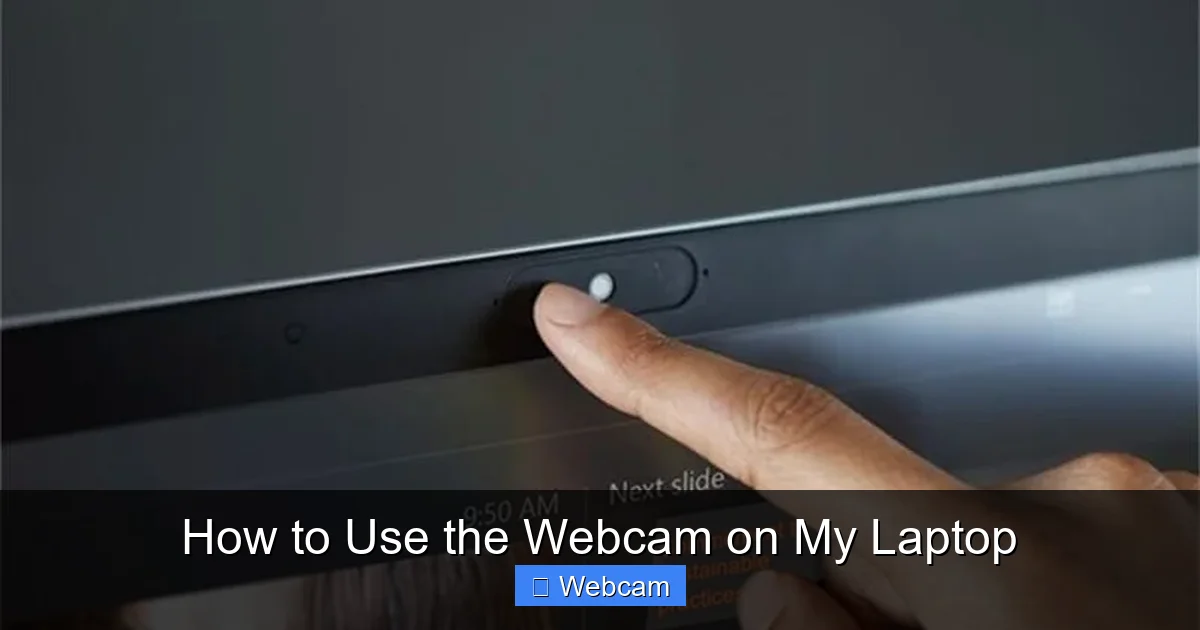
Discover how to use the webcam on your laptop for video calls, streaming, and more. This guide walks you through setup, settings, and troubleshooting in simple steps. Whether you’re joining a Zoom meeting or recording a vlog, we’ve got you covered.
Key Takeaways
- Check your webcam hardware: Most laptops have a built-in camera near the screen. Look for a small lens or indicator light.
- Enable the webcam in settings: Go to your operating system’s privacy settings to allow camera access for apps like Zoom or Teams.
- Use built-in apps first: Try the Camera app on Windows or Photo Booth on Mac to test your webcam before using third-party software.
- Adjust lighting and angle: Position yourself in natural light and center the camera for the best video quality.
- Keep your webcam clean: Wipe the lens gently with a microfiber cloth to remove smudges and improve clarity.
- Know your privacy options: Use a webcam cover or tape when not in use to prevent unauthorized access.
- Troubleshoot common issues: If your webcam isn’t working, check drivers, permissions, and restart your laptop.
How to Use the Webcam on My Laptop: A Complete Guide
Have you ever wanted to join a video call, record a quick tutorial, or stream your gameplay? Your laptop’s built-in webcam is the key to making it happen. Whether you’re using Zoom, Microsoft Teams, or even the simple Camera app, knowing how to use the webcam on your laptop is a must-have skill in today’s digital world.
This guide will walk you through everything you need to know—from checking if your webcam is working to adjusting settings and fixing common problems. By the end, you’ll be ready to use your laptop camera confidently and safely.
Step 1: Locate Your Laptop Webcam
Before you can use your webcam, you need to find it. Most laptops have a small, built-in camera near the top center of the screen. It looks like a tiny circle or rectangle with a lens in the middle. Some models also have an LED light next to the camera that turns on when it’s active.
Where to Look
- Above the screen: The most common spot is just above the display, often centered or slightly off to one side.
- Indicator light: When the webcam is on, you might see a small red or green light.
- Check the manual: If you’re unsure, look up your laptop model online—many manufacturers list camera locations.
Once you’ve found it, make sure nothing is covering the lens. A sticker, tape, or even a webcam cover could block the view.
Step 2: Test Your Webcam
Before using your webcam in important calls or recordings, test it first. This helps ensure everything is working properly and saves time later.
On Windows
1. Click the Start menu and search for “Camera.”
2. Open the Camera app. Your face should appear in real time.
3. Try covering the lens to see if the screen goes black—this confirms it’s working.
On macOS
1. Open Photo Booth from your Applications folder or search with Spotlight (Cmd + Space).
2. Your video preview will show up. You can even take a quick photo to test image quality.
If you see your video, great! If not, don’t panic—we’ll troubleshoot that next.
Step 3: Allow Camera Access
Even if your webcam works in the Camera app, other programs like Zoom or Google Meet might not have permission to use it. This is a privacy feature built into your operating system.
On Windows 10/11
- Go to Settings > Privacy & Security > Camera.
- Make sure “Allow apps to access your camera” is turned on.
- Scroll down and enable access for specific apps like Zoom, Skype, or Microsoft Teams.
On macOS
- Go to System Settings > Privacy & Security > Camera.
- Turn on access for the apps you want to use your webcam with.
- If an app isn’t listed, you may need to open it first so macOS can detect it.
Without this permission, your apps won’t be able to access the camera—even if it’s working fine.
Step 4: Use Your Webcam in Video Apps
Now that your webcam is enabled, it’s time to use it in real applications. Here’s how to set it up in popular video conferencing tools.
In Zoom
1. Open Zoom and sign in.
2. Click your profile picture and select Settings.
3. Go to Video and make sure “Turn off my video when joining a meeting” is unchecked.
4. Click Test Speaker and Microphone to check audio, then click Done.
5. Join a meeting—your webcam should now be active.
In Microsoft Teams
1. Open Teams and go to Settings > Devices.
2. Under Camera, select your laptop’s built-in camera.
3. Join or start a call—your video will appear in the meeting window.
In Google Meet
1. Start a video call in your browser.
2. Click the three dots in the bottom-right corner.
3. Select Settings, then under Video, choose your camera.
4. Make sure “Mirror my video” is off for a natural look.
Each app has slightly different steps, but the idea is the same: select your webcam in the video settings.
Step 5: Improve Video Quality
Your laptop webcam isn’t perfect—but you can make your video look better with a few simple tricks.
Lighting Matters
Turn on lights or sit near a window with natural light. Avoid backlighting (light behind you) and harsh shadows. A soft, even light makes your face look clearer.
Position Yourself Correctly
Sit about an arm’s length from the camera. Look slightly above the lens—this avoids the “big head” effect. Angle your laptop so the camera is level with your eyes.
Clean the Lens
Dust or fingerprints can blur your image. Gently wipe the lens with a microfiber cloth. Don’t use paper towels—they can scratch the glass.
Update Drivers (Windows)
Outdated drivers can cause issues. To update:
- Press Windows + X and select Device Manager.
- Expand Cameras or Imaging devices.
- Right-click your webcam and choose Update driver.
Step 6: Protect Your Privacy
Webcams can be hacked, so it’s smart to take precautions. You don’t need to turn off your laptop every time you pause a call—just use these simple tips.
Use a Webcam Cover
Stick-on privacy covers are cheap, reusable, and slide open or closed. They’re the easiest way to block the lens when not in use.
Cover with Tape (Temporary)
If you don’t have a cover, use a small piece of opaque tape over the lens. Just remember to remove it before video calls!
Turn Off Camera in Settings
Some laptops let you disable the camera entirely in BIOS or system settings. This is more secure but requires restarting your laptop to toggle it back on.
Troubleshooting: Why Isn’t My Webcam Working?
Sometimes your webcam stops working. Here’s how to fix common issues.
No Video in Zoom or Teams
- Check camera permissions in your OS settings.
- Restart the app or your laptop.
- Try another app—like the Camera app—to see if the issue is with the program, not the camera.
Black Screen or Frozen Video
- Update your camera drivers.
- Check for Windows or macOS updates.
- Close background apps that might be using the camera.
Camera Works in Camera App but Not in Browser
- Clear your browser cache or try a different browser.
- Disable browser extensions that might interfere.
Webcam Not Detected at All
- Restart your laptop.
- Check if the camera is disabled in BIOS (restart and press F2, Del, or Esc during boot).
- Contact your laptop manufacturer—the camera may be faulty.
Bonus Tips for Better Video Calls
Want to look your best on video? Try these quick tips:
- Use a headset with a mic: It improves audio and keeps your hands free.
- Frame your shot: Sit with your shoulders and head in the center of the frame.
- Dress appropriately: Wear solid colors that contrast with your background.
- Use a virtual background (carefully): It can look professional—but make sure your lighting isn’t too dark.
Conclusion: You’re Ready to Use Your Laptop Webcam
Using your laptop’s webcam doesn’t have to be complicated. With this guide, you now know how to use the webcam on your laptop—from testing it to using it in apps, improving quality, and staying safe. Whether you’re working from home, attending school online, or just chatting with family, your built-in camera is a powerful tool.
Remember: always check permissions, keep your lens clean, and cover it when not in use. And if something goes wrong, the troubleshooting steps above can save the day.
Now go ahead—turn on your webcam and connect with the world!



