


You can turn ur phone into a webcam without buying expensive equipment. This guide walks you through the best apps and settings to make your phone camera work seamlessly with video calls. Whether you’re working from home or hosting a virtual class, your smartphone can deliver sharp, stable video.
Key Takeaways
- Use a reliable app: Apps like EpocCam, DroidCam, or PhoneCam turn your phone into a USB or Wi-Fi webcam.
- Stable connection is key: Use a strong Wi-Fi or USB connection to avoid lag and dropped video.
- Position your phone well: Mount your phone at eye level using a tripod or stand for professional-looking video.
- Adjust lighting and settings: Good lighting and proper app settings improve video clarity and reduce noise.
- Test before going live: Always preview your video feed to check framing, audio, and focus.
- Compatibility matters: Ensure your phone and computer support the app and operating system you’re using.
- Save on hardware costs: Using ur phone as a webcam eliminates the need for a dedicated webcam.
How to Use Ur Phone as a Webcam: A Simple Guide
You’ve got a smartphone with a high-quality camera, great lighting, and a stable internet connection—why not use it as your webcam? Whether you’re joining a Zoom meeting, teaching an online class, or just want better video quality than your laptop’s built-in camera, your phone can do the job. In this guide, you’ll learn exactly how to use ur phone as a webcam with simple steps, free and paid tools, and pro tips to make your video calls look smooth and professional.
No extra hardware? No problem. With the right app and a few quick settings, you can turn your phone into a powerful webcam. Let’s get started.
Why Use Your Phone as a Webcam?
Many people rely on their laptop’s built-in webcam for video calls. But these cameras often have low resolution, poor low-light performance, and limited angles. Your phone, on the other hand, has a superior camera, better sensors, and more control over focus and exposure.
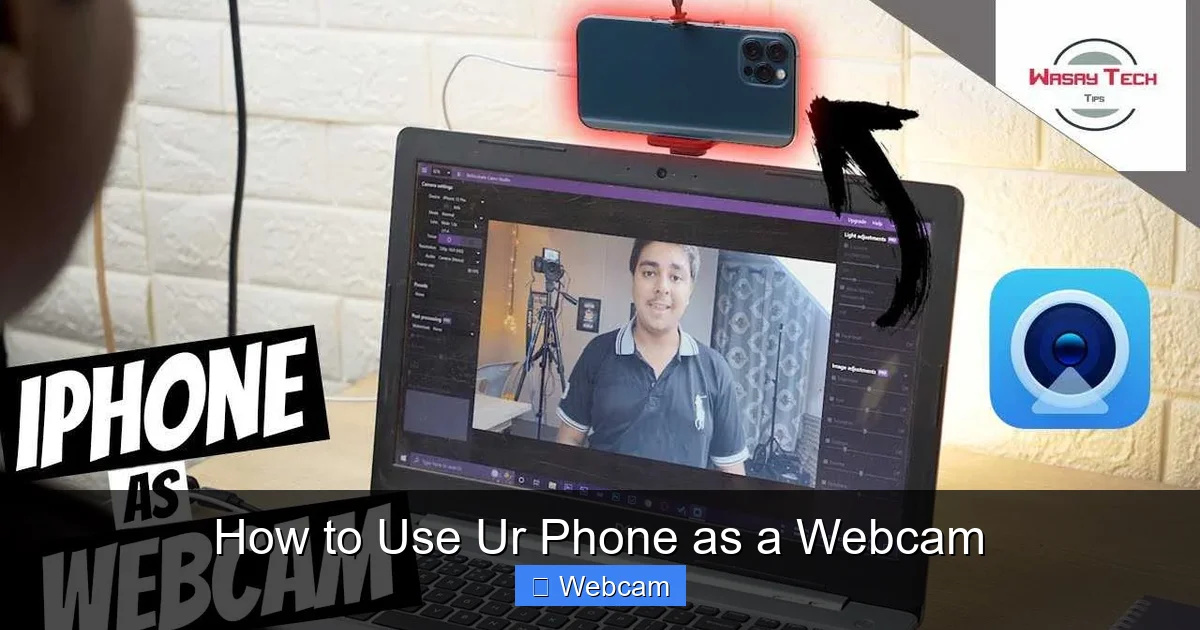
Visual guide about How to Use Ur Phone as a Webcam
Image source: techsynchron.com
Using ur phone as a webcam gives you:
- Higher video quality: Most modern phones shoot 1080p or 4K video.
- Better audio: Use your phone’s mic or pair with Bluetooth headphones.
- More flexibility: Mount your phone anywhere—desk, tripod, or even a bookshelf.
- Cost savings: No need to buy an expensive webcam.
Whether you’re on a budget or just want better video, this method works for most platforms like Zoom, Skype, Microsoft Teams, and Google Meet.
Step 1: Choose the Right App
The first step in how to use ur phone as a webcam is picking a reliable app. These apps connect your phone to your computer and feed the video feed as a webcam input.
Top Apps to Turn Your Phone into a Webcam
- EpocCam (iOS & Android): One of the most popular apps. Free version available; Pro version removes watermarks and adds features.
- DroidCam (Android only): Works over Wi-Fi or USB. Free version with ads; paid version removes ads and adds HD support.
- IP Webcam (Android): Turns your phone into a streaming server. Free and open-source.
- OBS Mobile (iOS/Android): Great for streaming and recording; integrates with OBS Studio on PC.
- PhoneCam (Windows & macOS): Simple app that pairs with your phone via USB or network.
For beginners, we recommend EpocCam because it’s easy to set up and works on both iPhone and Android.
Step 2: Set Up Your Phone
Once you’ve downloaded the app, open it on your phone and follow the setup steps.
For EpocCam (iPhone & Android):
- Download EpocCam from the App Store or Google Play.
- Open the app and note the IP address shown (e.g., 192.168.1.5:8080).
- On your computer, go to the EpocCam website (epoccam.com) and download the desktop app.
- Install and open the desktop app—it will automatically detect your phone if on the same Wi-Fi.
For DroidCam (Android only):
- Install DroidCam on your Android phone and on your PC.
- Connect via USB or Wi-Fi. Wi-Fi is easier but requires both devices on the same network.
- Open DroidCam on your phone, then launch DroidCam on your computer.
- The app will show a live preview. Click “Start Server” on your phone and “Connect” on your PC.
💡 Pro Tip: Keep your phone charged or plugged in during long calls to avoid battery drain.
Step 3: Connect to Your Video App
Now that your phone is connected to your computer, it appears as a webcam in your video calling apps.
Using Your Phone Webcam on Zoom:
- Open Zoom and join or start a meeting.
- Click the up arrow next to “Camera” in the video settings.
- Select your phone’s camera (e.g., “EpocCam” or “DroidCam”).
- You should see your phone’s video feed.
For Skype, Teams, or Google Meet:
- Open your video app and go to Settings > Video.
- Choose your phone’s camera from the dropdown.
- Test the video and audio before going live.
💡 Note: Some apps may require you to allow camera access. If your phone’s video doesn’t show, check your privacy settings.
Step 4: Position and Optimize Your Setup
How you position your phone makes a big difference in video quality.
Mounting Your Phone
- Use a phone tripod or tablet stand to keep it stable.
- Place it at eye level—about 5–6 feet from your face.
- Angle it slightly downward so your face fills the frame.
Lighting Tips
- Sit facing a window for natural light.
- Avoid backlighting (light behind you)—it makes you look dark.
- Use a ring light or desk lamp for even lighting.
Audio Setup
- Use your phone’s built-in mic or connect Bluetooth headphones.
- For best results, use an external mic with your phone via USB-C or Lightning.
💡 Pro Tip: Close background apps on your phone to reduce lag and improve performance.
Step 5: Test and Troubleshoot
Before your big meeting, do a quick test.
Check Video and Audio
- Preview your feed in Zoom or your app.
- Make sure your face is centered and in focus.
- Ask a friend to listen to your audio quality.
Common Issues & Fixes
| Issue | Solution |
|---|---|
| No video feed | Check Wi-Fi connection. Restart both phone and computer apps. |
| Laggy or choppy video | Move closer to router or switch from Wi-Fi to USB. |
| Audio not working | Check app permissions and mic settings in your video app. |
| Watermark on video (EpocCam Free) | Upgrade to EpocCam Pro or use a different app. |
💡 Bonus Tip: Use a USB cable for a stable, lag-free connection. Most Android phones support USB webcam mode with DroidCam.
Advanced Tips for Better Performance
Want to take your setup to the next level?
- Use OBS Studio: Combine your phone with screen sharing, overlays, and effects.
- Enable HDR: If your phone supports it, turn on HDR in the camera app for better contrast.
- Use a Green Screen: Apps like OBS let you add virtual backgrounds for a professional look.
- Record Your Calls: Some apps allow recording directly from your phone.
💡 Pro Tip: Keep your phone and apps updated for the best performance and security.
Conclusion: Your Phone Is a Powerful Webcam
You now know exactly how to use ur phone as a webcam for better video quality, flexibility, and cost savings. With just an app, a stable connection, and a few minutes of setup, you can replace your laptop’s built-in camera with your smartphone’s superior optics.
Whether you’re working, teaching, or connecting with family, your phone can deliver clear video and crisp audio. Try it today—your next video call will look and sound better than ever.
FAQs
Can I use my iPhone as a webcam?
Yes! Apps like EpocCam and PhoneCam let you turn your iPhone into a webcam. Just install the app on your phone and the companion app on your computer. It works with Zoom, Skype, and more.
Do I need Wi-Fi to use my phone as a webcam?
You can use Wi-Fi or a USB cable. Wi-Fi is wireless but may cause lag. USB gives a stable, high-quality connection and often works better for long calls.
Is there a free way to use my phone as a webcam?
Yes! Apps like DroidCam (free version) and IP Webcam offer free basic functionality. EpocCam has a free version but adds a watermark. For no watermark, consider upgrading or using alternative free tools.
Can I use my phone as a webcam for gaming streams?
Absolutely. Use apps like OBS Mobile or EpocCam with OBS Studio on your PC. You can stream gameplay while using your phone as a camera overlay for a more engaging stream.
Will using my phone as a webcam drain the battery?
Yes, video streaming uses power. Keep your phone plugged in during long calls. Close background apps and reduce screen brightness to save battery.
Can I use my phone as a webcam on a Mac or Windows?
Yes! Most apps like EpocCam, DroidCam, and PhoneCam support both macOS and Windows. Just download the correct version for your operating system.



