


Looking to keep your home safe without spending a fortune? Transforming your webcam into a security camera is simpler than you might think and can be done in just a few steps. With the right software, your existing webcam can become an effective surveillance tool.
In just a few minutes, you can set up your webcam for motion detection and remote viewing, turning it into a makeshift security camera. No need for expensive equipment—your computer and some free or affordable software are all you need. This article will guide you through the process of repurposing your webcam as a security camera, helping you monitor your space easily and affordably.

How to Use Webcam as Security Camera: A Complete Guide
Turning your existing webcam into a security camera is an easy way to keep an eye on your home or office without buying fancy equipment. This method is budget-friendly and convenient, especially if you already own a webcam. In this section, you’ll learn step-by-step how to set up your webcam for security purposes and maximize its potential.
Understanding the Benefits of Using a Webcam as a Security Camera
Using a webcam as a security camera offers several advantages. It is cost-effective because you utilize equipment you already own. Additionally, webcams are portable and easy to reposition. They also provide high-resolution images, which help in identifying intruders clearly.
However, it is important to note some limitations too. Webcams might require a stable internet connection and a computer to operate continuously. They may also have fewer features compared to dedicated security cameras. Despite these, webcams are suitable for small-scale monitoring.
Choosing the Right Webcam for Security Monitoring
Key Features to Consider
- Resolution: Opt for webcams with at least 1080p HD resolution for clear images.
- Field of View: A wider angle, such as 120 degrees, covers more area.
- Night Vision: Important for monitoring in low-light conditions.
- Motion Detection: Built-in sensors trigger recordings when movement is detected.
- Connectivity: Ensure your webcam can easily connect via USB or Wi-Fi.
Types of Webcams Suitable for Security
- USB Webcams: Easy to set up and compatible with most computers.
- Wi-Fi Webcams: Offer remote access and placement flexibility.
- IP Cameras: Network cameras with advanced features, suitable for professional setups.
Setting Up Your Webcam as a Security Camera
Step 1: Install Necessary Software
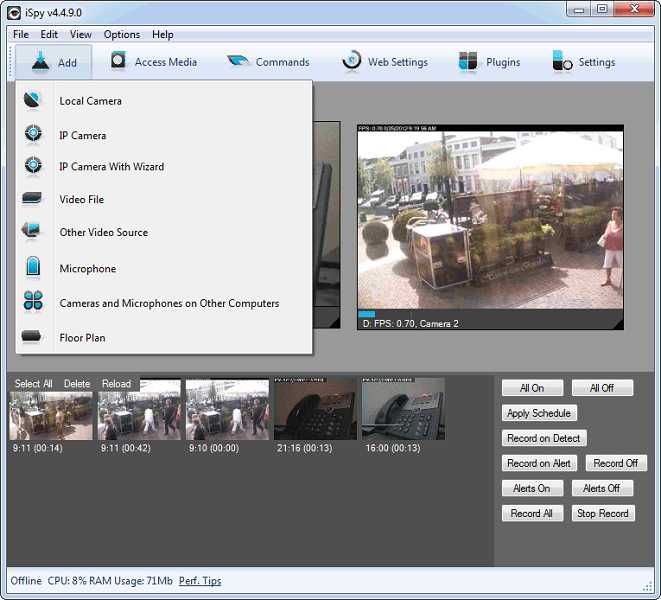
Begin by choosing software that transforms your webcam into a security device. Popular options include OBS Studio, ManyCam, or specialized security software like iSpy or ContaCam. Download and install the software following the provided instructions.
Step 2: Connect Your Webcam
If you use a USB webcam, connect it directly to your computer’s USB port. For Wi-Fi webcams, follow the manufacturer’s instructions to connect the device to your network. Make sure the webcam is recognized and functioning properly before proceeding.
Step 3: Configure Camera Settings
Adjust resolution, frame rate, and motion detection settings within your chosen software. Enable notifications or alerts for movement if supported. Position the webcam in a strategic location, such as entrances or high-traffic areas.
Step 4: Set Up Remote Monitoring
Most security software allows remote access via smartphones or tablets. Configure port forwarding or use cloud-based services provided by the software. Test the live feed from remote devices to ensure proper setup.
Optimizing Webcam Placement for Maximum Security
Strategic Positioning
Place your webcam high on a wall or ceiling for a wider view. Avoid obstructions that could block important areas. Focus on entry points like doors and windows to catch movement early.
Lighting Considerations
Ensure the area is well-lit during the day. Use external lights or infrared night vision if necessary. Proper lighting helps improve image clarity during nighttime surveillance.
Privacy and Legal Aspects
Always respect privacy laws and avoid pointing webcams at private spaces such as neighbors’ property or shared areas. Inform family members or employees about the surveillance setup where applicable.
Enhancing Security with Additional Features
Motion Detection and Alerts
Activate motion detection to trigger recording or send alerts to your device when movement is detected. This feature conserves storage and keeps you informed in real-time.
Recording and Storage Options
Configure your software to save videos locally on your computer or on cloud storage services for easy access. Regularly back up recordings to prevent data loss.
Integrating with Home Automation
Connect your webcam security system with smart home devices like alarms or smart locks. This integration enhances overall security and allows for automated response to detected threats.
Maintaining and Troubleshooting Your Webcam Security System
Regular Updates
Keep your software and firmware updated to benefit from latest security patches and features. Regular updates improve system stability and security.
Checking Connections and Power
Periodically verify that your webcam remains connected and powered. Replace batteries or fix loose cables as needed to ensure continuous operation.
Addressing Common Issues
- No video feed: Check connections, restart the software, or update drivers.
- Poor image quality: Adjust resolution settings or reposition the webcam for better lighting.
- Motion detection not working: Confirm settings are enabled and sensitivity is appropriate.
Related Topics and Additional Tips
For enhanced security, consider combining multiple webcams for broader coverage. Use a UPS (Uninterruptible Power Supply) to keep your system running during outages. Regularly review footage to identify vulnerabilities or suspicious activity.
| Aspect | Details |
|---|---|
| Camera Type | USB Webcam, Wi-Fi Webcam, IP Camera |
| Essential Features | High resolution, night vision, motion detection |
| Placement Tips | High, central location with good lighting |
| Power Backup | Use UPS for continuous operation during power outages |
By carefully selecting your webcam, setting it up properly, and maintaining it regularly, you can turn a simple device into an effective security tool. This approach makes surveillance affordable and accessible for all, giving peace of mind without the need for specialized equipment.
Turn Webcam into Security Camera and viewing on your Mobile | NETVN
Frequently Asked Questions
What software can I use to turn my webcam into a security camera?
You can use various applications like ManyCam, iSpy, or Yawcam that are designed to convert your standard webcam into a security camera. These programs offer features such as motion detection, recording, and remote access, making it easier to monitor your space effectively. Choose software compatible with your operating system and ensure it has the features you need for your security setup.
How can I set up my webcam for continuous monitoring?
To set up continuous monitoring, install suitable surveillance software that supports loop recording and motion alerts. Connect your webcam to your computer and configure the software to start automatically on system startup. Adjust camera settings like resolution and frame rate for clear footage, and position your webcam in a strategic spot to cover the desired area effectively.
What are some tips to improve the security of my webcam setup?
Enhance security by changing default passwords on your accounts and software, enabling encrypted connections, and keeping your software up to date. Position your webcam in a way that prevents unauthorized physical access, and consider using a firewall to restrict access to your monitoring system. Regularly review recorded footage and monitor your setup for any unauthorized activity.
Can I access my webcam footage remotely from different devices?
Yes, most surveillance software allows remote access through secure connections. You can view live footage and recorded videos on your smartphone, tablet, or another computer by using dedicated apps or web interfaces. Make sure to set up proper login credentials and enable encryption to protect your privacy during remote access.
What precautions should I take to ensure my webcam-based security system works reliably?
Ensure your computer and webcam are connected to a stable power source and internet connection. Keep the software updated to fix bugs and security vulnerabilities. Regularly check the positioning of the webcam and clean the lens for clear footage. Additionally, test the system periodically to confirm it functions correctly and adjust settings as needed to maintain optimal performance.
Final Thoughts
Using your webcam as a security camera is simple and effective. First, choose reliable software that enables remote access and motion detection. Set up your webcam in a strategic location for optimal monitoring. Regularly update your software to ensure security and functionality.
In conclusion, how to use webcam as security camera involves selecting the right software and positioning your camera wisely. Follow these steps to effectively protect your space and monitor activities remotely with ease.



