


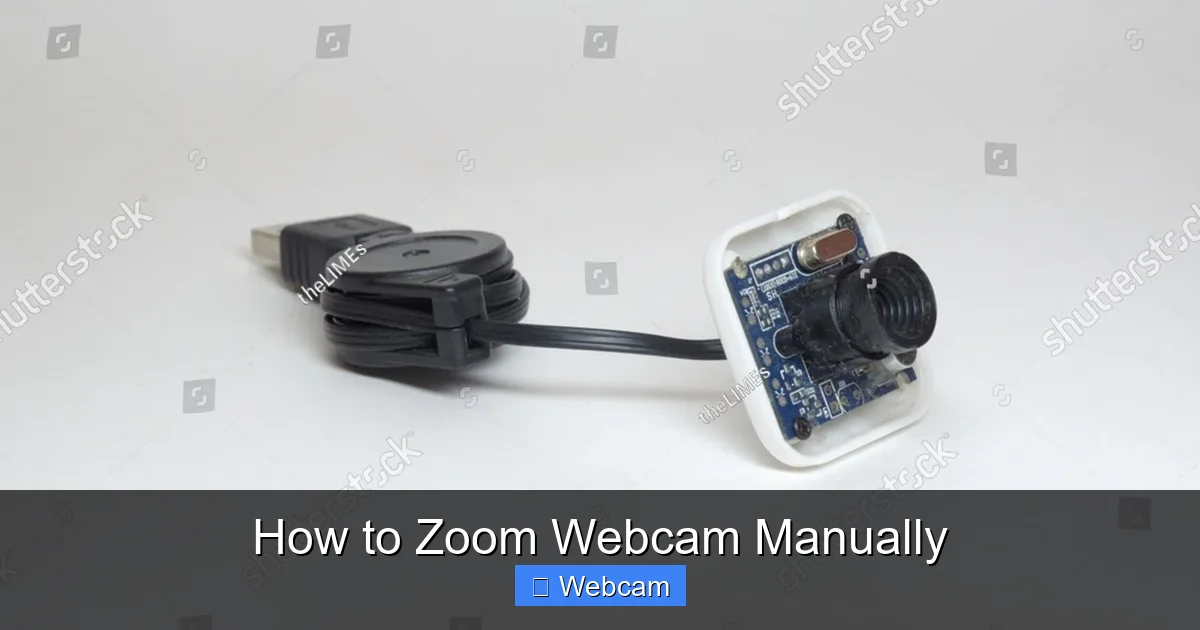
Many common webcams lack optical zoom, so mastering how to zoom webcam manually often involves digital software controls or clever physical adjustments. This guide will walk you through accessing your webcam’s built-in settings, exploring third-party applications, and making simple physical tweaks to achieve the perfect framing for your video calls or streams. Discover practical methods to enhance your on-screen presence and control your webcam’s view effectively.
How to Zoom Webcam Manually
In today’s connected world, a clear and well-framed webcam view is essential for everything from important business meetings to casual chats with friends or even professional streaming. But if you’ve ever felt like your webcam captures too much of your messy room or leaves you looking like a tiny dot in a vast landscape, you’re not alone. Many people wonder how to zoom webcam manually to get that perfect shot.
The truth is, “manual zoom” for webcams isn’t always as straightforward as twisting a lens on a traditional camera. Most consumer webcams don’t have optical zoom. Instead, they rely on digital methods. This guide will demystify the process, showing you several practical approaches to achieve a zoomed-in, professional, and perfectly framed look, whether through software adjustments, third-party applications, or clever physical positioning. By the end, you’ll have all the tools to take full control of your webcam’s perspective.
Key Takeaways
- Understand Digital vs. Optical Zoom: Most consumer webcams use digital zoom, which crops and enlarges the existing image, potentially reducing quality. Optical zoom, common in professional cameras, physically adjusts the lens without quality loss.
- Check Your Webcam’s Native Software: Your webcam likely came with a utility program that offers controls for zoom, pan, tilt, and other image adjustments. This is often the most direct way to zoom webcam manually.
- Utilize Third-Party Webcam Applications: Programs like OBS Studio, ManyCam, or even specific camera apps can act as virtual webcams, providing extensive control over zoom and framing, even if your native software is limited.
- Employ Physical Adjustments: Sometimes, the simplest “manual zoom” is to physically move your webcam closer or further away, or adjust your own seating position, to achieve the desired framing without digital manipulation.
- Leverage Video Conferencing Software: Many platforms like Zoom, Teams, or Google Meet now include built-in features for cropping, virtual backgrounds, and slight framing adjustments that can mimic a manual zoom.
- Prioritize Lighting for Quality: When digitally zooming, good lighting becomes even more critical. Proper illumination can help mitigate the quality loss associated with digital enlargement.
- Experiment and Troubleshoot: Not all webcams and software combinations are the same. Be prepared to experiment with different methods and troubleshoot common issues like greyed-out settings or poor image quality.
Understanding Webcam Zoom: Digital vs. Optical
Before we dive into the “how-to,” it’s crucial to understand the two main types of zoom you might encounter, especially with webcams. This knowledge will help set your expectations for image quality when you try to zoom webcam manually.
The Myth of Optical Zoom for Most Webcams
Optical zoom involves physically moving the lenses within a camera to magnify the image *before* it hits the camera’s sensor. Think of traditional camcorders or DSLR cameras. This method allows you to zoom in without any loss of image quality, as you’re effectively just getting a closer view of the scene.
Unfortunately, the vast majority of consumer-grade webcams, especially those built into laptops or external USB models under a certain price point, simply do not feature optical zoom. Including complex moving lens elements would make them much bulkier and more expensive. So, if you’re looking to zoom webcam manually, you’re likely not working with an optical system.
Embracing Digital Zoom: What It Is and How It Works
Digital zoom, on the other hand, is a software-based process. Instead of physically moving lenses, the camera’s software takes the existing image (which is already fixed at a certain focal length) and crops it, then digitally enlarges the cropped section to fill the frame.
Imagine taking a photo, then cropping out a small part of it and stretching that small part to fit the original photo’s dimensions. That’s essentially what digital zoom does. The main drawback is a potential reduction in image quality. As you digitally zoom in, the pixels are stretched, leading to a softer, more pixelated, or “grainy” image, especially if you zoom too much.
However, modern webcams with higher resolutions (like 1080p or 4K) can often handle a moderate amount of digital zoom quite well before noticeable quality degradation occurs. This means learning to zoom webcam manually using digital methods is still a very viable and effective solution for many.
Checking Your Webcam’s Capabilities
Before downloading any new software, it’s always best to start by checking what your existing hardware and drivers can do. You might already have the tools to zoom webcam manually.
Consult Your Webcam’s Manual
If you have an external webcam, dig out its user manual or look it up online on the manufacturer’s website. The manual is the definitive source for understanding your specific model’s features, including whether it offers any form of zoom and how to access it. It will also tell you if there’s dedicated software available.
Look for Built-in Software
Many webcam manufacturers (Logitech, Razer, Microsoft, etc.) provide their own control panel software or utilities when you install the webcam drivers. This software often allows you to adjust various image settings, including brightness, contrast, white balance, and crucially, pan, tilt, and zoom.
Method 1: Using Your Webcam’s Native Software/Drivers
This is usually the most straightforward and recommended first step to zoom webcam manually.
Locating Your Webcam’s Control Panel
First, you need to find this software.
- For external webcams: If you installed drivers from a CD or downloaded them, there’s likely an application in your Start Menu (Windows) or Applications folder (macOS) named after your webcam brand (e.g., “Logitech Capture,” “Razer Synapse,” “Dell Webcam Central”).
- For built-in laptop webcams: These are trickier. Sometimes the manufacturer provides a utility (e.g., “HP Camera Control,” “Lenovo Vantage”). Other times, you might need to access it via Windows Device Manager or macOS System Settings.
On Windows:
- Right-click the Start button and select “Device Manager.”
- Expand “Cameras” or “Imaging devices.”
- Right-click your webcam and select “Properties.”
- Look for a “Driver” tab or “Details” tab that might lead to a control panel or settings. Some webcams integrate with the “Camera” app found in the Start Menu, which might offer basic controls. For more advanced settings, you might need to install specific drivers from your laptop manufacturer’s website.
On macOS:
- Open “System Settings” (or “System Preferences” on older macOS versions).
- Navigate to “Privacy & Security” > “Camera.” While this doesn’t offer zoom controls, it ensures your webcam is recognized.
- For actual control, you’ll need a specific app, either from the webcam manufacturer (for external cams) or a third-party app.
Adjusting Zoom and Pan/Tilt Settings
Once you open your webcam’s dedicated software, look for sliders or buttons labeled “Zoom,” “Pan,” or “Tilt.”
- Zoom: Drag the slider or click the buttons to zoom in or out. Remember the digital zoom limitations mentioned earlier regarding quality.
- Pan/Tilt: These control the horizontal (pan) and vertical (tilt) movement of your camera’s view *digitally*. This is super useful after you’ve zoomed in, as it allows you to re-center yourself in the frame.
Experiment with these settings while viewing your webcam’s feed in a preview window to get the perfect framing.
Saving Your Preferred Settings
Many native webcam applications allow you to save profiles or configurations. If you find a setting you like, save it! This way, you don’t have to readjust everything every time you open a video call. Some software might apply these settings globally, while others require you to launch the software first.
Method 2: Utilizing Third-Party Webcam Software
If your webcam’s native software is too basic or non-existent, third-party applications can provide much more granular control to zoom webcam manually. These tools often create a “virtual webcam” that other applications can then use.
Exploring Popular Options
Several excellent third-party tools can help you zoom webcam manually and offer a host of other features:
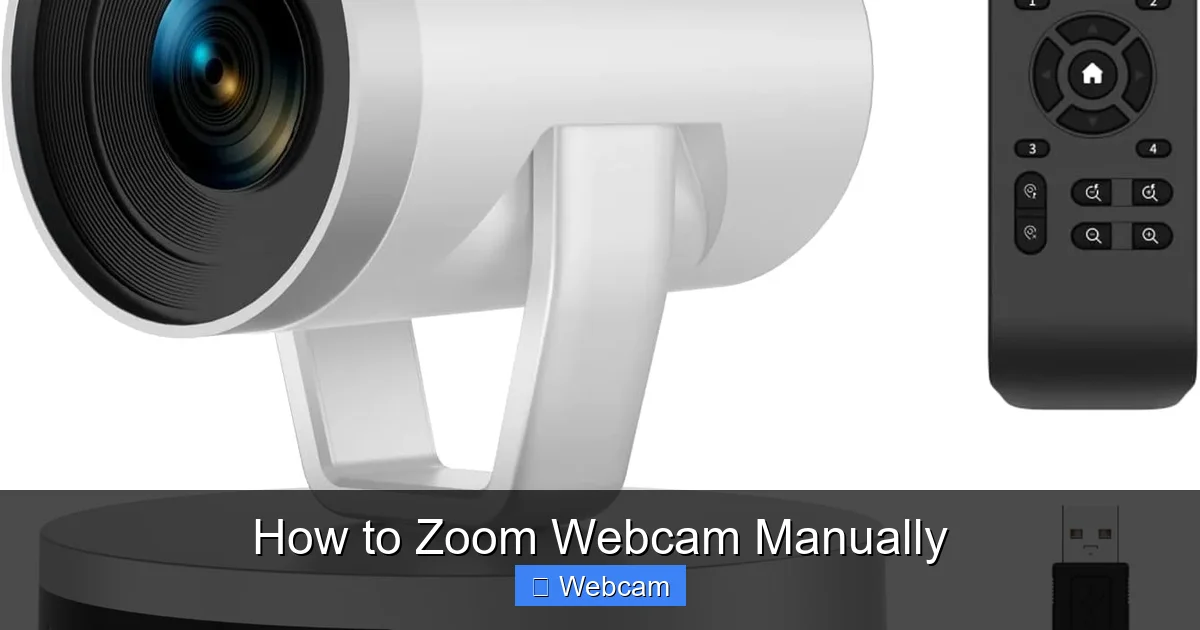
Visual guide about How to Zoom Webcam Manually
Image source: m.media-amazon.com
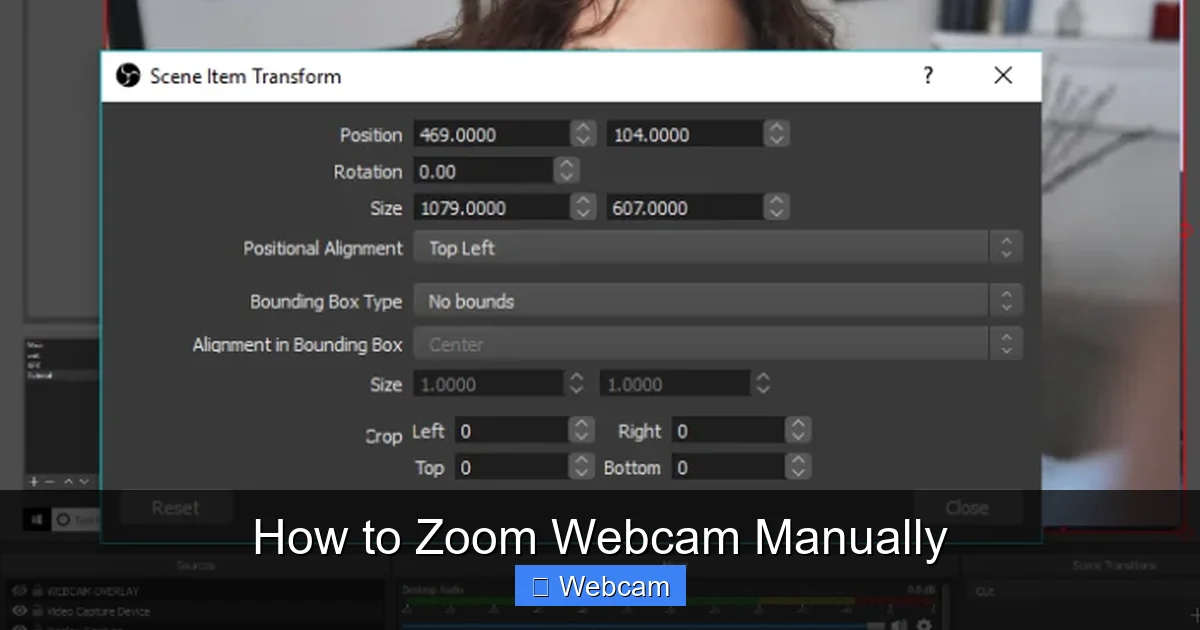
Visual guide about How to Zoom Webcam Manually
Image source: fineshare.com
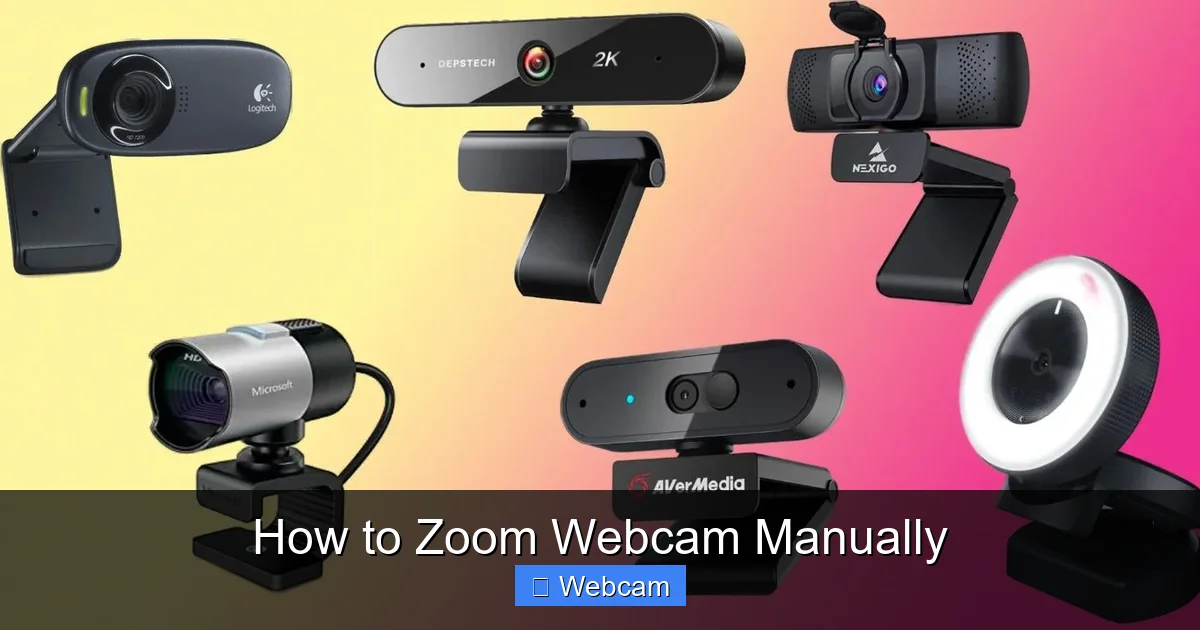
Visual guide about How to Zoom Webcam Manually
Image source: robots.net
- OBS Studio: A free and open-source powerhouse, primarily used for streaming, but excellent for webcam control. You can add your webcam as a “Video Capture Device,” then crop, resize, and even apply effects to it.
- ManyCam: Offers virtual webcam capabilities with layers, effects, and powerful zoom/pan controls. It has a free version with limited features and paid versions for more advanced functionality.
- NVIDIA Broadcast / AMD Adrenalin: If you have a compatible NVIDIA or AMD graphics card, these tools can provide advanced AI-powered features like background blur/replacement, noise removal, and *auto-framing* (which acts like an intelligent zoom/pan).
- Specific Camera Apps (e.g., FineShare FineCam, Webcam Settings by Mactaris for Mac): These are often simpler, dedicated apps designed specifically for controlling webcam parameters.
Setting Up Virtual Cameras
With tools like OBS Studio or ManyCam, the process generally involves:
- Launching the software.
- Adding your physical webcam as a source.
- Applying transformations (resizing, cropping) or using built-in zoom sliders within the software.
- Activating the software’s “Virtual Camera” feature.
- In your video conferencing app (Zoom, Teams, Google Meet, etc.), selecting the “OBS Virtual Camera” or “ManyCam Virtual Webcam” as your camera source instead of your physical webcam.
This allows the third-party software to preprocess your webcam feed, including applying your desired zoom, before sending it to your video call.
Applying Zoom and Framing Effects
Within these programs, you’ll typically find options to:
- Crop: Manually crop the edges of your webcam feed to focus on a specific area, effectively zooming in.
- Resize and Position: If you’re using a virtual canvas (like in OBS), you can resize your webcam feed to take up a smaller portion and then zoom the entire canvas in, giving the impression of zoom.
- Zoom Sliders/Controls: Some dedicated webcam apps will have direct zoom sliders, similar to native software.
These tools give you immense flexibility to zoom webcam manually with precision.
Method 3: The “Analog” Approach: Physical Adjustments for Manual Zoom
Sometimes, the best way to “zoom webcam manually” doesn’t involve any software at all. Simple physical adjustments can be incredibly effective and avoid the quality loss of digital zoom.
Move Your Webcam Closer or Further Away
This is the most fundamental form of manual zoom.
- To zoom in: Move your webcam physically closer to you or the subject you want to capture.
- To zoom out: Move it further away.
Consider investing in a small webcam tripod or an adjustable arm mount. These accessories offer much greater flexibility in positioning your webcam compared to just clipping it to your monitor.
Adjust Your Seating Position
If moving the webcam isn’t an option (e.g., a built-in laptop camera), try moving *yourself*.
- To appear more “zoomed in”: Move your chair closer to your desk (and thus, closer to your laptop screen).
- To appear more “zoomed out”: Move your chair slightly further back.
Remember to maintain a comfortable posture and a good distance from the screen for your eyes.
Changing Your Background for Better Framing
While not a direct zoom, adjusting your background can significantly impact how “framed” you appear. A cluttered or busy background can make you seem smaller and less central.
- Declutter: Remove unnecessary items from behind you.
- Use a plain background: A solid color wall or a neatly arranged bookshelf can make you stand out more effectively.
This “mental zoom” focuses the viewer’s attention on you, achieving a similar effect to a subtle zoom without any digital manipulation.
Method 4: Leveraging Video Conferencing Software Features
Modern video conferencing platforms have become quite sophisticated, often integrating features that can help you zoom webcam manually or at least achieve a better frame.
Zoom, Microsoft Teams, Google Meet – Built-in Controls
Many platforms offer basic camera adjustments within their settings:
- Zoom: In the Zoom client, go to “Settings” > “Video.” Look for “HD” checkbox and “Touch up my appearance.” More importantly, some webcams (especially Logitech) integrate directly, and you’ll see a “My Video” section with direct camera controls for pan, tilt, and zoom. Zoom also has a “Background & Filters” section where you can adjust your aspect ratio or apply blur.
- Microsoft Teams: During a call or meeting, click “More actions” (…) > “Device settings.” Some webcams will offer direct pan/tilt/zoom options here. Teams also has robust “Background effects” to blur or replace your background, which can help focus attention.
- Google Meet: In Meet, click “More options” (…) > “Settings” > “Video.” You might find options for resolution or an “Adjust video settings” link that opens your webcam’s native controls if supported.
Always check the video settings within the specific application you’re using, as features are constantly being updated.
Virtual Backgrounds and Cropping
Even if direct zoom controls aren’t available, features like virtual backgrounds or background blurring can achieve a similar effect by making you stand out more prominently. By obscuring distracting elements, the viewer’s eye is drawn to you, creating a sense of being “zoomed in” on the most important subject. Some platforms also allow you to adjust how much of your virtual background is shown, which can indirectly crop your feed.
Advanced Tips for Perfect Webcam Framing
Once you’ve figured out how to zoom webcam manually, here are some tips to truly master your on-screen presence.
The Rule of Thirds
Instead of always placing yourself dead center, try using the “rule of thirds.” Imagine your screen divided into a 3×3 grid. Position yourself or your eyes along the intersecting lines or points. This often creates a more visually engaging and balanced composition.
Optimizing Lighting
Good lighting is paramount, especially when digitally zooming.
- Frontal lighting: Place your light source (a window, ring light, desk lamp) in front of you, slightly above eye level. This illuminates your face evenly and minimizes harsh shadows.
- Avoid backlighting: Don’t have a bright window or lamp directly behind you, as this will turn you into a silhouette.
- Soft light is best: Diffuse harsh light with a lampshade or diffuser.
Proper lighting makes you look clearer and more professional, which is extra important when you zoom webcam manually and potentially introduce some digital artifacts.
Decluttering Your Background
We mentioned this before, but it bears repeating. A clean, simple background helps keep the focus on you. Remove any distracting items, clean up shelves, or simply choose a plain wall.
Eye Contact and Camera Placement
For truly engaging video interactions, try to look directly into your webcam’s lens as much as possible, especially when speaking. This simulates direct eye contact. Place your webcam at eye level to avoid awkward upward or downward angles. A monitor stand or webcam tripod can help achieve this.
Troubleshooting Common Zoom Issues
Even with the best instructions on how to zoom webcam manually, you might run into a few snags.
Zoom Option is Greyed Out
- Check for dedicated software: Make sure you’ve installed your webcam’s specific drivers and control panel software. Generic drivers from Windows or macOS might not unlock all features.
- Software conflicts: Close all other applications that might be using your webcam (e.g., other video conferencing apps, recording software). Only one application can typically control the webcam at a time.
- Webcam limitation: It’s possible your webcam simply doesn’t support digital zoom, or it’s limited to very basic adjustments. In this case, rely on physical adjustments or third-party virtual camera software.
Poor Image Quality After Digital Zoom
- Resolution matters: If your webcam is only 720p, a significant digital zoom will quickly degrade quality. A 1080p or 4K webcam will handle digital zoom much better.
- Increase lighting: As discussed, better lighting can help mask some of the artifacts of digital zoom.
- Minimize zoom: Try to use the least amount of digital zoom necessary. Combine it with physical adjustments to find a balance between framing and quality.
- Check virtual camera settings: If using a third-party virtual camera, ensure its output resolution is set appropriately and isn’t further downscaling your image.
Software Conflicts
If one application isn’t recognizing your webcam or its settings, ensure other apps aren’t hogging it. Close down everything, then open the desired application or control panel first. Sometimes a simple computer restart can also clear up temporary conflicts.
Conclusion
Mastering how to zoom webcam manually is a valuable skill for anyone who spends time on video calls, streams, or creating content. While most consumer webcams lack optical zoom, you now have a comprehensive toolkit of strategies: leveraging your webcam’s native software, exploring powerful third-party virtual camera applications, and even employing clever physical adjustments.
Remember that a combination of these methods often yields the best results. Experiment with different approaches, optimize your lighting, and pay attention to your background. By taking control of your webcam’s perspective, you can ensure you always present your best self, whether for a crucial business presentation or just catching up with loved ones. Go forth and frame yourself perfectly!



