


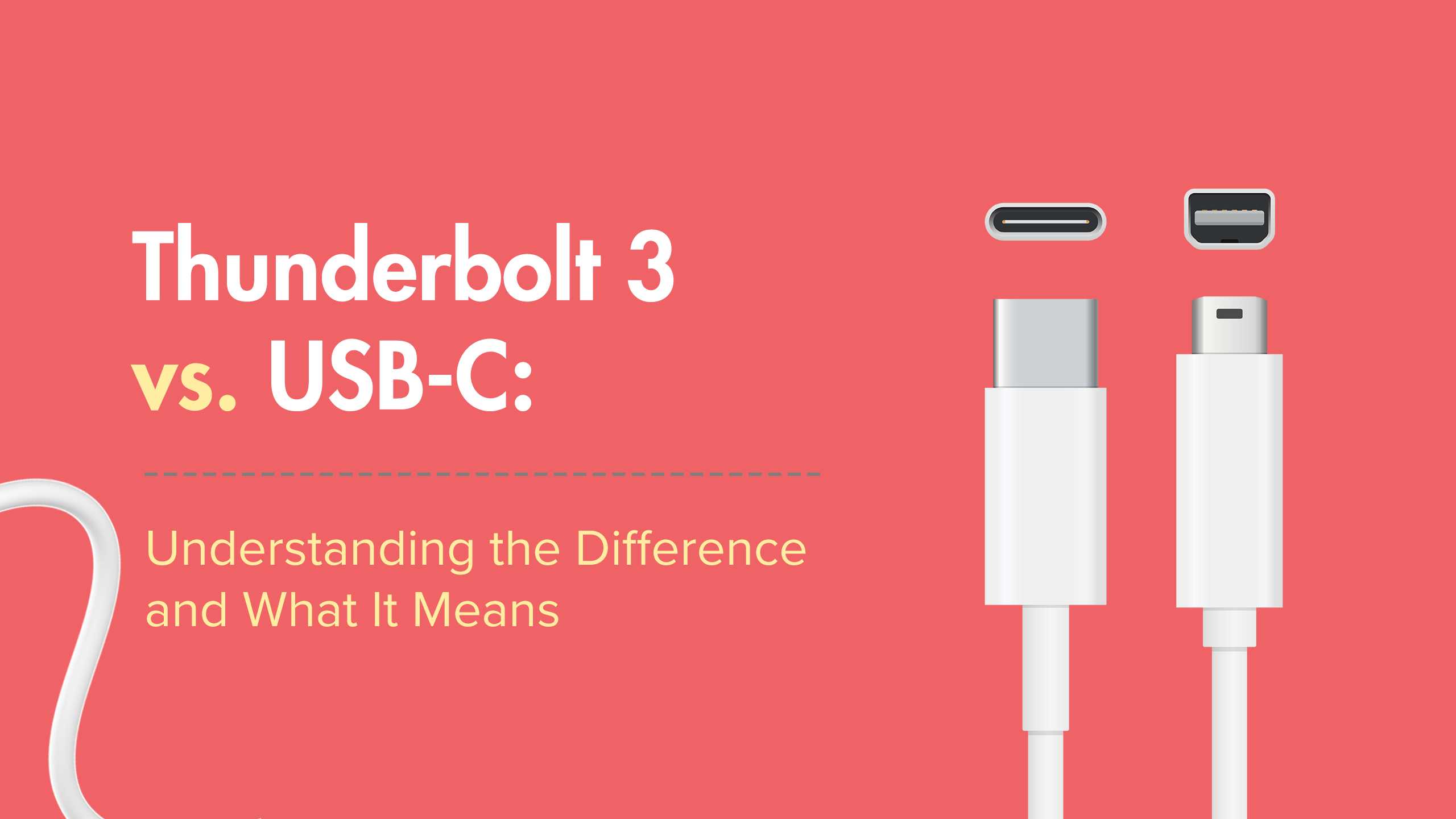
A USB-C monitor can be just as good, if not better, than a Thunderbolt, depending on your needs. Both offer fast data transfer and high-quality displays, but USB-C provides broader compatibility and often a more affordable option. While Thunderbolt boasts higher speeds and daisy-chaining capabilities, USB-C is more versatile for everyday use, making it a popular choice for many users.
In short, whether a USB-C monitor is better than a Thunderbolt depends on your specific requirements. If you prioritize cost, compatibility, and simplicity, a USB-C monitor might be the way to go. However, for professional workflows needing maximum speed and expandability, Thunderbolt could still hold the edge.
Choosing between a USB-C and Thunderbolt monitor boils down to what matters most for your setup. If you’re looking for a versatile, budget-friendly option that’s compatible with most devices, a USB-C monitor could be your best bet. On the other hand, if you need top-tier performance and future-proofing for high-end tasks, Thunderbolt offers a level of speed and connectivity that may be worth the investment.

Is USB C Monitor Better Than Thunderbolt? A Detailed Comparison
Understanding the Connection Types: USB C and Thunderbolt
Both USB C and Thunderbolt are modern connection standards that allow for fast data transfer and video output. USB C is widely used across many devices, whereas Thunderbolt offers higher speeds but is less common. Knowing their differences helps determine which is better for your needs.
USB C is a versatile port that supports data transfer, power delivery, and video signals all through a single cable. Thunderbolt, especially Thunderbolt 3 and 4, can transfer data at much higher speeds and support multiple monitors with a single connection.
Speed and Data Transfer Capabilities
Speed is a critical factor when comparing USB C and Thunderbolt. USB C 3.2 can transfer data at up to 20 Gbps, while Thunderbolt 3 and 4 can reach speeds of 40 Gbps. This difference impacts file transfer times, especially with large files or high-resolution video editing.
For users who need to transfer massive data sets quickly, Thunderbolt offers a clear advantage. However, for everyday tasks like web browsing or streaming, USB C’s speed is generally sufficient.
Video Output and Graphics Support
Both standards support video output, but Thunderbolt supports dual 4K displays simultaneously. USB C can support 1-2 displays depending on the device’s capabilities and specifications. The key difference lies in bandwidth and compatibility with high-resolution monitors.
If you require multiple high-resolution monitors for professional work, Thunderbolt provides more reliable performance and higher bandwidth support. USB C is suitable for single or dual monitor setups with lower resolution needs.
Power Delivery and Charging
USB C excels in power delivery, supporting up to 100W of charging power which can charge laptops, tablets, and smartphones. Thunderbolt also supports power delivery but often at slightly lower rates depending on the device.
This makes USB C more convenient for users who prefer a single cable to connect and charge their devices without needing extra adapters or docks.
Compatibility and Device Support
USB C is compatible with a broader range of devices, including smartphones, tablets, and laptops. Its widespread adoption makes it easier to find compatible monitors and accessories.
Thunderbolt, mainly used in high-end and professional-grade devices, may not be available on all laptops or computers. This limits its compatibility but offers higher performance where it is supported.
Cost and Availability
Generally, USB C monitors tend to be more affordable because USB C ports are more common on mainstream devices. Thunderbolt monitors, being specialized and high-performance, tend to cost more.
For budget-conscious buyers, USB C offers a good balance of features and affordability, whereas professionals might prefer Thunderbolt for its superior performance despite the higher cost.
Design and Portability Considerations
USB C ports are smaller and more versatile, making the monitors more lightweight and easier to carry. Thunderbolt connections are slightly larger but offer more robust data support.
The form factor of a monitor and its portability should influence your choice, especially if you often travel or switch between different setups.
Future-Proofing and Technology Trends
USB C continues to evolve rapidly, with new standards like USB 4 promising even faster speeds and better support. Thunderbolt 4 is already aligned with these advancements, ensuring longevity for high-end setups.
If you’re planning for the future, choosing a monitor with Thunderbolt 4 or upcoming USB standards can provide better investment security and adaptability.
Summary Table: USB C vs. Thunderbolt for Monitors
| Feature | USB C | Thunderbolt |
|---|---|---|
| Maximum Data Transfer Speed | Up to 20 Gbps (USB 3.2) | Up to 40 Gbps (Thunderbolt 3 and 4) |
| Video Support | Supports 1-2 displays, typically 4K | Supports dual 4K or 8K displays |
| Power Delivery | Up to 100W | Up to 100W, depends on device |
| Compatibility | Very broad, across many devices | More limited, high-end devices mainly |
| Cost | More affordable | Higher priced |
Which Should You Choose? Practical Recommendations
If your priority is **broad compatibility and affordability**, a USB C monitor is the way to go. It works well for everyday use, streaming, and standard office tasks.
For **professional users or those needing high-resolution multi-monitor setups**, Thunderbolt offers faster speeds, better support for multiple displays, and future-proof features.
Consider your device ecosystem as well. If your laptop or desktop already features Thunderbolt ports, investing in a Thunderbolt monitor can provide a seamless experience. Conversely, if you rely on USB C devices, sticking with USB C monitors simplifies connectivity.
Additional Features and Considerations
Look at features like adaptive sync, color accuracy, and refresh rates, especially if you’re into gaming or professional photo editing. Both standards support these features but check the monitor specifications for compatibility.
Also consider the availability of docks and accessories. Thunderbolt docks can expand your setup but may add to the total cost. USB C docks are more common and budget-friendly.
Choosing between a USB C monitor and a Thunderbolt monitor depends on your specific needs and budget. While Thunderbolt offers superior speed and connectivity for demanding tasks, USB C provides excellent versatility and affordability for everyday use. Understanding your device compatibility and future plans helps in making the right decision for your setup.
USB-C vs Thunderbolt 4 – The Differences Explained In Under 5 Minutes!
Frequently Asked Questions
How does the compatibility of USB-C monitors compare to Thunderbolt monitors?
USB-C monitors generally offer broader compatibility across various devices since many modern laptops and desktops support USB-C ports. Thunderbolt monitors, on the other hand, require Thunderbolt-specific ports, which are less common on older or budget devices. This means USB-C monitors are often easier to connect and use with a wider range of equipment.
What are the differences in data transfer speeds between USB-C and Thunderbolt monitors?
Thunderbolt typically provides higher data transfer speeds compared to standard USB-C, with Thunderbolt 3 and 4 offering up to 40 Gbps. USB-C, depending on the protocol supported (like USB 3.1, 3.2, or USB4), can reach speeds up to 20 or 40 Gbps. However, the actual speed depends on the specific monitor and cable quality, affecting data-intensive tasks such as high-resolution video editing.
When should I choose a Thunderbolt monitor over a USB-C one?
Opt for a Thunderbolt monitor if you need extremely high data transfer rates, low latency, or plan to connect multiple peripherals through a single port. Thunderbolt’s superior speed and daisy-chaining capabilities suit professional workflows involving high-resolution video editing, 3D rendering, or multiple device connections that a standard USB-C monitor may not handle as effectively.
Are there cost differences between USB-C and Thunderbolt monitors?
Generally, Thunderbolt monitors tend to cost more due to their advanced capabilities and higher hardware requirements. USB-C monitors are more affordable and widely available, making them a practical choice for everyday usage and users who do not require the highest data transfer speeds or multiple device connections.
Can I use a USB-C monitor with a Thunderbolt port, and vice versa?
Yes, most USB-C monitors can connect to Thunderbolt ports because Thunderbolt ports are backward-compatible with USB-C devices. However, connecting a Thunderbolt monitor to a USB-C port may limit performance to USB-C capabilities, meaning you might not access the full speed and features of the Thunderbolt monitor unless the USB-C port supports Thunderbolt standards.
Final Thoughts
In conclusion, choosing between a USB C monitor and Thunderbolt depends on your needs. USB C offers broad compatibility with various devices and simpler connections. Thunderbolt provides faster data transfer and higher performance, ideal for demanding tasks.
However, for everyday use, a USB C monitor often suffices and is more affordable. For professional workflows requiring speed, Thunderbolt stands out.
is usb c monitor better than thunderbolt? It ultimately depends on your priorities, but USB C remains a versatile choice for most users.



