


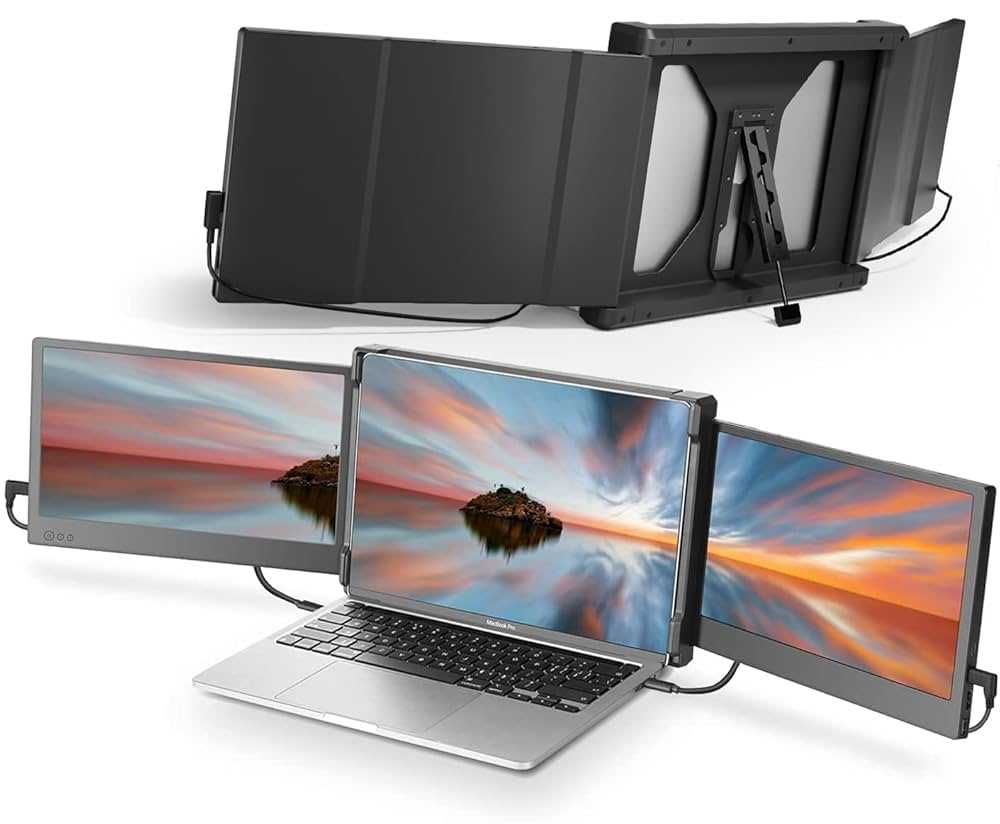
Absolutely, a USB-C monitor can be a game-changer for multitasking, offering simplicity and efficiency. These monitors support high-speed data transfer, power delivery, and versatile connectivity, making them perfect for managing multiple apps and devices at once. Whether you’re working, gaming, or streaming, they can streamline your setup and enhance productivity.
In short, USB-C monitors are excellent for multitasking because they reduce cable clutter and support multiple functions through a single port. They enable seamless connection to laptops and gadgets, allowing you to extend your workspace effortlessly. If you’re looking to optimize your multitasking experience, a USB-C monitor might just be the upgrade you need.
Jumping straight into the topic, many modern professionals and tech enthusiasts wonder if USB-C monitors are truly suitable for multitasking. The good news is, they are designed with convenience and performance in mind, making them a practical choice for users who need to switch quickly between tasks and devices. Their ability to combine display, charging, and data transfer into one simple connection saves time and space, boosting overall productivity. Plus, with their high resolutions and fast refresh rates, they cater to both work and entertainment needs, giving you a versatile and efficient workspace in a sleek, minimal package.

Is USB C Monitor Good for Multitasking
Understanding USB C Monitors and Their Features
A USB C monitor uses the USB Type-C port to connect with your computer or device. This port allows for multiple functions such as video output, data transfer, and power delivery all in one cable. Because of these combined features, USB C monitors are becoming popular among multitaskers. They simplify workspace setups by reducing cable clutter while offering high performance.
Many USB C monitors support **4K resolution**, providing crisp and clear images for detailed work. Some models also support **high refresh rates**, which are great for smooth visuals during fast-paced tasks. Additionally, the ability to charge your device while using the monitor adds convenience, especially for laptops with limited ports.
Advantages of Using a USB C Monitor for Multitasking
Using a USB C monitor offers several benefits for users who need to work on multiple applications at once. First, the **single-cable connection** minimizes clutter on your desk. This means fewer cables, less confusion, and easier setup.
Second, with **power delivery**, your device can stay charged without needing a separate power cable. This is especially helpful when working long hours, ensuring your device remains powered without interruption. Third, some USB C monitors support **dual or multiple display configurations**, enabling you to extend your workflow across several screens.
Furthermore, **fast data transfer** capabilities allow you to move large files quickly between your device and external drives. This reduces waiting time and improves overall productivity, especially when handling multimedia files or complex documents. Overall, these features make USB C monitors a practical choice for multitasking environments.
Compatibility and Device Support
USB C monitors are compatible with many modern devices including laptops, tablets, and even some smartphones. They work seamlessly with **Windows**, **MacOS**, and **Chrome OS** systems that support USB C or Thunderbolt 3.
To ensure compatibility, check your device’s specifications for **USB C support with video output** (DisplayPort over USB C). Some monitors may require specific adapters or cables for older devices. Compatibility also extends to external peripherals like keyboards and mice, which can connect via the monitor’s USB ports, creating a **central hub** for all your devices.
Multitasking Capabilities with USB C Monitors
The true strength of USB C monitors lies in their ability to enhance multitasking. With larger or multiple screens, users can **view several applications simultaneously** without switching tabs constantly. This setup is perfect for professionals, students, or gamers who juggle multiple tasks.
Many USB C monitors support **picture-in-picture (PiP)** or **split-screen** features. These options allow you to display two or more windows side-by-side. For instance, you might have your email open on one side and a document or spreadsheet on the other, making workflow more efficient.
Adding multiple monitors connected via USB C can also create a **multi-screen environment**, providing even more room for multitasking. With proper configuration, switching between tasks becomes faster and more intuitive, benefiting overall productivity.
Performance Considerations and Limitations
While USB C monitors are excellent for multitasking, some limitations exist. The **video resolution** supported depends on the monitor and your device’s USB C port capabilities. For example, not all USB C connections support 4K at high refresh rates simultaneously.
Bandwidth is another factor. Some older or lower-spec USB C ports may struggle with **high data transfer speeds** needed for 4K or multi-monitor setups. To avoid issues, check your device’s **USB C specifications** before purchase.
Power delivery also varies among models. While some monitors provide **up to 100W charging**, others may offer less, which might not be sufficient for larger laptops. It’s important to match your device’s power needs with the monitor’s capabilities for uninterrupted multitasking.
Best Practices for Optimizing Multitasking with USB C Monitors
Maximize your productivity by following some best practices when using a USB C monitor. First, choose a monitor with a **size and resolution** suitable for your workload—larger screens and 4K resolution enhance clarity and workspace.
Second, configure your **desktop environment** for efficiency. Use features like **virtual desktops**, **window snapping**, and **task view** to organize multiple applications. Third, prioritize high-quality **USB C cables and adapters** to ensure stable connections and fast data transfer.
Additionally, consider using **multi-monitor stands** or mounts to create an ergonomic workspace. Regularly update your device drivers and firmware for optimal compatibility. These steps help ensure your setup is reliable and streamlined for multitasking.
Related Topics and Future Trends
Looking ahead, advances in **USB C technology** will continue to improve performance and compatibility. Future monitors may support **higher resolutions**, **HDR**, and **higher refresh rates**, adding more versatility to multitasking setups.
Other related topics include **docking stations**, which combine USB C with multiple ports to connect several devices simultaneously. Wireless display options, such as **Miracast** and **Wi-Fi Direct**, also promise to reduce cable clutter further.
Finally, as **cloud computing** and **remote work** become more prevalent, USB C monitors will play a vital role in creating flexible, efficient work environments. They will help users handle multiple applications across various devices with ease.
Overall, choosing a USB C monitor for multitasking can significantly improve your workflow, save space, and reduce clutter. By understanding its features, benefits, and limitations, you can make an informed decision that matches your specific needs.
I Used An UltraWide Monitor For 365 Days (Worth It?)
Frequently Asked Questions
Can a USB-C monitor support multiple applications at once effectively?
Yes, USB-C monitors can handle multiple applications seamlessly, especially when paired with a powerful computer. The high transfer speeds and single-cable connection reduce clutter and allow for quick switching between apps, leading to a smoother multitasking experience. However, the overall performance also depends on your device’s processing power and the monitor’s resolution and refresh rate.
Is there a difference in multitasking performance between USB-C monitors and traditional HDMI or DisplayPort monitors?
USB-C monitors often provide the advantage of a simplified connection, reducing cable clutter and enabling easier setup, which can benefit multitasking. Additionally, many USB-C ports support power delivery and data transfer simultaneously, allowing you to connect multiple devices effortlessly. While performance largely depends on the monitor’s specifications, USB-C monitors tend to integrate better into modern workflows that involve multiple device connections, enhancing multitasking efficiency.
Does the resolution of a USB-C monitor affect its ability to handle multitasking tasks?
Higher resolution USB-C monitors, such as 4K displays, offer more screen real estate, making it easier to view and manage multiple windows at once. This increased space helps users organize tasks better and reduces the need for constant window switching. Nonetheless, ensure your device can support the higher resolution to avoid performance issues, especially during intensive multitasking activities.
How does a USB-C monitor facilitate better productivity during multitasking sessions?
A USB-C monitor simplifies workspace setup by reducing the number of cables required and enabling quick connectivity with compatible devices. Its fast data transfer and power delivery capabilities ensure your peripherals stay connected without additional power sources. The ease of switching between applications and managing multiple windows on a clear, high-quality display enhances overall productivity during multitasking sessions.
Are there any limitations when using a USB-C monitor for multitasking?
While USB-C monitors offer many advantages, they may have limitations depending on your system’s capabilities. For example, some monitors might have restrictions on the maximum resolution or refresh rate supported via USB-C, which could impact performance during demanding multitasking tasks. Additionally, not all USB-C ports support alternate modes like DisplayPort or Thunderbolt, so verify your device’s compatibility to fully benefit from its multitasking potential.
Final Thoughts
A USB C monitor proves to be an excellent choice for multitasking. Its ability to connect multiple devices simplifies workspace setup and reduces clutter.
The high data transfer speeds and versatile connectivity options allow users to switch between tasks efficiently. This makes managing several applications at once easier and more seamless.
In conclusion, is usb c monitor good for multitasking? Yes, it offers the flexibility and performance needed for multitasking, making it a valuable addition to any workspace.



