


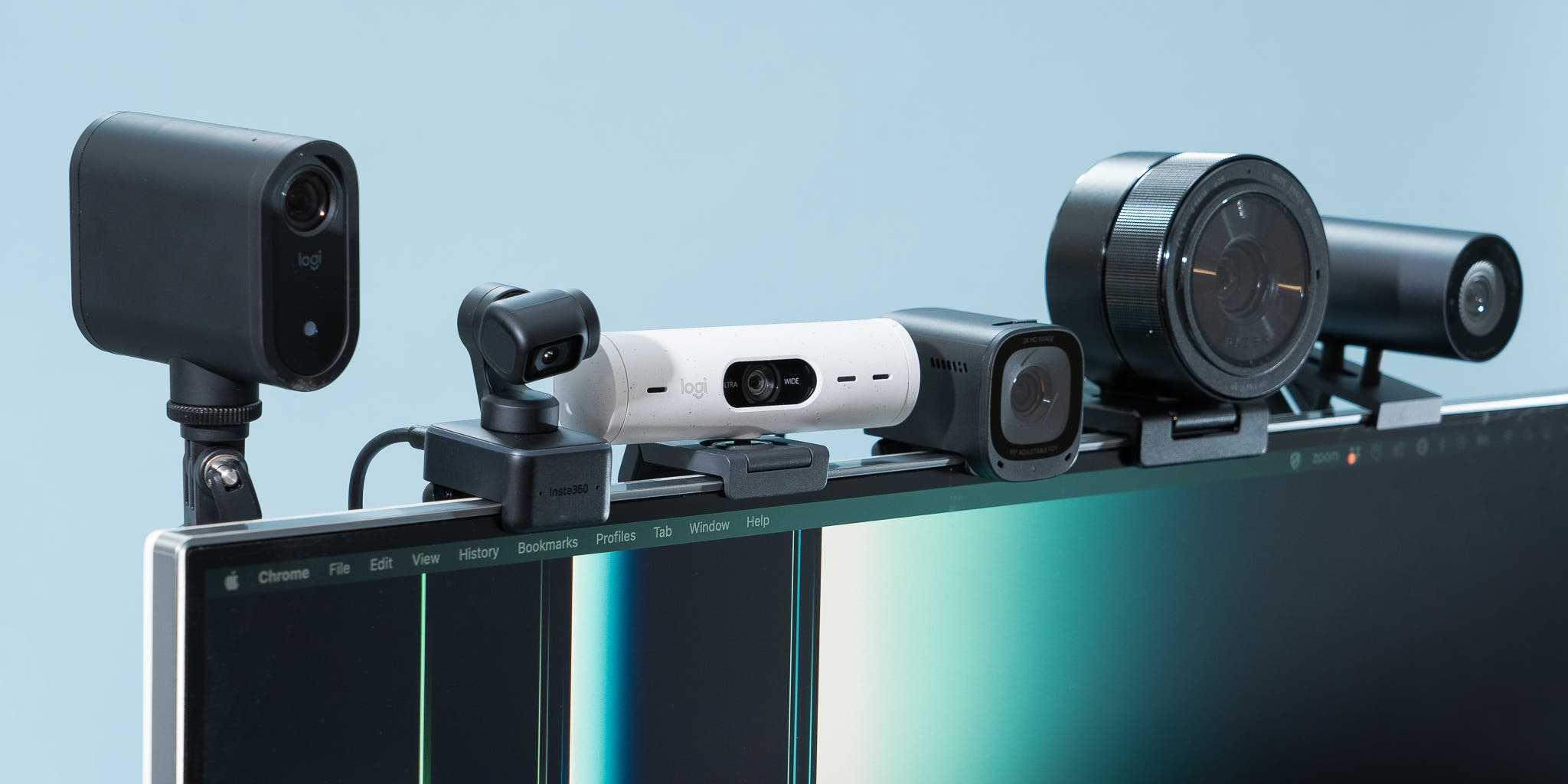
Yes, wireless webcams can be a convenient option for Zoom setups, but they come with certain trade-offs. They offer greater flexibility and easier placement without cords cluttering your space, making your video calls more seamless. However, their reliability depends on your Wi-Fi connection, and they might sometimes face lag or connectivity issues.
Wireless webcams are an attractive choice for Zoom because they eliminate the need for messy cables and give you more freedom to position your camera just right. They’re perfect if you want a clutter-free workspace and move around during your calls. Still, it’s essential to consider your Wi-Fi strength and the webcam’s quality for a smooth experience. Whether they’re a good fit depends on your tech setup and what you prioritize in video quality and stability.

Is Wireless Webcam Good for Zoom Setup?
Many people want a smooth and reliable experience when they participate in Zoom calls. Using a webcam is a key part of this, and wireless webcams are gaining popularity. But are they really a good choice for your Zoom setup? Let’s explore the benefits and drawbacks of wireless webcams for Zoom meetings.
Understanding Wireless Webcams
Wireless webcams connect to your computer without needing a physical cable. Instead, they use Wi-Fi or Bluetooth technology to transmit video data. This setup offers flexibility and fewer cables on your desk, making your workspace cleaner and more organized.
These webcams come with different features, such as built-in microphones, autofocus, and resolution options. They are designed to be easy to set up and move around, which can be attractive for many users.
Advantages of Using Wireless Webcams for Zoom
Flexibility and Mobility
Wireless webcams let you position the camera anywhere in your room without being limited by cable length. This means you can place the camera at the best angle for your face and background, improving your overall appearance during calls.
This flexibility allows for quick adjustments, especially if you change your workspace or want to include more people in a call. Wireless models are perfect for dynamic environments where fixed setups don’t work well.
Cleaner Workspace and Better Aesthetics
Without cables cluttering your desk, your workspace looks tidier. A wireless webcam reduces the risk of accidental disconnects caused by pulling or tripping over cords. It contributes to a professional when working from home or in an office.
Easy Setup and Compatibility
Many wireless webcams are designed for straightforward setup. They often connect via Wi-Fi or through a simple app, making it accessible for users of different tech skill levels. They usually work across various operating systems, ensuring compatibility with most computers and laptops used for Zoom.
Limitations and Challenges of Wireless Webcams
Video Quality Concerns
Not all wireless webcams offer the same video quality. Some models may lag behind wired webcams in terms of resolution, frame rate, and stability. This can impact your appearance, especially during professional or important meetings.
High-quality wireless webcams typically cost more, and users should check specifications carefully before purchasing. Be aware that lower-end models might compromise on clarity and consistency.
Potential Connectivity Issues
Wireless connections can sometimes be unstable or interrupted, especially if your Wi-Fi network is weak or congested. Intermittent disconnections can cause video freeze or dropouts, disrupting your meetings.
Bluetooth webcams may face pairing challenges or limited range, which can affect usability. Ensuring a strong Wi-Fi signal is essential for smooth performance.
Battery Life and Power Concerns
Many wireless webcams operate on batteries. This means you need to keep an eye on battery levels and recharge or change batteries regularly. Battery life varies among models, with some lasting only a few hours on a single charge.
Fortunately, some models include power adapters, but they reduce mobility. For long meetings or extended use, battery performance is an important factor to consider.
Choosing the Right Wireless Webcam for Zoom
Important Features to Consider
- Resolution: Look for at least 720p HD for clear video. For better quality, opt for 1080p or higher.
- Frame Rate: A higher frame rate (30 fps or more) results in smoother motion.
- Connectivity: Ensure compatibility with your device—Wi-Fi or Bluetooth based on your preferences.
- Microphone Quality: Built-in microphones should clearly pick up your voice without background noise.
- Ease of Use: Setup process, app interface, and controls should be user-friendly.
- Battery Life: Longer battery life reduces the need for frequent recharges during meetings.
- Price: Balance features with your budget for the best value.
Recommended Wireless Webcams for Zoom Meetings
Some popular models include:
- Logitech Group Webcam: Known for high resolution and reliable connectivity.
- Razer Kiyo: Combines good video quality with a built-in ring light, perfect for well-lit Zoom calls.
- AverMedia Live Stream Webcam: Offers 1080p video and flexible wireless options.
How Wireless Webcams Impact Your Zoom Experience
Improving Video Call Quality
By selecting a high-quality wireless webcam, you can dramatically improve your image clarity, making professional presentations more effective. Clear video helps colleagues and clients read your expressions and cues better.
Enhancing Meeting Flexibility
Wireless webcams give you the ability to adjust your setup quickly, whether you’re working from home, a coworking space, or on the go. This flexibility increases your comfort and adaptiveness during calls.
Ensuring Smooth Communication
Stable video and audio are crucial for effective communication. While wireless webcams may face connectivity challenges, choosing models with strong signals and good network support can mitigate issues. Regular updates and proper placement also help maintain performance.
Related Topics to Consider
Wired vs. Wireless Webcams
Wired webcams tend to offer more stable connections and potentially better video quality at lower costs. Wireless webcams provide mobility and tidier setups, but with some trade-offs in stability.
Wi-Fi Network Optimization for Better Webcam Performance
Ensure your Wi-Fi network is fast and stable by upgrading your router, minimizing interference, and positioning it near your workspace. This step significantly enhances wireless webcam reliability.
Zoom Video Basics and Best Practices
Aside from choosing a good webcam, lighting, background, and camera placement also impact your overall appearance. Use natural light when possible, and position your webcam at eye level to appear more engaging during meetings.
Future Trends in Webcam Technology
Upcoming innovations include higher resolutions, AI-driven autofocus, better wireless stability, and integrated features such as background removal. Staying updated helps you choose the best tools for your needs.
While wireless webcams bring many benefits for Zoom setups, understanding their limitations and selecting models carefully ensures you get the best experience. Proper setup, a good internet connection, and the right choices make wireless webcams a viable option for many users.
The Best Webcam for Zoom Calls
Frequently Asked Questions
Are wireless webcams reliable for everyday Zoom meetings?
Wireless webcams can be reliable for daily Zoom calls if they have a stable Wi-Fi connection and good video quality. Ensure the device supports strong wireless protocols and has a secure connection to prevent interruptions. Regularly update the webcam’s firmware and keep your network optimized to maintain consistent performance.
What are the potential issues with using a wireless webcam for Zoom?
Wireless webcams might face issues like latency, video lag, or connection drops, especially if your Wi-Fi signal is weak. Environmental factors such as interference from other devices can also impact performance. To minimize problems, use a dedicated 2.4GHz or 5GHz band, position your router optimally, and keep the webcam within a good signal range.
Does a wireless webcam offer better flexibility compared to wired options for Zoom setups?
Wireless webcams provide greater flexibility in positioning without the constraints of cables, making it easier to find the ideal framing and setup. This flexibility is particularly beneficial for dynamic environments or when you need to move the camera frequently during meetings. However, ensure your wireless network supports the webcam to prevent connectivity issues.
Can I expect high-quality video from a wireless webcam during Zoom calls?
Yes, many wireless webcams deliver high-definition video quality suitable for professional Zoom meetings. Look for models that support at least 720p or 1080p resolution and have good low-light performance. Proper lighting and a stable internet connection will also enhance the overall video clarity during your calls.
Is it easy to set up a wireless webcam for Zoom compared to traditional wired devices?
Setting up a wireless webcam generally involves connecting it to your Wi-Fi network and installing necessary software or drivers. Many models feature quick installation processes with straightforward instructions, making them accessible for most users. Wired webcams often require physical connection and setup, so wireless options can save time and reduce clutter.
Final Thoughts
Wireless webcams offer flexibility and ease of setup, which benefits from a clutter-free workspace. They eliminate the need for long cables and allow greater movement during meetings. This can make your Zoom setup more comfortable and adaptable.
However, wireless webcams may face connectivity issues or latency problems, especially in busy Wi-Fi environments. These factors can impact video quality and smoothness during calls. Consider your internet stability before choosing one.
In conclusion, is wireless webcam good for Zoom setup? For those seeking convenience and a tidy desk, it can be a great choice. But ensure your network is reliable for optimal performance.



