


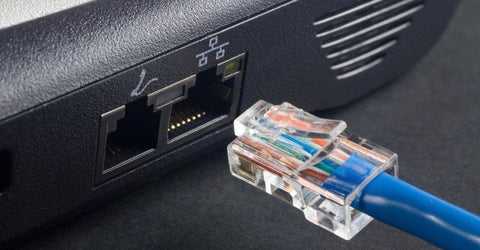
Quick fix: unplug and replug your Ethernet cable, restart your router, and check for any physical damage or loose connections. Updating your router’s firmware or trying a different Ethernet cable can also solve the issue quickly. If these steps don’t work, resetting your router or contacting your ISP might be necessary.
If your router isn’t recognizing your Ethernet cable, don’t panic. This common problem can often be fixed with a few simple troubleshooting steps. First, ensure that the Ethernet cable is properly plugged in and not damaged. Sometimes, a loose connection or a faulty cable can be the culprit. Restarting your router can also refresh its settings and resolve temporary glitches. Checking for physical damage or trying a different Ethernet cable helps pinpoint whether the issue is with the cable or the router itself. With patience and a bit of tinkering, most Ethernet detection problems can be resolved quickly, restoring your wired connection and getting you back online in no time.

Router Ethernet Cable Not Detected Fix: How to Troubleshoot and Resolve the Issue
Understanding Why Your Router Isn’t Detecting the Ethernet Cable
When your router doesn’t recognize the Ethernet cable, it can prevent you from accessing the internet. Several factors can cause this issue, including physical damage, connection problems, or device settings.
It’s important to check if the problem lies with the cable, the router, or the device you’re connecting to. Identifying the root cause is the first step in fixing the problem quickly.
Common Causes of Ethernet Cable Detection Failures
- Damaged or faulty Ethernet cable: Worn-out or broken cables won’t transmit data properly.
- Loose connections: Not plugging the cable fully into the port can prevent detection.
- Incorrect port usage: Using the wrong port on your router or device might cause recognition issues.
- Router or device settings: Certain configurations can disable Ethernet interfaces or cause detection issues.
- Driver problems: Outdated or corrupted network drivers can interfere with Ethernet port detection.
Step-by-Step Guide to Fix Router Ethernet Cable Not Detected Issue
1. Check Physical Connections
The simplest step involves inspecting the physical connections. Make sure the Ethernet cable is securely plugged into both the router and the device. Ensure that no part of the cable is visibly damaged or frayed.
Try unplugging and then re-plugging the cable. If the connection still isn’t recognized, consider testing with a different Ethernet cable to rule out cable faults.
2. Test Different Ports on Your Router
Routers typically have multiple Ethernet ports. Use a different port to connect your device. Sometimes a specific port may be faulty or disabled, causing detection issues.
Switching ports can quickly identify if the port itself is the problem. If another port works, you may need to replace or repair the faulty port or router.
3. Examine the Ethernet Cable for Damage
If testing with a different port doesn’t resolve the issue, check the cable itself. Look for visible signs of damage like cuts, kinks, or bent connectors.
Use a different Ethernet cable, preferably a proven working one, to see if the problem persists. This step helps confirm whether the cable is the source of the problem.
4. Restart Your Router and Device
Sometimes, a simple restart can solve detection issues. Turn off your router and connected device completely. Wait for about 30 seconds before turning them back on.
This process resets network settings and can fix temporary glitches that prevent recognition of the Ethernet cable.
5. Update Network Drivers
Outdated or corrupted drivers can cause your device not to recognize Ethernet connections. Access your device’s device manager or network settings.
Look for your network adapter, right-click it, and select ‘Update Driver.’ Follow the prompts to install the latest drivers. This step can resolve software-related detection problems.
6. Check Router Settings for Ethernet Ports
Access your router’s admin panel through a web browser. Look for network or LAN settings to verify if Ethernet ports are enabled.
If some ports are disabled, enable them and save the settings. Also, check for any firmware updates that can fix bugs or port recognition issues.
7. Reset the Router to Factory Settings
If other fixes don’t work, resetting your router to its default factory settings can help. Use a paperclip or reset button on the router. Hold it for approximately 10-15 seconds until the device restarts.
Note that this will erase custom settings, so be prepared to reconfigure your network afterward.
Additional Troubleshooting Tips for Router Ethernet Detection Problems
Beyond the basic steps, consider the following tips to identify and resolve the issue effectively:
Test with a Different Device
Connect the Ethernet cable to another device like a different computer or gaming console. If the second device detects the cable and connects properly, the problem may lie with your original device.
If the second device still can’t detect the connection, focus your troubleshooting on the router or cable.
Verify Network Settings on Your Device
Go into your device’s network settings and ensure Ethernet is enabled. Sometimes, the network adapter may be disabled, causing detection failure.
Enable the Ethernet connection and renew the IP address to see if it resolves the problem.
Check for Firmware Updates on Your Router
Manufacturers often release firmware updates to fix bugs and improve hardware performance. Visit the router manufacturer’s website to see if updates are available for your model.
Updating firmware can fix detection issues caused by software bugs or compatibility problems.
Related Topics and Additional Solutions
Using Network Troubleshooter Tools
Many operating systems include built-in network troubleshooters that can automatically identify and fix common connection problems. Run these tools for quick diagnostics.
Replacing Hardware Components
If all software solutions fail, the Ethernet port on your router or device might be faulty. Consider professional repair or replacing the hardware.
Ensuring Proper Router Placement and Environment
Physical interference or overheating can impact router performance. Ensure your router is placed in a well-ventilated area, away from electronic interference.
Understanding Ethernet Cable Types
| Cable Type | Max Speed | Description |
|---|---|---|
| Cat 5e | 1 Gbps | Common and affordable, suitable for most home networks. |
| Cat 6 | 10 Gbps | Supports higher speeds and is more shielded against interference. |
| Cat 6a | 10 Gbps over longer distances | Enhanced shielding and performance for demanding applications. |
Preventive Measures to Avoid Ethernet Detection Issues
- Use high-quality cables that are compatible with your network speed.
- Regularly update your device drivers and router firmware.
- Avoid bending or kinking Ethernet cables near the connectors.
- Ensure your router’s ports are clean and free from dust or debris.
- Keep your router in a stable environment to prevent hardware failure.
The overall fix for a router Ethernet cable not detected issue involves a systematic approach, from checking physical connections and testing cables to updating drivers and firmware. If these steps do not resolve the problem, hardware replacement may be necessary. Remember, proper maintenance and regular updates keep your network running smoothly.
Ethernet Cable Connected but no Internet Access FIX ( 2025 )
Frequently Asked Questions
Why is my Ethernet cable not recognized by my router?
Your router may not recognize your Ethernet cable due to loose connections, a damaged cable, or incompatible hardware. Ensure the cable is securely plugged into both the router and your device. Check the cable for any visible damage or bent pins. Also, verify that your router supports the Ethernet standards used by your cable and devices.
How can I troubleshoot if my Ethernet port on the router isn’t working?
If the Ethernet port isn’t functioning, start by testing with a different cable to rule out cable issues. Restart your router and check if the port detects the connection afterward. Inspect the port for dust or debris, and gently clean it if needed. If the problem persists, try connecting to another port on the router to determine if a specific port is faulty.
What steps should I follow to resolve compatibility issues between my Ethernet cable and router?
First, confirm that your Ethernet cable matches the standards supported by your router, such as Cat5e or Cat6. Use a high-quality, compliant cable to ensure proper connectivity. Update your router’s firmware to improve compatibility and performance. If issues continue, consider testing with a different cable type or connecting to a different device to identify whether the problem lies with the cable or the router.
How do I check if the Ethernet port on my device is causing connectivity problems?
To diagnose a faulty device port, try connecting the Ethernet cable to a different device’s port. If the cable works elsewhere, the issue may be with your original device’s port. You can also test the device with a known working cable. If the port remains unresponsive, consider replacing or repairing the device’s network port or using an external network adapter if possible.
What settings should I verify to fix Ethernet detection issues on my router?
Access your router’s admin panel and check the network configuration settings. Ensure the Ethernet port is enabled, and verify that the LAN settings are correctly configured. Disable any firewall or security settings temporarily to see if they interfere with detection. Restoring factory defaults can also resolve misconfigurations affecting Ethernet detection, but remember to back up your settings beforehand.
Final Thoughts
The router ethernet cable not detected fix often involves checking the connections and replacing faulty cables. Ensuring the Ethernet port is clean and the cable is properly inserted can resolve most issues. Updating network drivers or resetting the router may also help. These steps provide a straightforward way to restore your wired connection efficiently.



