


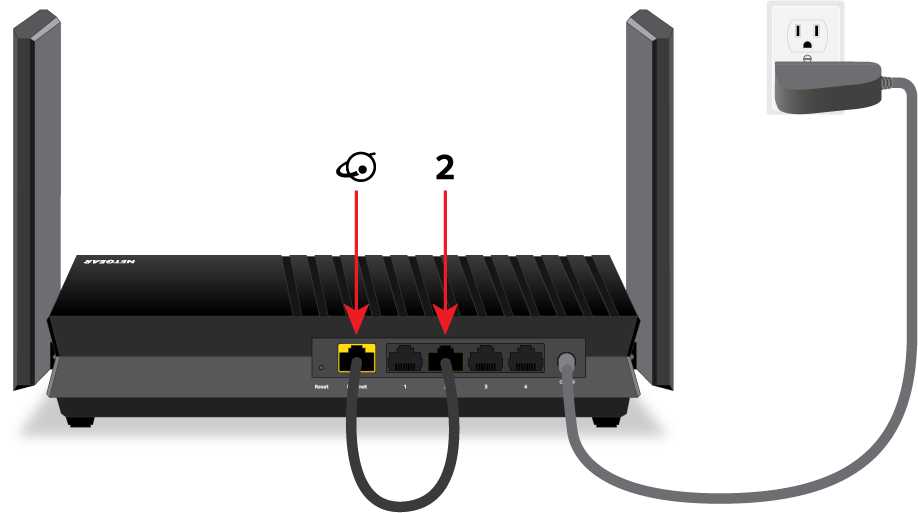
Having trouble with your router’s LAN port not working? Don’t worry—this is a common issue that can often be fixed quickly with a few simple steps. First, check your cables and connections, restart your router, and make sure your firmware is up-to-date. If these don’t work, resetting your router or replacing the port might be necessary.
In a nutshell, fixing a malfunctioning LAN port involves troubleshooting hardware and software issues, from checking physical connections to updating firmware. Most problems can be resolved without professional help, so don’t panic—your network can be back on track in no time.
When your router’s LAN port suddenly stops functioning, it can be frustrating, especially if you rely on a wired connection for stable internet. These issues can stem from hardware faults, outdated firmware, or simple connectivity glitches. Understanding how to troubleshoot and fix the problem can save you time and money. In this article, we’ll explore practical solutions—from basic checks to advanced fixes—that will help you get your LAN port back in working order. Whether you’re a tech novice or a seasoned pro, these tips will guide you through diagnosing and resolving the problem efficiently.

Router LAN Port Not Working Fix: How to Troubleshoot and Resolve the Issue
Understanding the LAN Port and Its Role
The LAN port on your router allows wired devices to connect to the internet. It acts as a bridge between your device and your network. When the LAN port stops working, devices cannot access the network via a wired connection, which can cause frustration.
Common Causes for a Non-Functional LAN Port
Several issues can lead to a LAN port not working properly. These include hardware problems, software glitches, and configuration errors. Identifying the root cause is key to fixing the problem effectively.
Hardware Issues
Physical damage to the LAN port or internal components can cause connectivity failures. This may result from physical impact, wear and tear, or manufacturing defects. It’s important to examine the port for visible damage or debris.
Faulty Ethernet Cables
A damaged or low-quality Ethernet cable can prevent proper connection. Always test with a different, known-good cable to rule out this common issue.
Router Firmware Glitches
Outdated or corrupted firmware can interfere with the LAN port’s functionality. Firmware updates often contain fixes for known issues and can restore proper operation.
Incorrect Router Settings
Misconfigured network settings or disabled LAN ports in the router’s admin panel can lead to connectivity problems. Ensuring the settings are correct is crucial.
Step-by-Step Troubleshooting for a Non-Working LAN Port
Follow these steps to identify and fix the problem with your LAN port.
1. Check the Physical Connection
Ensure that the Ethernet cable is securely plugged into both the router and the device. Look for any visible damage on the cable or port. Try replacing the cable with a new one to eliminate cable issues.
2. Test the Port with Multiple Devices
Connect different devices to the LAN port to see if the issue persists. If only one device fails, the problem may be with that device rather than the router.
3. Power Cycle the Router
Turn off the router, wait for 30 seconds, and then turn it back on. Sometimes, a simple reboot resets hardware components and resolves temporary glitches.
4. Check Router Settings
Access the router’s admin interface using a web browser. Navigate to the LAN settings and verify that the port is enabled and correctly configured. Reset to default settings if necessary.
5. Update Firmware
Visit the router manufacturer’s website to download the latest firmware version. Follow the instructions to update the router to ensure it has the latest fixes.
6. Reset the Router to Factory Defaults
If issues continue, performing a factory reset can help. Use the reset button on the router, usually pressed with a pin, to restore default settings.
7. Inspect Hardware for Damage
If none of the above steps work, carefully examine the LAN port for physical damage. If damaged, you may need to replace the router or have the port repaired.
Advanced Fixes for Persistent LAN Port Issues
If basic troubleshooting fails, consider these more advanced solutions.
1. Disable and Re-enable the LAN Port
In the router’s admin panel, disable the port, save settings, then enable it again. This can resolve minor glitches.
2. Use Command Line Tools
For users with technical knowledge, check the network status using commands like ipconfig (Windows) or ifconfig (Mac/Linux). Reset network interfaces if necessary.
3. Check for Driver Updates on Connected Devices
Ensure that the network drivers on your connected device are up to date. Outdated drivers can cause connection issues even if the router is functioning properly.
4. Test with a Different Router
If possible, connect your device to another router with a known working LAN port. This helps identify if the issue is with the router hardware.
When to Seek Professional Help
If all troubleshooting steps fail and the LAN port remains unresponsive, consider contacting a qualified technician. Hardware repairs or replacements may be necessary.
Preventive Measures to Maintain LAN Port Functionality
Regular maintenance can extend the lifespan of your router’s LAN ports. Keep the port clean and free of dust, avoid pulling on cables, and keep the firmware updated.
Additional Tips for Better Network Performance
Besides fixing LAN port issues, optimize your network with these tips:
- Use high-quality Ethernet cables for reliable connections
- Place your router in a central location
- Limit interference from other electronic devices
- Secure your network with strong passwords
Summary of Key Fixes for Router LAN Port Not Working Issue
| Step | Action |
|---|---|
| 1 | Check physical connections and replace cables if necessary |
| 2 | Test with different devices to isolate the problem |
| 3 | Restart the router to clear temporary glitches |
| 4 | Verify LAN port settings in the admin panel |
| 5 | Update router firmware |
| 6 | Perform a factory reset if issues persist |
| 7 | Check for hardware damage or seek professional repair |
To resolve a LAN port not working on your router, start with simple checks and gradually move to more detailed troubleshooting steps. Proper diagnosis and careful testing can help you restore wired network functionality efficiently. Remember, regular maintenance and choosing quality cables are good practices for avoiding future issues. If hardware repair is needed, don’t hesitate to get professional help to ensure your network stays up and running smoothly.
Ethernet Cable Connected but no Internet Access FIX ( 2025 )
Frequently Asked Questions
What steps can I take if my router’s LAN port doesn’t detect a connected device?
First, ensure the Ethernet cable is properly connected to both the device and the LAN port. Try replacing the Ethernet cable to rule out a faulty cable. Restart your router to reset its network settings. Check if the LAN port light indicator turns on when you connect the device. If it remains off, test the port with a different device or connect to another LAN port to determine if the port is faulty. Updating your router’s firmware can also resolve hardware recognition issues. If none of these steps work, consider contacting technical support for further diagnosis.
How can I verify whether the LAN port on my router is physically damaged?
Inspect the LAN port closely for visible damage like bent pins, dust, or debris blocking the connection. Gently wiggle the Ethernet connector when plugged in to see if it feels loose or unstable. Use a different Ethernet cable and check if the device connects successfully through other ports or routers. If the port remains unresponsive despite these efforts, it may be physically damaged, requiring repair or replacement. Testing with multiple devices can help confirm if the issue stems from the port itself.
What settings should I review if my router’s LAN port isn’t working properly?
Log into your router’s admin interface and verify that the LAN port is enabled in the network settings. Ensure DHCP is turned on to assign IP addresses to connected devices. Check if any MAC filtering or access restrictions are blocking the device connected to the port. Also, review the firmware version; outdated firmware can cause port issues. Resetting the router to factory settings can resolve configuration errors that might affect LAN port functionality. Make sure you save any changes before testing the port again.
Final Thoughts
Avoir un port LAN de routeur qui ne fonctionne pas peut être frustrant, mais plusieurs solutions simples existent. Vérifiez d’abord les câbles et assurez-vous qu’ils sont bien connectés. Redémarrez votre routeur pour résoudre les problèmes temporaires. Si le problème persiste, mettez à jour le firmware du routeur ou réinitialisez ses paramètres d’usine.
En conclusion, si votre router lan port not working fix n’est pas évident, effectuez ces étapes pour retrouver une connexion stable et efficace. Ces conseils vous aideront à réparer rapidement votre port LAN défaillant.



