


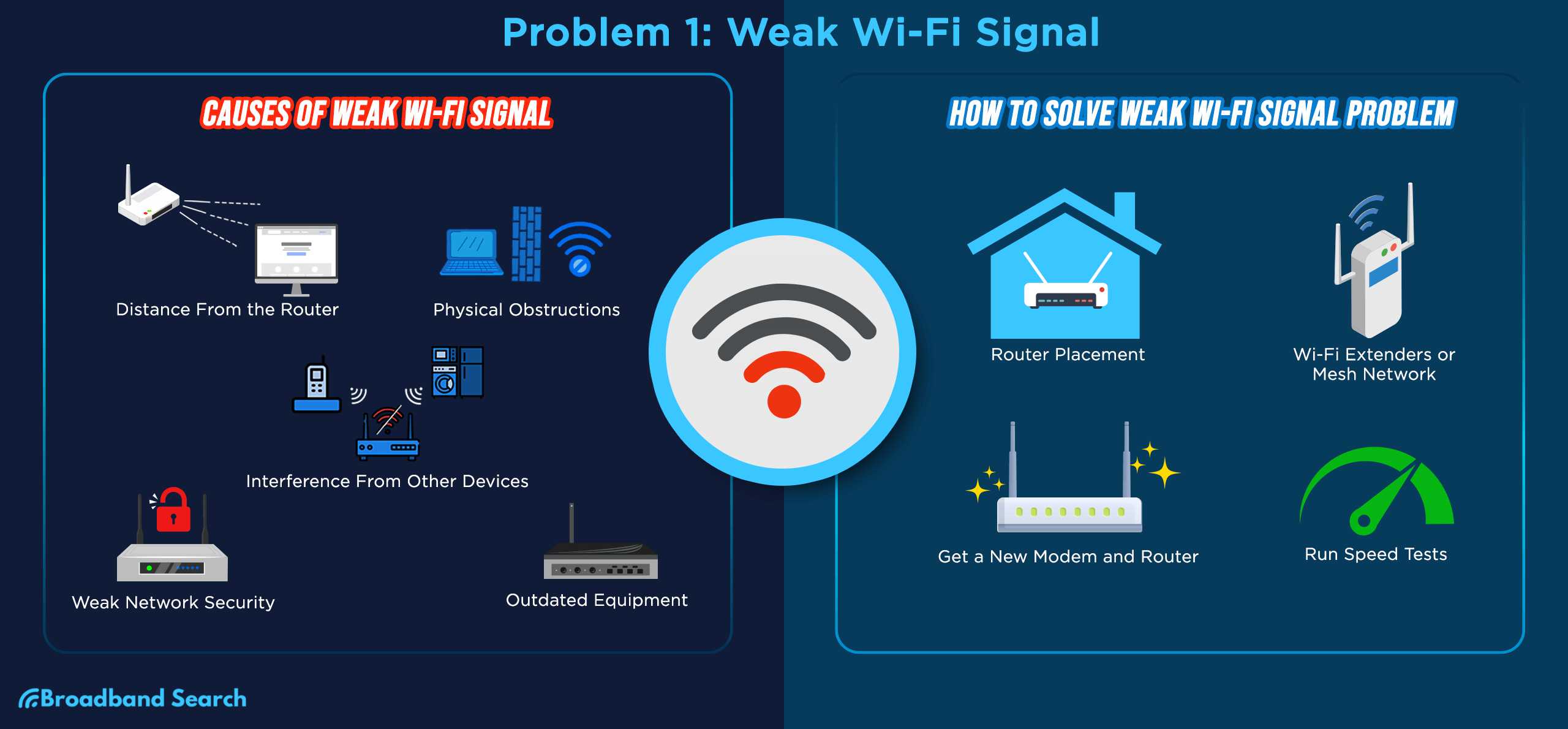
Quick fix for router signal interference: move your router to a central, open spot, away from thick walls and electronic devices, and switch to a less congested Wi-Fi channel. These simple steps can dramatically improve your Wi-Fi performance and reduce connection drops.
To solve router signal interference, the key is to minimize obstacles and electronic noise around your device. Make sure your router is placed in a central location, elevated, and away from thick walls, cordless phones, and microwaves. Additionally, changing your Wi-Fi channel to a less crowded one can also help clear up signal disruptions. By optimizing your router’s placement and settings, you can enjoy a faster, more reliable Wi-Fi connection without spending extra money on new hardware.
When your Wi-Fi starts acting up, it’s often due to interference from other electronic devices or obstacles blocking signals. Many users overlook the importance of proper placement and channel settings but adjusting these simple factors can make a significant difference. The good news is that most interference issues are easy to fix with a few straightforward adjustments. In this article, I’ll guide you through effective solutions to improve your Wi-Fi signal, ensuring you stay connected without hassle, whether you’re working from home, streaming your favorite shows, or gaming online.

Effective Router Signal Interference Solution: How to Improve Your Wi-Fi Connection
Understanding Router Signal Interference
Router signal interference happens when other devices or signals disrupt the Wi-Fi connection. It can cause slow speeds, dropped connections, or dead zones around your home or office. Knowing what causes interference helps you find the best solution.
Many factors can interfere with Wi-Fi signals. Common culprits include nearby wireless networks, electronic devices, thick walls, or metal objects. These elements block or weaken the router’s signal, making it harder for your devices to stay connected.
To identify interference issues, check your router’s signal strength using apps or built-in tools. Notice if certain areas of your space have poor Wi-Fi performance. This can point to where interference is most severe and where to focus your efforts.
Common Sources of Wi-Fi Signal Interference
Other Wireless Networks
If your area has many Wi-Fi networks, their signals can overlap and cause congestion. This is especially common in apartment buildings or densely populated neighborhoods. Overlapping channels can cause slow speeds and dropped connections.
Electronic Devices
Devices such as cordless phones, baby monitors, microwaves, and Bluetooth gadgets emit signals that can interfere with Wi-Fi. They often operate on similar frequency bands, disrupting your router’s performance.
Physical Obstacles and Building Materials
Walls, floors, and ceilings made of concrete, brick, or metal block Wi-Fi signals. Large furniture or appliances may also weaken the signal, especially if they are placed near the router.
Wireless Interference from Other Electronics
Devices like Bluetooth speakers, wireless cameras, and even some smart home gadgets can interfere with Wi-Fi signals. Keep these devices away from your router to reduce interference.
Choosing the Right Frequency Band
Modern routers operate on two main bands: 2.4 GHz and 5 GHz. Each has advantages and disadvantages concerning interference.
2.4 GHz Band
This band offers greater range but is more crowded. Many devices use 2.4 GHz, which can lead to congestion and interference. It is best for devices far from the router or requiring less speed.
5 GHz Band
The 5 GHz band provides faster speeds and is less congested. However, it has a shorter range and less penetration through walls. Use 5 GHz for devices close to your router needing high performance.
Optimizing Router Placement to Minimize Interference
The location of your router significantly impacts Wi-Fi quality. Proper placement can reduce interference and boost signal strength.
Centralize Your Router Location
Place your router in a central, open spot in your home or office. Avoid tucked-away corners or enclosed cabinets that block signals.
Keep Away from Electronic Devices
Position the router away from cordless phones, microwaves, and Bluetooth devices. These can emit signals that interfere with your Wi-Fi.
Elevate Your Router
Place the router on a high shelf or mount it on a wall. This helps the signal reach more areas and reduces obstacles.
Avoid Physical Obstacles
Keep your router away from thick walls, metal furniture, and appliances. These can weaken or block the Wi-Fi signal.
Configuring Your Router for Best Performance
Proper configuration can help prevent and reduce signal interference. Modern routers have settings to optimize network performance.
Change Wi-Fi Channels
Switch your router’s channel to avoid congestion with nearby networks. Use tools like Wi-Fi analyzers to find less crowded channels.
Update Firmware
Regularly update your router’s firmware. Manufacturers release updates to fix bugs and improve performance, which can include interference management.
Enable Quality of Service
Activate QoS features to prioritize important devices or applications. This ensures smoother performance even when interference occurs.
Disable Unnecessary Services
Turn off unused features like WPS or guest networks if not needed. Reducing extra signals can lessen interference.
Using Signal Boosters and Range Extenders
Sometimes, the router alone cannot cover your entire space effectively. Boosters and extenders can improve coverage and reduce interference.
Wi-Fi Range Extenders
These devices pick up your router’s signal and rebroadcast it. Place them midway between your router and the dead zones for best results.
Mesh Wi-Fi Systems
A mesh system uses multiple nodes to create a seamless Wi-Fi network. This reduces interference and offers consistent coverage across large areas.
Powerline Adapters
Powerline adapters send internet signals through your home’s electrical wiring. They are useful in places where Wi-Fi signals are weak or blocked.
Additional Tips for Reducing Wi-Fi Interference
Besides hardware, small adjustments make a big difference.
- Limit the number of active devices on your network.
- Use the 5 GHz band whenever possible for high-demand devices.
- Restart your router regularly to clear temporary interference issues.
- Secure your Wi-Fi to prevent unauthorized users from congesting your network.
- Perform regular speed tests to monitor your network health.
Related Topics to Enhance Wi-Fi Performance
Secure Your Wi-Fi Network
Use strong passwords and WPA3 encryption to prevent outsiders from connecting and causing interference.
Upgrade Your Router
A newer model with dual-band capabilities, multiple antennas, and Beamforming technology can better handle interference.
Implement QoS Settings
Prioritize bandwidth for critical devices like work laptops or streaming devices to avoid lag.
Monitor Network Traffic
Utilize network management tools to see what devices are using bandwidth and identify potential sources of interference.
Testing and Troubleshooting
Regularly check your network’s performance. Use speed test websites and Wi-Fi analyzers to detect interference patterns or dead zones.
This comprehensive approach to router signal interference solutions will help you create a more stable and faster Wi-Fi network. Proper placement, channel management, device selection, and configuration are the key steps in minimizing disruptions. With these tips, your internet will be more reliable, allowing you to enjoy seamless browsing, streaming, and working from home.
Fix WiFi keep Disconnecting because of channel Interference issue
Frequently Asked Questions
How can I identify sources of interference that affect my router’s signal?
To identify sources of signal interference, start by observing when your Wi-Fi connection slows down or disconnects. Check for electronic devices like cordless phones, microwave ovens, or baby monitors operating near your router, as they can cause interference. Use your device’s Wi-Fi analyzer tools to scan for crowded channels and detect nearby networks that may be causing congestion. Moving these devices away from your router or switching to less congested channels often improves connection stability.
What steps can I take to improve router placement and reduce interference?
Place your router in a central location, elevated off the ground, and away from thick walls or metal objects that block signals. Keep it away from other electronic devices that emit radio waves, such as Bluetooth speakers or wireless security cameras. Position the router so that its antennas are vertical to maximize coverage. Adjusting its position and orientation can significantly minimize interference and enhance overall signal strength.
Are there any software solutions to minimize signal interference for my router?
Yes, updating your router’s firmware can improve its ability to handle interference and optimize performance. Many routers offer settings to select less congested Wi-Fi channels; manually choosing channels with fewer nearby networks reduces interference. Some routers also include automatic channel switching, which continuously scans for clearer channels and switches to them dynamically. Keeping your network secure with strong passwords can also minimize interference caused by unauthorized devices connecting to your network.
Final Thoughts
A clear, interference-free signal is key to a smooth internet experience. Identifying sources like cordless phones or microwaves helps target problem areas. Moving your router to a central, elevated location can significantly improve coverage.
Updating firmware and changing Wi-Fi channels reduce congestion and interference. Using dual-band routers allows devices to switch to less crowded frequencies. Implementing these steps ensures a more stable connection.
In conclusion, a router signal interference solution effectively enhances network stability. Addressing interference sources and optimizing router placement are vital. Such measures provide a better online experience by minimizing disruptions.



