


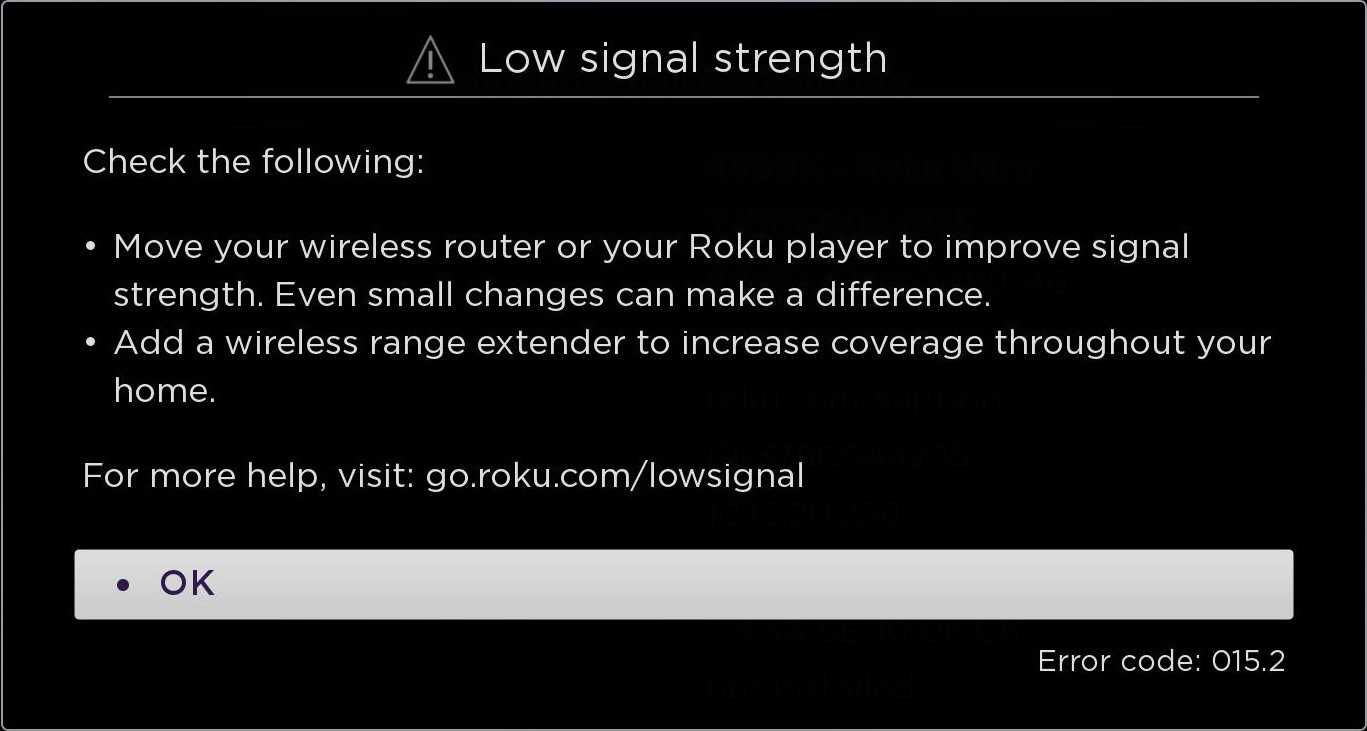
To fix a very low Wi-Fi range on your router quickly, try repositioning your router to a central, open spot away from obstructions and electronic interference. Updating your router’s firmware, switching to a less congested Wi-Fi channel, or adding a Wi-Fi extender can also make a big difference. These simple steps can significantly boost your Wi-Fi coverage and improve connection stability.
If you’re struggling with a weak Wi-Fi signal, don’t worry—there are straightforward solutions to enhance your router’s range. By optimizing the placement and settings of your router, you can enjoy a stronger, more reliable internet connection throughout your home or office. In this article, we’ll explore easy and effective fixes to fix your router’s low Wi-Fi range so you can stay connected without frustration.

Router WiFi Range Very Low Fix: How to Improve Your Wireless Signal
Understanding Why Your WiFi Range is Low
Many people face the frustrating issue of weak WiFi signals in their homes or offices. Usually, this problem happens due to interference, outdated equipment, or improper placement of the router. Knowing the cause helps determine the best solution to boost your WiFi coverage.
Common Reasons for Low WiFi Range
- Obstruction by walls, furniture, or appliances blocking the signal
- Distance from the router to your device
- Interference from other electronic devices like microwave ovens or cordless phones
- Using an outdated router that doesn’t support modern WiFi standards
- Incorrect router placement or antenna orientation
How to Optimize Router Placement for Better Range
The position of your router plays a vital role in WiFi coverage. To maximize range, place your router in a central, open location away from obstructions. Keep it elevated, such as on a shelf or high table, to allow signals to spread evenly.
Best Spots for Router Placement
- Central in your home or office
- High off the ground to avoid obstacles
- Away from metal objects and thick walls
- Near your main device clusters for optimal connectivity
Updating Router Firmware for Better Performance
Firmware updates can fix bugs and improve WiFi performance, including range issues. Check your router’s settings or manufacturer website regularly for the latest firmware. Keeping your device updated ensures compatibility with newer devices and standards.
Steps to Update Firmware
- Log into your router’s admin panel via a web browser
- Navigate to the firmware update section
- Download the latest firmware from the manufacturer’s site
- Follow on-screen instructions to install the update
Adjusting Router Settings to Boost WiFi Range
Modifying settings like channel and transmission power can significantly improve your WiFi coverage. Use the router’s admin interface to select less congested channels and increase the transmission power, if supported.
Changing WiFi Channel
Many routers automatically select channels, but switching manually can reduce interference. Use WiFi analyzer apps to identify the clearest channel and set your router accordingly.
Increasing Transmit Power
Some routers allow you to boost the transmission power in their settings. Be cautious not to exceed legal limits, and test the signal after adjustments to ensure effectiveness.
Using Range Extenders or Mesh WiFi Systems
If your house or office is large and obstacles are unavoidable, consider adding devices to extend your coverage. Range extenders repeat your WiFi signal to reach distant areas, while mesh systems create a unified network across your space.
Range Extenders
- Plug into power outlets in areas with weak signals
- Connect to your main router wirelessly
- Expand coverage without replacing your existing setup
Mesh WiFi Systems
- Multiple nodes work together to blanket your space in WiFi
- Easy management via apps and centralized control
- Cost-effective for large or multi-story buildings
Dealing with Interference and Obstacles
WiFi signals are sensitive to interference from many electronic devices and physical barriers. Minimize interference by positioning your router away from potential sources and choosing less congested WiFi channels.
Reducing Electronic Interference
Keep your router away from devices like cordless phones, baby monitors, and microwave ovens. Place your router in an open area, not inside cabinets or behind thick furniture.
Physical Barriers and Their Impact
Materials like concrete, metal, and thick drywall weaken WiFi signals. Arranging your space to avoid these obstacles near your router improves coverage.
Upgrading to a New Router
Older routers may lack the capacity and modern features needed for optimal coverage. Upgrading to a newer model with advanced antennas and higher power output can make a big difference.
Choosing the Right Router
Look for routers supporting the latest WiFi standards (such as WiFi 6), multiple antennas, and high transmission power. Dual-band or tri-band routers can also reduce congestion and improve range.
Additional Tips and Tricks for Better WiFi Coverage
Small adjustments can lead to noticeable improvements. Regularly restart your router, secure your WiFi with strong passwords, and limit the number of devices connected to prevent bandwidth overload.
Secure Your WiFi
Use WPA3 encryption whenever possible. A secure network keeps unauthorized users from draining your bandwidth, improving overall coverage for your devices.
Limit Connections and Bandwidth Usage
Disconnect unused devices and manage bandwidth-heavy activities like streaming or gaming during critical times. This ensures better performance for essential devices.
Summary Table: Quick Fixes for Low WiFi Range
| Fix | Action | Expected Result |
|---|---|---|
| Reposition Router | Place in a central, open spot | Improved coverage and signal strength |
| Update Firmware | Install latest software from manufacturer | Bug fixes and performance enhancements |
| Change WiFi Channel | Select a less congested channel | Reduced interference and better range |
| Use Range Extenders or Mesh Systems | Add devices to expand coverage | Uniform WiFi coverage across the area |
| Upgrade Router | Buy a modern, high-performance device | Enhanced speed and range |
Related Topics to Consider
- Understanding WiFi standards (WiFi 5, WiFi 6, WiFi 6E)
- Security settings for routers
- How to test WiFi strength and coverage
- Choosing the best WiFi frequency (2.4GHz vs 5GHz)
- Best practices for smart home device connectivity
Getting your WiFi range fixed involves a combination of proper placement, adjusting settings, and possibly upgrading equipment. Each step can help you enjoy a stronger, more reliable wireless connection in your space.
How to Fix and Upgrade a Weak WiFi Signal | Ask This Old House
Frequently Asked Questions
How can I position my router to improve Wi-Fi coverage in my home?
Place your router in a central location away from thick walls, metal objects, and electronic devices that can interfere with the signal. Keep it elevated on a shelf or mounted on a wall instead of placing it on the floor. This optimal positioning helps distribute the Wi-Fi signal more evenly across different areas of your home.
What steps should I take to minimize interference that affects Wi-Fi range?
Reduce interference by keeping your router away from other electronic devices such as cordless phones, microwave ovens, and baby monitors. Switching your Wi-Fi to a less congested channel can also help. Use router settings or a Wi-Fi analyzer app to identify the best channel with minimal interference for your environment.
Can updating my router’s firmware improve its Wi-Fi range?
Updating your router’s firmware can enhance its performance, stability, and security. Manufacturers often release updates that optimize signal strength and fix bugs that may limit your Wi-Fi coverage. Check the router manufacturer’s website regularly for the latest firmware updates and follow their instructions to install them properly.
What hardware upgrades can extend my Wi-Fi signal further?
Adding a Wi-Fi extender or repeater can significantly boost your coverage in dead zones. Alternatively, upgrading to a newer router with high power output and multiple antennae can improve range. Mesh Wi-Fi systems also offer seamless coverage across larger areas by connecting multiple devices to create a unified network.
Are there specific settings I should adjust on my router to enhance Wi-Fi reach?
Adjusting your router’s transmit power to the maximum allowable setting can increase signal strength. Additionally, enabling beamforming technology helps focus the Wi-Fi signal toward connected devices, improving overall coverage. Ensure your router operates on the optimal frequency band (2.4 GHz for broader range or 5 GHz for faster speed with shorter range) based on your needs.
Final Thoughts
Pour améliorer votre portée Wi-Fi, commencez par placer le routeur au centre de votre maison, loin des murs épais et des appareils électroniques. Vérifiez la mise à jour du firmware pour assurer une performance optimale. Utilisez également un répéteur Wi-Fi ou un câble Ethernet pour étendre la couverture.
En évitant ces erreurs courantes, vous augmentez la stabilité de votre connexion. Si la portée Wi-Fi reste faible, considérez un changement de routeur ou l’installation d’antennes supplémentaires.
En résumé, pour le ‘router wifi range very low fix’, positionner stratégiquement le routeur et mettre à jour son firmware sont essentiels. Ces actions garantissent une meilleure couverture et une connexion plus fiable.



