


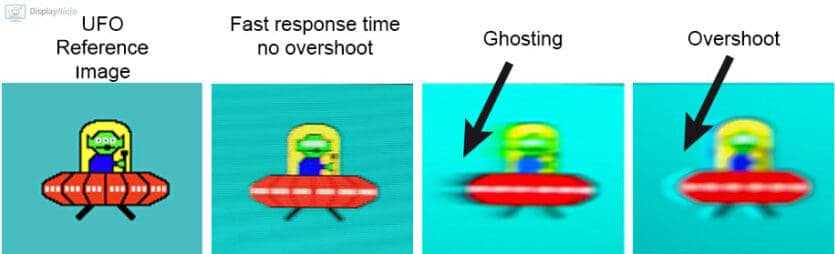
Overdrive in monitors is like giving your screen a turbo boost to display fast-moving images more smoothly. Think of it as a way to reduce motion blur and ghosting, making your gaming or video experience crisper. Essentially, overdrive adjusts the pixel response time, helping images change more quickly and accurately.
In simple terms, overdrive in monitors is a feature that accelerates how fast pixels change from one color to another, reducing blurriness during quick movements. It’s especially useful for gamers and video enthusiasts looking for sharp, clear visuals. By fine-tuning this setting, you can enjoy more fluid motion with fewer visual artifacts, enhancing your overall viewing experience.
When it comes to monitors, overdrive is a game-changer for anyone who notices lingering trails or ghosting behind fast-moving objects. It works by temporarily increasing the voltage to pixels, prompting them to switch states more rapidly. However, setting it too high can sometimes cause inverse ghosting or halos, so finding the right balance is key. Whether you’re into fast-paced gaming or watching action-packed movies, understanding and adjusting overdrive can significantly improve what you see on screen.

What Is Overdrive in Monitors
Overdrive in monitors is a technology that helps improve the display’s response time. It works by speeding up how quickly pixels change from one color to another. This process can make fast-moving images look smoother and clearer on your screen.
Understanding Monitor Response Time
Response time measures how long it takes for a pixel to switch from one color to another. Lower response times mean less motion blur, making gameplay or videos appear sharper. Typical response times for regular monitors are around 5 milliseconds, but gaming monitors often aim for 1 millisecond or less.
How Does Overdrive Work?
Overdrive applies an electric signal to push pixels more quickly. It temporarily increases the voltage to speed up pixel transitions, reducing ghosting or trail effects. Think of it as giving pixels a turbo boost so they change faster.
Reasons to Use Overdrive
- Reduce Motion Blur: Makes fast-moving images clearer.
- Improve Gaming Experience: Ensures smoother visuals during quick actions.
- Enhance Video Playback: Minimizes ghosting in fast scenes.
Types of Overdrive Settings
Most monitors offer multiple overdrive levels, usually labeled as Off, Normal, Medium, and High. Adjusting these settings affects how aggressively pixels change, balancing clarity and potential artifacts.
Potential Drawbacks of Overdrive
While overdrive reduces motion blur, setting it too high can cause visual artifacts. These include ghosting, inverse ghosting, and overshoot effects, which can be distracting. Finding the right balance is essential for an optimal viewing experience.
Recognizing Overdrive Artifacts
- Ghosting: A faint duplicate of moving objects appears behind the main image.
- Inverse Ghosting: Bright halos around moving objects.
- Overshoot: Unnatural colors or trails that overshoot the actual motion.
How to Adjust Overdrive Settings
To optimize your display, start with the default or medium setting. Observe the motion on your screen and tweak the overdrive setting accordingly. Some monitors allow automatic adjustment or offer detailed control through their on-screen display (OSD).
Monitoring Overdrive Performance
Use test videos or gaming scenarios to check how well the overdrive settings work. Look for ghosting or artifacts and modify the settings to find the best compromise between clarity and artifact minimization.
The Relationship Between Refresh Rate and Overdrive
Higher refresh rates, such as 120Hz or 144Hz, benefit more from effective overdrive because they show more frames per second. Proper overdrive ensures each frame transitions quickly, maintaining smooth motion without blurring.
Choosing the Right Monitor With Overdrive
Select a monitor that offers customizable overdrive options, especially for gaming or professional use. Read reviews to see how well the overdrive functions in real scenarios, focusing on both motion clarity and artifact control.
Related Topics to Explore
- G-SYNC and FreeSync technologies
- Response Time vs. Input Lag
- Refresh Rate and Its Impact on Gaming
- Panel Types: IPS, TN, and VA
- Calibration and Color Accuracy for Monitors
Understanding overdrive helps you make better choices when selecting a monitor for gaming, video editing, or general use. By balancing overdrive settings, refresh rate, and response time, you can enjoy smoother visuals and reduce distracting artifacts. Always test different configurations to find what works best for your specific needs.
Monitor Overdrive Explained
Frequently Asked Questions
How does overdrive affect the image quality on a monitor?
Overdrive adjusts the response time of pixels, which can make fast-moving objects appear clearer and reduce motion blur. However, if set too high, it can cause overshoot, leading to ghosting or unwanted artifacts, which may degrade the overall image quality.
Can overdrive improve gaming performance on a monitor?
Yes, enabling overdrive can significantly enhance gaming experiences by providing crisper and more responsive visuals. Properly tuned overdrive minimizes lag and motion blur, allowing players to react more quickly and accurately during fast-paced scenes.
What are the potential drawbacks of using overdrive at high settings?
High overdrive levels can cause pixel overshoot, resulting in ghosting effects or visual artifacts. This can make the image look distorted or unnatural, particularly during rapid changes in movement, which might detract from overall display quality.
Is it better to keep overdrive enabled or turned off?
Whether to turn overdrive on or off depends on your usage. For fast-paced activities like gaming, enabling moderate overdrive often provides smoother visuals. For tasks requiring color accuracy, such as photo editing, turning it off may prevent artifacts and ensure more precise colors.
How can I find the optimal overdrive setting on my monitor?
Start by setting overdrive to a low or medium level. Observe the display during fast motion scenes; if you notice ghosting, increase the setting gradually. If artifacts appear, reduce it. Adjust until you achieve clear images without unwanted artifacts, balancing responsiveness and visual quality.
Final Thoughts
Overdrive in monitors is a feature that speeds up pixel response times to reduce motion blur. It works by pushing pixels to change colors more quickly, resulting in sharper images during fast-paced scenes.
This technology helps gamers and viewers enjoy smoother visuals, especially during quick movements. However, excessive overdrive can cause artifacts like ghosting or halos around moving objects.
In conclusion, what is overdrive in monitors? It enhances display performance by decreasing motion blur but must be used carefully to avoid visual artifacts.



