


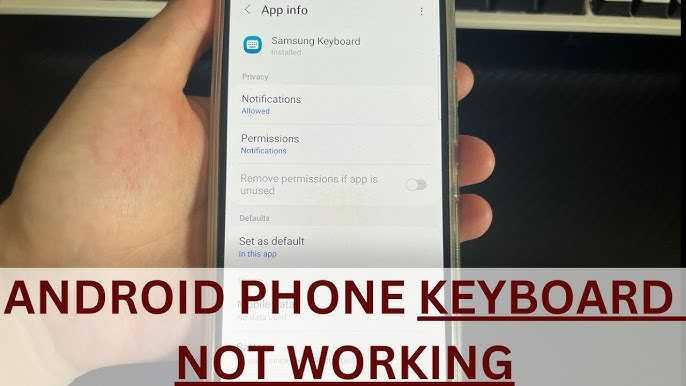
If your phone’s keyboard isn’t working, don’t panic—there are several quick solutions you can try. First, restart your phone, as this simple step can often resolve temporary glitches. If the issue persists, check for any software updates, as outdated software can cause problems. You can also try clearing the cache of your keyboard app or switching to a different keyboard to see if that fixes the issue. In some cases, uninstalling and reinstalling the keyboard app can help too. By following these steps, you should be able to get your keyboard back up and running smoothly. Now, let’s explore these solutions in more detail to help you get back to typing without any hassle.

What to Do If Keyboard Is Not Working on Phone
Are you struggling to type on your phone because the keyboard isn’t working? You’re not alone. Many people face this issue, and it can be frustrating. But don’t worry! There are several steps you can take to resolve this problem. In this detailed guide, we’ll explore what you can do if your phone’s keyboard isn’t functioning properly.
Check for Hardware Issues
First, let’s examine if the problem is due to a hardware issue. Sometimes, dirt or damage could be causing the keyboard to malfunction.
- Inspect the screen: Is it cracked or has it been in contact with water? This could affect the touch response.
- Clean your screen: A dirty screen can prevent your fingers from making good contact. Use a soft cloth to clean it.
- Check for protective cases: Sometimes, a bulky case can interfere with the touchscreen sensitivity. Remove it and test your keyboard again.
Restart Your Phone
When in doubt, try restarting your phone. This simple step can often resolve many minor issues, including keyboard problems.
- For most smartphones: Hold down the power button until the option to restart appears. Select ‘Restart.’
- For older models: You may need to turn it off completely and turn it back on after a few seconds.
Update Your Software
Keeping your phone’s software up-to-date is important. Sometimes, bugs in the system can lead to keyboard issues.
- Check for updates: Go to Settings, scroll down to ‘System,’ and tap on ‘Software Update.’
- Install available updates: Follow the prompts to download and install any updates.
Check Keyboard Settings
Your keyboard settings may be misconfigured. Here’s how to check and adjust them.
- Navigate to Settings: Open the Settings app on your phone.
- Tap on ‘Languages & Input’: Locate the keyboard settings.
- Choose the keyboard: Select the current keyboard you are using and ensure it is set up correctly.
Disable Third-Party Keyboards
If you are using a third-party keyboard, it might be causing compatibility issues. Disabling it can help.
- Go to Settings: Access ‘Languages & Input.’
- Switch to the default keyboard: Select the built-in keyboard to see if that resolves the issue.
Clear Keyboard Cache
Another tactic is to clear the cache of your keyboard app. This can help refresh the app without deleting any data.
- Go to Settings: Open ‘Apps’ or ‘Application Manager.’
- Select the keyboard app: Find the keyboard you are using and tap on it.
- Choose ‘Storage’: Tap on the ‘Clear Cache’ button.
Reset App Preferences
If none of the previous steps worked, you might want to reset your app preferences. This can resolve conflicts with other apps that may be causing issues.
- Open Settings: Go to ‘Apps’ or ‘Application Manager.’
- Tap the menu icon: This is usually represented by three dots in the upper right corner.
- Select ‘Reset app preferences’: Confirm the action when prompted.
Factory Reset as a Last Resort
If your keyboard is still not working after trying all these methods, a factory reset might be necessary. This should be a last resort, as it erases all data on your phone.
- Backup your data: Ensure you’ve backed up contacts, photos, and other important information.
- Go to Settings: Open ‘System’ and then ‘Reset options.’
- Select ‘Erase all data (factory reset)’: Follow the prompts to reset your phone.
Using an External Keyboard
If you need immediate access to typing and your keyboard isn’t working, consider using an external keyboard.
- Bluetooth Keyboard: Connect a Bluetooth keyboard if you have one available.
- USB OTG Keyboard: If your phone supports USB On-The-Go, you can connect a wired keyboard.
Consult Customer Support
If you’re still experiencing issues, it might be time to reach out for help.
- Visit the manufacturer’s website: Look for support options specific to your device.
- Contact customer support: They can provide more tailored solutions for your problem.
Consider a Replacement Device
Sometimes, the hardware may be so damaged that a replacement is necessary.
- Evaluate repair costs: If the cost of repair is too high, consider investing in a new device.
- Look for trade-in deals: Many manufacturers offer deals for trading in your old device.
Prevent Future Keyboard Issues
Once you’ve fixed your keyboard, taking steps to prevent future issues is essential.
- Regular software updates: Keep your device updated to prevent bugs and glitches.
- Use a screen protector: This can help prevent damage to your screen.
- Keep your device clean: Regularly clean your screen and case to avoid buildup of dirt.
The keyboard is a crucial part of the smartphone experience. By following these steps, you can usually resolve any issues that arise. Stay proactive, and you’ll enjoy a smooth typing experience on your phone. Make sure you address any issues as soon as they appear to prevent minor problems from becoming major frustrations.
How To FIX Android Keyboard Not Working! (2021)
Frequently Asked Questions
“`html
What are the common reasons for a phone keyboard not responding?
A phone keyboard may stop responding for several reasons, including software glitches, outdated operating system, or insufficient storage space. Other potential causes include keyboard settings being altered or a third-party app interfering with the keyboard operation.
How can I reset my keyboard settings on my phone?
You can reset your keyboard settings by going to your phone’s settings menu. Look for the ‘Language and Input’ section, select your keyboard, and find the option to reset preferences. This process can help restore the keyboard to its default settings, potentially resolving any issues.
Is it possible to switch to a different keyboard app?
Yes, you can switch to a different keyboard app if your current one is not functioning properly. Simply visit the app store on your phone, search for alternative keyboard apps, and install one that suits your preferences. Once installed, set it as your default keyboard in the settings menu.
What should I do if my phone needs a software update?
If your phone requires a software update, go to your settings and check for available updates under the ‘Software Update’ section. Download and install any updates, as they often include fixes for bugs that could affect your keyboard’s performance.
Can I clear the cache of my keyboard app to fix issues?
Clearing the cache of your keyboard app can help resolve performance issues. Go to your phone’s settings, navigate to ‘Apps’ or ‘Application Manager’, find your keyboard app, and select the option to clear cache. This action removes temporary files that may be causing problems.
“`
Final Thoughts
If your keyboard is not working on your phone, start by restarting the device. This simple action can often resolve minor software glitches quickly.
Next, check for any software updates. Keeping your phone updated can fix bugs that may cause keyboard issues.
If problems persist, consider resetting the keyboard settings or clearing the app cache. These steps may restore the keyboard functionality effectively.
In summary, when facing issues with ‘what to do if keyboard is not working on phone’, follow these troubleshooting steps to get back to typing smoothly.



