


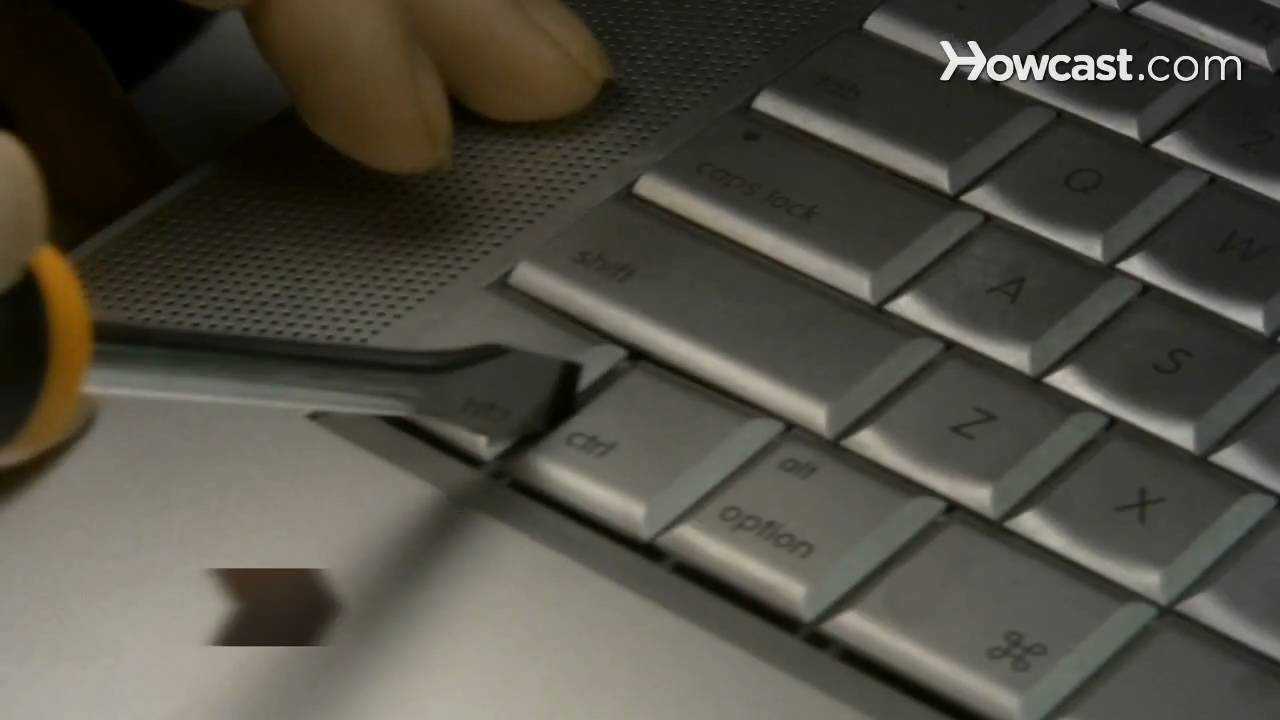
If you’re dealing with a stuck keyboard key, don’t panic! The first thing to do is gently press the key several times to see if it pops back up. If that doesn’t solve it, try giving the area around the key a good clean using compressed air or a soft brush to remove dust and debris. Sometimes, a little buildup can create issues. If the problem persists, you may want to carefully remove the keycap (if possible) for a deeper clean. Just be cautious with how you handle it—keys can be delicate! If all else fails, consulting a technician might be necessary, but often these simple fixes can save the day.
Dealing with a stuck key can be frustrating, but you’re not alone! Whether you’re typing away at work or gaming, a malfunctioning key can throw off your rhythm. There are various reasons a key might get stuck—dirt, spilled liquids, or even wear and tear. It’s essential to get to the root of the problem quickly to avoid further issues. In this article, we’ll explore practical step-by-step solutions to help you troubleshoot and fix a stuck key on your keyboard. You’ll be back to typing smoothly in no time!

What to Do When a Keyboard Key Is Stuck
Having a stuck keyboard key can be frustrating, especially during important tasks. Whether you’re typing a school report or chatting with friends, it can interrupt your flow. Thankfully, there are several steps you can take to fix this issue. Let’s explore some effective methods to resolve a stuck key and get back to typing smoothly.
Identify the Problem
Understanding why a key is stuck is the first step in finding a solution. Here are some common reasons why a key may not work correctly:
- Debris or food particles beneath the key.
- Damage to the key mechanism or the keyboard itself.
- Moisture that has seeped into the keyboard.
By pinpointing the cause, you can choose the right approach to fix the problem.
Basic Cleaning Techniques
Cleaning your keyboard can often resolve the issue. Start with some simple techniques:
1. Shake It Out
Gently turn your keyboard upside down and shake it. This helps dislodge any loose debris that may be stuck under the keys.
2. Use Compressed Air
A can of compressed air can be very effective. Spray between the keys to blow out dust and crumbs. Be sure to hold the can upright to avoid any liquid from spraying out.
3. Wipe Down the Surface
Use a microfiber cloth lightly dampened with water or a gentle cleaning solution. Wipe down the surface of the keyboard to remove greasy fingerprints and smudges.
Inspect for Physical Damage
Once you have cleaned the keyboard, check for any physical damage.
1. Keycap Removal
If the keycap is removable, gently pry it off using a small flat tool. Clean underneath with a soft brush or a cotton swab dipped in isopropyl alcohol. Be careful with the mechanism beneath to avoid breaking it.
2. Check the Stabilizers
If you notice that larger keys like the spacebar or enter key are sticking, check their stabilizers. These are the components that keep these keys stable. Sometimes they can get misaligned or dirty.
Dealing with Moisture Issues
If you suspect moisture is the culprit, here’s what to do:
1. Unplug or Power Off
Immediately unplug your keyboard or power down your laptop to prevent any potential damage.
2. Dry It Out
Place the keyboard upside down to allow any moisture to escape. You can also use silica gel packets or uncooked rice around it to absorb moisture.
3. Wait Before Testing
Give your keyboard at least 24 hours to dry before attempting to use it again. Patience is key in this situation.
Advanced Cleaning Methods
If your key is still stuck after basic cleaning, you may need to employ more advanced techniques.
1. Disassembly
If you’re comfortable with it, disassembling your keyboard for a thorough cleaning is an option. Make sure to follow the manufacturer’s instructions, as this can void warranties.
2. Use Rubbing Alcohol
Dab a cotton swab in rubbing alcohol and clean around the affected key. It evaporates quickly and can remove grime without damaging electronic components.
Replacing Key Switches
In some cases, the key switch itself may be faulty. Here’s how to handle it:
1. Identify the Type of Keyboard
Different keyboards have different types of switches (mechanical vs. membrane). Ensure that you know the type you are dealing with before attempting replacement.
2. Purchase Replacement Keys
You can find replacement keys online. Make sure to get the correct size and type for your keyboard.
3. Install the New Key
Carefully install the new key onto the switch, ensuring it clicks into place. Test to make sure it works properly before reassembling the keyboard.
Keyboards and Software Settings
Sometimes, the problem isn’t physical but rather software-related. Here are a few checks you can do:
1. Keyboard Settings
Check your computer’s keyboard settings. Occasionally, keys might be disabled or assigned incorrectly.
2. Update Drivers
Ensure that your keyboard drivers are up to date. Visit the manufacturer’s website for the latest updates.
Using External Keyboards
If you’re using a laptop, connecting an external keyboard can be a temporary fix.
1. USB Connection
Simply plug in a USB keyboard and use it until you sort out the issue with your primary keyboard.
2. Bluetooth Keyboards
If you prefer a wireless option, a Bluetooth keyboard can connect wirelessly to your device.
Preventive Measures
To avoid future issues with stuck keys, consider these tips:
- Keep your workspace clean and free from crumbs.
- Avoid eating or drinking near your keyboard.
- Regularly clean your keyboard to prevent debris buildup.
- Use a keyboard cover to protect against dust and spills.
Staying proactive can save you from irritating keyboard troubles down the road.
Know When to Replace Your Keyboard
If you’ve tried everything and the key still doesn’t work, it might be time to consider replacement.
1. Frequent Issues
If stuck keys become a common problem, it may indicate that the keyboard is nearing the end of its lifespan.
2. Cost-Effectiveness
Evaluate whether repairing the keyboard is worth the cost. Sometimes buying a new one is more economical.
3. New Features
Upgrading to a new keyboard can bring enhanced features, better ergonomics, and improved performance.
In conclusion, dealing with a stuck keyboard key can be an annoying experience, but with the right approach, it can be resolved. Remember to clean regularly and handle your keyboard with care to ensure longevity. If all else fails, look into replacing your keyboard for enhanced performance and comfort. Whether you choose to fix or replace, you’ll be back to typing smoothly before you know it.
Fix Stuck Key or Repeating Keys on a Mechanical Keyboard
Frequently Asked Questions
“`html
What initial steps should I take if a key is stuck on my keyboard?
Begin by turning off your computer or laptop to prevent accidental inputs. Then, gently press the stuck key several times to see if it will pop back into place. Sometimes, repeated pressing can loosen debris or minor obstructions. If this doesn’t help, proceed to inspect the key for visible dirt or grime.
How can I clean a stuck key without damaging my keyboard?
To clean a stuck key, first detach the keycap if your keyboard design allows it. Use a can of compressed air to blow out any dust or debris underneath the key. For sticky residue, lightly moisten a cotton swab with isopropyl alcohol and carefully clean around the area, avoiding excess moisture. Once cleaned, let it dry thoroughly before reattaching any keycaps.
What tools do I need to fix a stuck keyboard key?
You may require a few basic tools such as a can of compressed air, a soft cloth, cotton swabs, and possibly a keycap puller if you need to remove the keycap. Ensure you also have isopropyl alcohol on hand for cleaning purposes. These tools will help you effectively address the problem without damaging your keyboard.
When should I consider replacing the keyboard instead of fixing it?
If multiple keys are sticking or not functioning, or if the keyboard shows signs of extensive wear or damage, it may be time to consider a replacement. Additionally, if cleaning doesn’t resolve the issue after thorough attempts, investing in a new keyboard might be more practical than continuing to troubleshoot an older model.
Can environmental factors contribute to key sticking?
Yes, environmental factors such as humidity, dust, and spills can contribute to keys sticking on a keyboard. High humidity can cause moisture buildup, while dust can accumulate in and around keys. Always try to keep your workspace clean and dry, and consider using a keyboard cover to protect against spills and dust accumulation.
“`
Final Thoughts
When a keyboard key is stuck, try cleaning the area to remove any debris or dust that may be causing the issue. Use compressed air or a soft brush to gently dislodge particles around the key.
If cleaning doesn’t resolve the problem, consider removing the keycap carefully to inspect for any underlying damage or obstruction.
Finally, if all else fails, replacing the key or consulting a professional may be necessary. Knowing what to do when a keyboard key is stuck can save you from further frustration and keep your typing smooth.



