


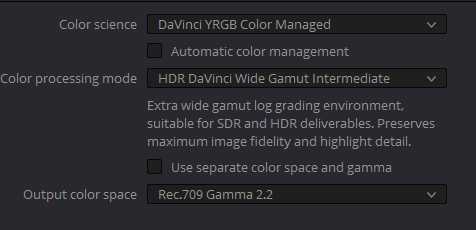
Colors often surprise us after exporting a project, appearing duller, more vibrant, or just different than expected. This common issue stems from differences in color profiles, export settings, or even monitor calibrations, making it tricky to keep your colors consistent. The quick answer is that color discrepancies occur because of mismatched color spaces between your editing software and export format, as well as export settings that don’t preserve color information accurately. To fix this, ensure your workspace and export settings are aligned with the desired color profile, typically sRGB or Adobe RGB, and always calibrate your monitor for accurate color display. Understanding these factors can help you achieve colors exactly as you see them on your screen, no matter where or how you export your work.

Why Do Colors Look Different After Export?
Understanding Color Spaces and Why They Matter
Colors are created based on different color spaces, such as RGB and CMYK. These spaces define how colors are represented on screens and in print. When you export an image, it can shift because of changes in these color spaces. For example, RGB is used for screens, and CMYK is common in printing. Converting between them can cause color variations.
The Role of RGB and CMYK
RGB (Red, Green, Blue) is a device-dependent color space. It displays colors differently depending on the monitor or device used. CMYK (Cyan, Magenta, Yellow, Black) is used for printing and has a narrower color range. Exporting from RGB to CMYK often results in color changes because some colors can’t be directly translated.
Color Gamut and Its Impact
A color gamut is the range of colors a device can reproduce. Displays often have a wider gamut than printers. When you export a file, colors outside the printable gamut may need to be adjusted or approximated, leading to differences. This is known as color clipping, where subtle hues are lost or changed.
File Formats and Their Effect on Colors
Different file formats store color data differently. JPEGs, PNGs, TIFFs, and PDFs each handle color information in unique ways. Choosing the wrong format for your project can cause color shifts after export.
JPEG and Its Compression
JPEG files use lossy compression, which reduces file size by discarding some color information. This compression can result in slight color shifts or artifacts, especially in areas with subtle color gradations. When exported, these shifts become noticeable.
PNG and Color Fidelity
PNG files support lossless compression, preserving original colors. However, they still depend on the color profile embedded within the file. If the profile isn’t correctly managed during export, colors can appear different.
TIFF and High-Quality Export
TIFF files are often used for high-quality prints. They support multiple color profiles and layers, making them ideal for maintaining color consistency. Proper management of color profiles in TIFF files ensures minimal change after export.
Color Profiles and Their Crucial Role
Color profiles are like instructions that tell devices how to interpret color data. They ensure consistency across different screens and printers. When exporting, using mismatched or missing profiles can cause colors to shift.
Embedded vs. Assigned Profiles
An embedded profile is a set of instructions stored within the file that maintains color consistency. Assigning a wrong profile during export or not embedding a profile at all can cause color discrepancies. It’s essential to choose the right profile for your intended use.
Profiles and Cross-Device Compatibility
Different devices interpret color profiles differently. For example, a monitor calibrated for Adobe RGB may display colors differently when viewed on a device set for sRGB. Export settings that do not account for these differences can result in color variations.
Monitor Calibration and Its Effect on Exported Colors
Your monitor’s calibration status directly influences how colors appear on-screen and after export. An uncalibrated or poorly calibrated monitor can give you a false sense of color accuracy.
Why Calibration Matters
Calibrating your monitor ensures that the colors you see are true to the intended output. Without calibration, the colors you work on may not match the printed or displayed results, leading to unexpected differences after export.
Tools and Techniques for Calibration
Calibration tools like colorimeters and software help adjust your monitor to display accurate colors. Regular calibration ensures consistency and reduces unexpected color shifts during and after export.
Lighting Conditions and Perception
Lighting conditions in your workspace affect how you perceive colors. Bright or colored lighting can cause you to see colors differently on your screen, influencing your export results.
Viewing Environment and Its Impact
Colors look different in natural daylight versus artificial lighting. When exporting images, such perceptions may influence your color adjustments, leading to variations when viewed under different conditions.
Gallery or Print Lighting vs. Screen Preview
Colors may appear differently once printed or viewed in a gallery setting versus how they look on your calibrated monitor. Always check colors in multiple environments to ensure accuracy.
Export Settings and How They Influence Colors
The settings you choose during export, such as color space, compression, and quality, play a significant role in how colors are preserved or altered.
Choosing the Correct Color Space
Always select the appropriate color space based on your final output—sRGB for web, Adobe RGB for high-end printing. Incorrect choices can cause colors to look dull or oversaturated after export.
Adjusting Compression Levels
Higher compression reduces file size but can cause color degradation. Balancing compression and quality helps maintain accurate colors after export.
Color Management Settings in Software
Most editing programs offer color management options. Using consistent settings and profiles during editing and exporting ensures your colors stay as true as possible.
Common Causes of Color Shift and How to Prevent Them
Understanding common causes helps you avoid unexpected color changes. Key factors include inconsistent profiles, poor calibration, and format mismatches.
Inconsistent Use of Color Profiles
Always use the same color profile for editing and exporting. Inconsistencies lead to unpredictable color shifts.
Ignoring Proper Calibration
Regular calibration of your display ensures that the colors you see are accurate, avoiding surprises after export.
Mismatched Export and Original Settings
Ensure that export settings match your project’s original color profile and intended output medium for consistent results.
Practical Tips for Maintaining Color Consistency
Here are some straightforward steps to help keep colors consistent from editing to final export.
- Always embed color profiles in your files
- Calibrate your monitor regularly
- Export using the same color space as your editing workspace
- Preview your exported files on different devices and lighting conditions
- Use high-quality file formats like TIFF for printing projects
Summary
Colors look different after export because of multiple factors such as color space conversions, file formats, profiles, calibration, and export settings. Managing these elements carefully from start to finish helps ensure that your images appear consistent across devices and mediums. Being aware of the technical details and following best practices ensures your colors stay true to your original vision.
Does Your Color Change After Export in Photoshop?
Frequently Asked Questions
Why do colors sometimes appear dull or faded after exporting a file?
Colors may seem dull or faded after export because of differences in color profiles or color space conversions during the exporting process. If the software does not embed color profiles correctly or the viewing device does not support the color profile, the colors can shift or lose vibrancy. Ensuring that you embed the appropriate color profiles and export in the desired color space helps maintain the original color richness.
How does the export format affect the color accuracy of an image?
The choice of export format influences how colors are preserved or compressed. Formats like JPEG often use lossy compression, which can reduce color detail and cause colors to appear less accurate. Conversely, formats like PNG or TIFF retain more color information. Selecting the right format for your needs and adjusting quality settings ensures colors stay true to the original image.
Can monitor calibration impact how colors look after exporting files?
Yes, monitor calibration plays a significant role in how you perceive colors on your screen. An uncalibrated monitor can display colors inaccurately, leading you to export images with incorrect color adjustments. Calibrating your monitor regularly ensures that your on-screen colors align with standard color profiles, resulting in more consistent colors after export.
Why do colors shift when I view exported files on different devices?
Colors can shift across devices because each device may interpret color profiles differently or have varying display technologies. Some devices lack support for specific color profiles used during export, which can lead to color discrepancies. To minimize this, export files with embedded profiles and test how they appear across different screens to ensure color consistency.
How does the software’s color management settings influence exported colors?
Incorrect or inconsistent color management settings in your editing software can cause colors to change during export. If the software does not handle color profiles properly or overrides them during export, colors may shift or become less accurate. Configuring the software to embed color profiles and export using the correct color space helps maintain consistent colors in your final output.
Final Thoughts
Colors look different after export because of various factors like color profiles, monitor calibration, and file formats. These elements can cause discrepancies between your design on screen and the final exported image. Export settings also play a crucial role in how colors are rendered.
In conclusion, why do colors look different after export? The main reasons include color management issues, device differences, and file specifications. Understanding these factors helps ensure your exported images reflect your original vision accurately.



