


If your AI webcam keeps losing focus during calls or recordings, you’re not alone. This guide explains common causes and provides practical tips to fix autofocus issues. Follow our step-by-step instructions to restore sharp, clear video quality effortlessly.
Key Takeaways
- Focus issues are common: Many AI webcams experience losing focus due to hardware or software problems.
- Lighting matters: Poor or inconsistent lighting can cause autofocus to malfunction.
- Software settings are key: Adjusting camera settings often resolves focus problems.
- Update drivers and firmware: Keeping your webcam’s software current can prevent focus loss.
- Hardware checks: Dirty lens or hardware damage can lead to autofocus failure.
- Troubleshooting steps: Systematic troubleshooting can identify and fix focus issues quickly.
- Professional help: If problems persist, contacting support may be necessary.
Introduction
If you’re using an AI webcam and notice it keeps losing focus, it can be frustrating. Blurry images or constantly adjusting focus can disrupt your calls, recordings, or streaming sessions. Fortunately, many of these issues are fixable with simple steps. In this comprehensive guide, you’ll learn why your AI webcam might keep losing focus and how to troubleshoot and resolve these problems effectively. Whether you’re a remote worker, content creator, or student, understanding the common causes will help you get clear, sharp video again.
Understanding Why AI Webcams Lose Focus
Before diving into solutions, it’s helpful to know what causes autofocus issues. AI webcams use built-in sensors and algorithms to automatically focus on your face or objects. Several factors can interfere with this process, including hardware, software, and environmental conditions.
Visual guide about Why Does Ai Webcam Keep Losing Focus
Image source: techsynchron.com
Step 1: Check Your Lighting Conditions
Why lighting affects focus
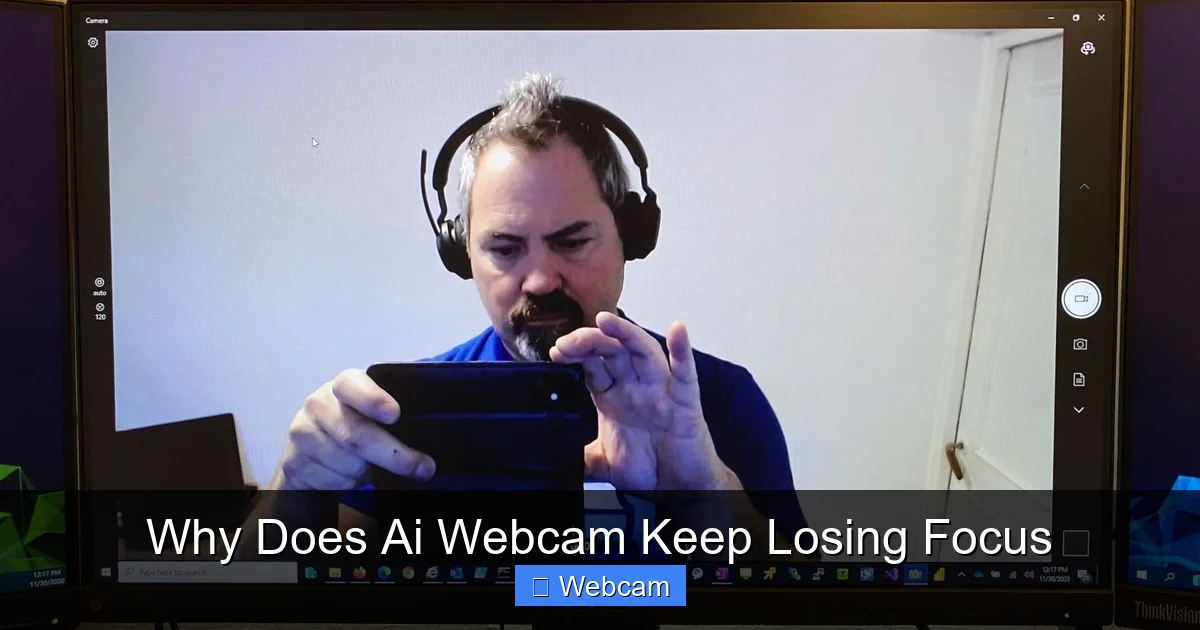
Autofocus systems rely heavily on contrast and light. Poor or uneven lighting can confuse the camera’s autofocus, causing it to hunt or lose focus altogether.
Visual guide about Why Does Ai Webcam Keep Losing Focus
Image source: robots.net
Practical tips
- Ensure good lighting: Use soft, diffuse light that evenly illuminates your face.
- Avoid backlighting: Don’t sit with a bright window behind you; it can make your face appear dark.
- Use additional lights: Desk lamps or ring lights can improve contrast and help autofocus work better.
Example
If your camera keeps losing focus in dimly lit rooms, try adding a ring light or adjusting your room’s lighting setup for better contrast.
Step 2: Clean and Inspect Your Webcam Lens
Why dirty lenses cause focusing issues
Dust, smudges, or fingerprints on the lens can interfere with autofocus sensors, leading to blurry or unfocused images.

Visual guide about Why Does Ai Webcam Keep Losing Focus
Image source: techsynchron.com
How to clean your lens
- Power off your webcam before cleaning.
- Use a soft, lint-free cloth: Microfiber cloths work well.
- Dampening the cloth: Slightly dampen with water or lens cleaner—avoid harsh chemicals.
- Gently wipe the lens: Use circular motions to remove smudges and dust.
Tip
Regularly clean your webcam lens to maintain optimal focus and image quality.
Step 3: Adjust Camera Settings
Accessing your webcam settings
Most webcams come with software or are controlled via your operating system’s camera settings. Check the app or system preferences.
Key settings to check
- Autofocus toggle: Ensure autofocus is enabled.
- Focus range: Some webcams allow manual focus adjustment; set it to auto if available.
- Focus speed: Adjust focus speed for smoother operation, if the option exists.
How to adjust settings
- Open your camera software or device manager.
- Navigate to the camera properties or settings menu.
- Locate autofocus options and enable or adjust as needed.
- Save changes and test your webcam.
Tip
If your webcam software lacks controls, try using third-party apps like OBS Studio or ManyCam for more detailed settings adjustments.
Step 4: Update Drivers and Firmware
Why updates matter
Outdated drivers or firmware can cause compatibility issues, leading to autofocus failure.
How to update
- Identify your webcam model: Check the manufacturer’s website.
- Download latest drivers: Look for the most recent versions compatible with your OS.
- Install firmware updates: Follow instructions provided by the manufacturer.
Additional tips
Use Device Manager (Windows) or System Preferences (Mac) to check for driver updates automatically.
Step 5: Check for Hardware Problems
Inspect your webcam physically
- Lens damage: Look for cracks or scratches.
- Loose connections: Ensure USB or connection cables are secure.
- Damage or wear: Consider replacing if hardware appears faulty.
Test on different devices
Connect your webcam to another computer to see if focus issues persist. If yes, hardware may need repair or replacement.
Step 6: Reset and Reinstall Webcam Software
Why reset or reinstall
Corrupted software settings can interfere with autofocus. Reinstalling resets everything to default.
Steps to reset or reinstall
- Uninstall the webcam software from your device.
- Restart your computer.
- Download the latest version from the manufacturer’s website.
- Follow installation instructions carefully.
- Test your webcam again.
Step 7: Additional Troubleshooting Tips
- Disable other camera apps: Close any apps that might be conflicting with your webcam.
- Adjust background and surroundings: Keep your background uncluttered and well-lit.
- Use a different USB port: Sometimes, switching ports can improve performance.
- Check for system updates: Ensure your operating system is up-to-date for best hardware compatibility.
When to Seek Professional Help
If you’ve tried all these steps and your AI webcam still keeps losing focus, it might be a hardware fault. Contact the manufacturer’s support or visit a technician for repairs. Sometimes, replacing the webcam is the most cost-effective solution.
Conclusion
Dealing with a webcam that keeps losing focus can be frustrating, but most issues are fixable. By ensuring proper lighting, cleaning your lens, adjusting settings, updating software, and checking hardware, you can significantly improve your webcam’s autofocus performance. Remember, regular maintenance and troubleshooting can keep your video quality sharp and professional-looking. Follow this guide, and you’ll be back to clear, focused video in no time!
FAQs
Why does my AI webcam keep losing focus randomly?
This often happens due to poor lighting, outdated drivers, or dirty lenses. Ensuring good lighting and updating your software can fix this issue.
Can software updates fix autofocus problems?
Yes, updating your webcam’s firmware and drivers can resolve many autofocus issues caused by software bugs or incompatibility.
What should I do if cleaning the lens doesn’t help?
If cleaning doesn’t improve focus, check your camera settings, update drivers, and inspect hardware for damage. If problems persist, consider professional repair or replacement.
Is there a way to manually focus my webcam?
Some webcams allow manual focus adjustments through their software settings. Check your manufacturer’s instructions for details.
How does lighting affect autofocus?
Good lighting provides contrast and helps the autofocus sensors work correctly. Poor or uneven lighting can cause the camera to hunt or lose focus.
When should I replace my webcam?
If your webcam is physically damaged or repeatedly fails despite troubleshooting, replacing it might be the best option for reliable performance.



