


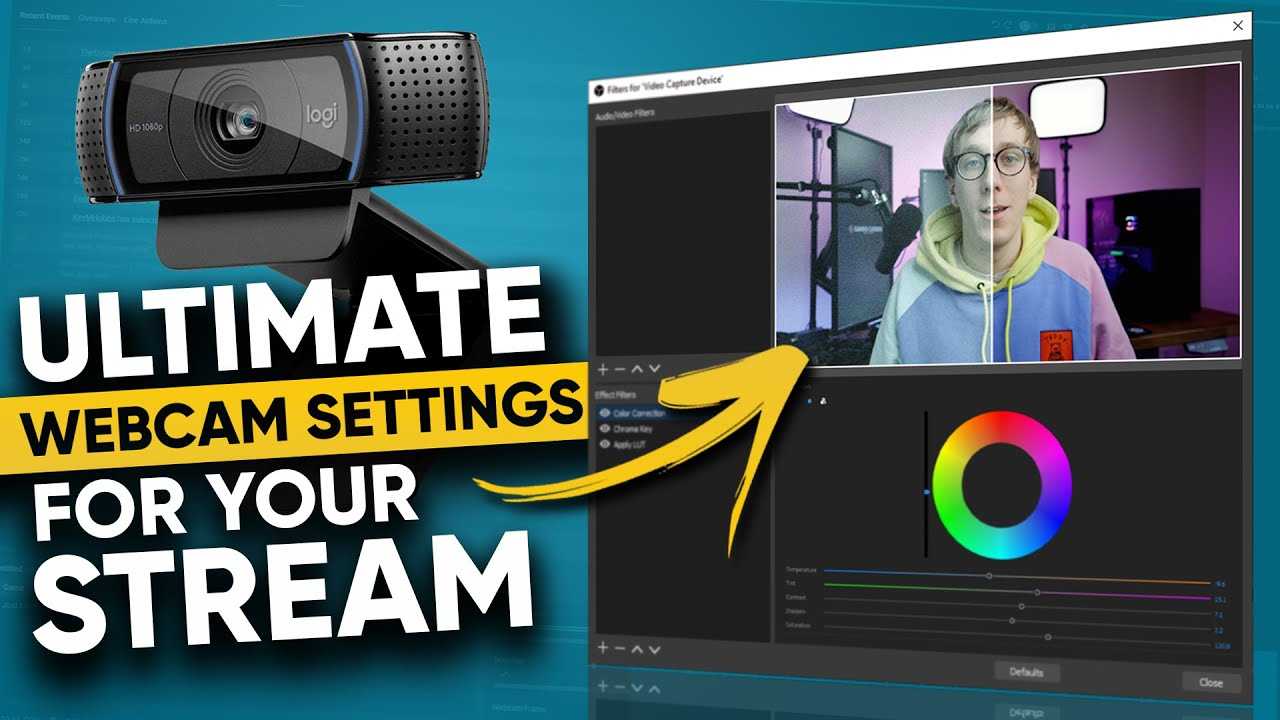
If your webcam appears dark, don’t worry—you’re not alone, and there’s usually a simple fix. The main reason your webcam might look dim is due to poor lighting conditions, incorrect camera settings, or software issues. Adjusting your lighting, checking your camera’s brightness and exposure settings, and updating your drivers can often restore a clear image.
A dark webcam image is a common problem caused by inadequate lighting, wrong camera configurations, or outdated software. By tweaking your environment and settings, you can quickly improve your video quality and look sharp on your calls and recordings.
When your webcam looks dark, it can be frustrating, especially when you need to look professional or share clear visuals. Often, the issue stems from not enough light in your room or a camera setting that’s too low. Sometimes, the problem is software-related, like outdated drivers or app settings that need tweaking. Understanding the root cause allows you to troubleshoot efficiently and get back to looking your best on video chats. Whether you’re working from home, attending online classes, or recording videos, having a bright and clear webcam image enhances your communication. This guide will walk you through common causes and simple solutions to brighten up your camera and ensure you always look your best.

Why Does My Webcam Look Dark? Understanding the Causes and Solutions
Introduction to Webcam Darkness Issues
Webcam problems can be frustrating, especially when your video appears too dark. Often, this issue makes it difficult for others to see you clearly during video calls. Understanding why your webcam looks dark helps you find the right solution quickly.
Common Reasons Why a Webcam Looks Dark
There are several reasons your webcam might produce dark images. These reasons include improper lighting, camera settings, or hardware problems. Let’s explore each one in detail so you can identify what might be causing the issue.
Insufficient or Poor Lighting Conditions
Lighting plays a big role in how your webcam captures your image. When a room is too dim or poorly lit, the camera cannot pick up enough light to produce a bright picture. This results in a dark or grainy image that makes it hard to see details.
Bright Background or Backlighting
Sometimes, strong light sources behind you can cause your webcam to underexpose your face. If your window or lamp is behind you, the camera may adjust for the bright background instead of your face, making you look dark.
Incorrect Camera Settings
Many webcams come with adjustable settings that control exposure, brightness, and contrast. If these are set improperly, your webcam may produce darker images than desired. Default settings are not always ideal for your lighting environment.
Outdated or Missing Webcam Drivers
Hardware issues can also cause darkness in webcam images. Drivers act as the communication bridge between your webcam and computer. Outdated or corrupt drivers can impair camera performance, leading to poor image quality.
Hardware Malfunctions or Damage
In some cases, the webcam itself might have hardware issues. Damage to the lens or sensor can result in dark or blurry images. If your camera has physical damage, it’s time to consider repair or replacement.
How to Troubleshoot and Fix a Dark Webcam
Now that you know potential causes, let’s move on to practical steps to fix the issue.
Adjust Camera Settings
Most webcams and video conferencing apps allow you to tweak settings like brightness and exposure. Increase the brightness or exposure sliders to let more light in. Check your device’s control panel or the app you’re using for these options.
Improve Lighting Conditions
Adding more light to your environment can significantly brighten your webcam image. Consider:
- Positioning a lamp facing your face
- Using natural sunlight during the day
- Removing backlighting sources like windows or bright lamps behind you
Update or Reinstall Webcam Drivers
Keeping drivers current is essential. Visit your device manufacturer’s website to download the latest drivers. Alternatively, use Windows Device Manager to update your webcam driver automatically.
Test with Different Apps and Devices
See if the issue persists across multiple programs like Skype, Zoom, or Microsoft Teams. If the problem only occurs in one app, adjust settings there. If it happens everywhere, it might be a hardware or driver problem.
Check Hardware and Connection Cables
Sometimes, loose or damaged cables can cause poor camera performance. Ensure your webcam is securely connected and replace any damaged cables.
Additional Tips for Better Webcam Image Quality
Optimizing your webcam setup enhances your overall video quality.
Use a Tripod or Stable Mount
Keeping your webcam steady prevents blurry images and improves focus. A tripod can help position the camera perfectly.
Clean Your Webcam Lens
Dust or smudges on the lens can make images look dark or blurry. Gently wipe the lens with a soft, lint-free cloth to clear any dirt.
Choose a High-Quality Webcam
If your webcam is old or low-resolution, upgrading can dramatically improve image brightness and clarity.
Adjust Ambient Lighting
Balancing light sources around your workspace creates a more evenly lit scene. Avoid harsh shadows or overly bright spots.
Understanding Exposure and Brightness Settings
Exposure determines how much light your camera sensor captures. If set too low, your images are dark. Increasing exposure allows more light to reach the sensor.
Brightness controls how light or dark images appear after exposure. Proper adjustments can brighten your webcam output without overexposing.
How to Change Exposure and Brightness
Access your webcam settings through your device’s control panel or your video conferencing software. Increase exposure and brightness gradually, testing after each change until your image appears clear.
Advanced Solutions for Persistent Darkness
If simple adjustments do not help, consider more advanced solutions.
Using External Lighting Equipment
Ring lights or softboxes provide consistent, even lighting. They help eliminate shadows and improve image brightness.
Switching to a Different Video Software
Some programs offer more control over camera settings. Using software like OBS Studio or ManyCam can give you more detailed control over exposure, white balance, and contrast.
Checking for Hardware Faults
If all adjustments fail, test your webcam on another computer. If it remains dark, the hardware likely needs repair or replacement.
Summary of Key Tips to Prevent Your Webcam from Looking Dark
- Ensure good ambient lighting and avoid backlighting
- Adjust camera settings like exposure and brightness
- Keep webcam drivers updated
- Clean the lens regularly for clear images
- Use high-quality, well-maintained equipment
Related Topics for Better Video Quality
Aside from fixing darkness, you might also explore:
- Choosing the best lighting setup for video calls
- Upgrading your webcam for higher resolution images
- Optimizing your workspace for clear video communication
In sum, understanding why your webcam looks dark involves checking lighting conditions, camera settings, driver updates, and hardware health. Addressing these areas step-by-step helps you improve your video quality and ensures clear, bright images during all your video calls.
Why Is My Webcam Exposure Too Bright Or Dark? – Office Supply Insider
Frequently Asked Questions
Why does my webcam appear dark even in well-lit rooms?
If your webcam appears dark despite good lighting, the issue may be related to incorrect exposure settings. Many webcams automatically adjust exposure, but sometimes they struggle to adapt in certain lighting conditions. Manually increasing the exposure or adjusting the brightness settings through your device’s camera software can help improve visibility and make your video clearer.
Could low resolution affect the brightness of my webcam feed?
Yes, using a low-resolution setting can sometimes make your webcam feed look darker or less detailed. Lower resolution captures less light and detail, which can result in a dull or shadowed appearance. Switching to a higher resolution setting can enhance your video quality and make the image brighter and more vibrant.
How do lighting conditions impact my webcam’s image quality?
Poor lighting conditions significantly influence how your webcam captures images. Insufficient or uneven lighting causes shadows and darkness in the video feed. Proper front lighting, such as a bright lamp or natural sunlight facing you, ensures even illumination. Positioning lighting sources correctly can make your webcam image appear brighter and more natural.
Can software or driver issues lead to a dark webcam image?
Yes, outdated or malfunctioning webcam drivers and software can affect image quality, including causing darkness or poor brightness. Updating your webcam drivers and software ensures compatibility and improved performance. Restarting your device after updates often helps apply changes and resolve visibility issues.
What role do camera lens and sensor cleanliness play in image brightness?
Dirt, dust, or smudges on your webcam lens or sensor can block light and produce darker, blurry images. Regularly cleaning the lens with a soft, lint-free cloth maintains clear visibility. Keeping the camera lens clean ensures optimal light intake and results in brighter, sharper images during video calls or recordings.
Final Thoughts
Why does my webcam look dark? Usually, poor lighting is the main cause. Adjusting your room’s brightness or repositioning your light source can help. Also, check your webcam’s settings and increase the exposure if needed.
Ensure your webcam lens is clean and free of smudges. Outdated drivers might also cause image issues, so update them regularly. Sometimes, software conflicts block proper image rendering.
In conclusion, if your webcam looks dark, troubleshoot lighting, lens cleanliness, and driver updates first. These simple steps often resolve the issue quickly.



