


Webcams often lose sharpness at 4K resolution due to hardware limitations, settings issues, and lighting conditions. This guide explains the common causes and provides simple solutions to improve your webcam’s clarity at 4K, ensuring crisp, clear video quality for your calls and recordings.
Why Does Webcam Lose Sharpness at 4k
If you’ve ever noticed your webcam looks blurry or less sharp when recording or streaming at 4K, you’re not alone. Many users face this issue, even with high-resolution cameras. In this guide, you’ll learn why webcams lose sharpness at 4K and what you can do to fix or improve image quality. We’ll explore hardware limitations, settings, lighting, and other factors that influence sharpness at higher resolutions.
Key Takeaways
- Understanding hardware limits: Not all webcams are designed to handle 4K resolution effectively, which can affect sharpness.
- Lens quality matters: Lower-quality lenses may cause blurriness at higher resolutions.
- Proper lighting is crucial: Good lighting enhances sharpness and prevents grainy images.
- Correct settings: Adjusting resolution, focus, and exposure settings can significantly improve image clarity.
- Software and drivers: Outdated drivers or incorrect software settings can cause loss of sharpness at 4K.
- Compression and bandwidth: Streaming or recording at 4K requires ample bandwidth; insufficient bandwidth can affect quality.
Understanding Why Webcams Lose Sharpness at 4K
Before diving into solutions, it’s important to understand the main reasons behind this problem. Several factors contribute to a webcam appearing less sharp at 4K resolution.
1. Hardware Limitations
Not all webcams are built to handle 4K resolution effectively. Some cameras are designed for 720p or 1080p, and when forced to operate at 4K, they may struggle to maintain clarity. This is often due to sensor size, processing power, and lens quality.
2. Lens Quality and Focal Length
The quality of the lens affects image sharpness. Lower-quality lenses or poorly calibrated lenses can cause blurriness, especially when zoomed into 4K resolution. Even good lenses can lose sharpness if they are dirty or scratched.
3. Focus Settings
If your webcam has automatic or manual focus, incorrect focus can lead to blurry images. At 4K, small focus errors become more apparent because of the higher pixel density.
4. Lighting Conditions
Insufficient or uneven lighting can cause noise and graininess, making the image appear less sharp. Proper lighting enhances detail and clarity, especially at higher resolutions.
5. Software and Driver Issues
Outdated or incompatible drivers can cause the webcam to underperform at 4K. Similarly, incorrect software settings may restrict resolution or affect image processing.
6. Bandwidth and Compression
Streaming or recording at 4K requires significant bandwidth. Limited bandwidth can lead to compression artifacts, reducing sharpness and detail.
How to Improve Webcam Sharpness at 4K: Step-by-Step Guide
Now that you know the common causes, let’s explore how to fix or minimize loss of sharpness when using your webcam at 4K. Follow these steps to enhance your video quality.
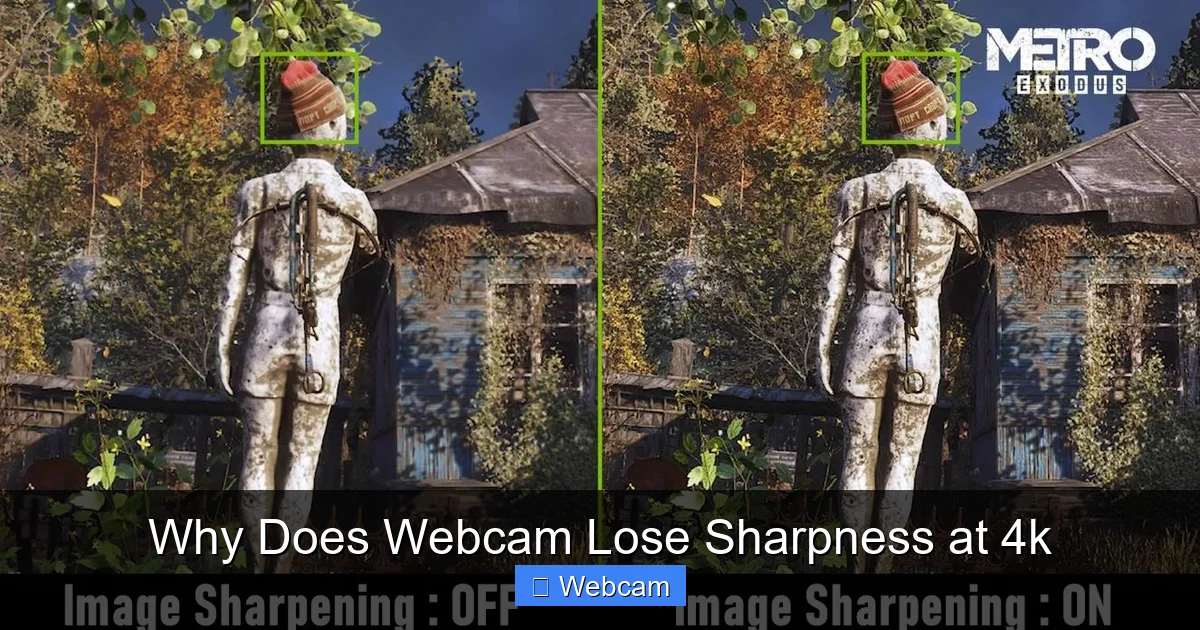
Visual guide about Why Does Webcam Lose Sharpness at 4k
Image source: techinspection.net
Step 1: Check Your Webcam’s Hardware Capabilities
1.1 Verify Camera Specifications
First, confirm that your webcam supports 4K resolution fully. Check the manufacturer’s specifications or user manual. Some webcams only offer 4K for still images or limited video quality.

Visual guide about Why Does Webcam Lose Sharpness at 4k
Image source: techinspection.net
- Look for terms like “true 4K” or “UHD 3840×2160” in product specs.
- Note the sensor size and lens quality, as larger sensors and high-quality lenses generally produce better sharpness.
1.2 Test Other Resolutions
If your webcam supports multiple resolutions, try switching to 1080p or 1440p to see if sharpness improves. Sometimes, lowering resolution slightly can result in a clearer image if hardware struggles with 4K.
Step 2: Adjust Camera Settings for Optimal Focus and Clarity
2.1 Manually Set Focus
If your webcam allows manual focus adjustment, set it to the optimal point. Use camera software or your webcam’s app to fine-tune focus until the image appears crisp.

Visual guide about Why Does Webcam Lose Sharpness at 4k
Image source: i.redd.it
- Use test footage or live preview to check focus adjustments.
- Zoom in and out to see if the focus remains sharp across different distances.
2.2 Turn Off Auto-Focus if Necessary
Auto-focus can sometimes hunt or shift, causing blurriness. If you prefer a fixed focus, disable auto-focus and set it manually for a sharp image.
Step 3: Optimize Lighting Conditions
3.1 Use Proper Lighting
Good lighting is essential for sharp images. Use soft, diffuse light sources and avoid harsh shadows. Natural light from windows works well if consistent.
- Position lights in front of you, facing your face.
- Avoid backlighting, which can cause your face to appear dark and blurry.
3.2 Increase Light Intensity
If your environment is dim, add more light sources or increase brightness to improve detail capture at 4K.
Step 4: Update Drivers and Software
4.1 Check for Driver Updates
Visit the webcam manufacturer’s website or use device manager tools to ensure you have the latest drivers installed. Updated drivers often fix bugs and improve performance at high resolutions.
4.2 Use Recommended Software
Use the official software or compatible third-party apps to set and optimize your webcam settings. Some software offers advanced controls like sharpening, contrast, and zoom.
Step 5: Adjust Resolution and Frame Rate Settings
5.1 Match Settings to Hardware
Set the resolution to 4K in your video conferencing or recording software. Also, choose a frame rate that your hardware can handle smoothly (typically 30fps for 4K).
- Lower frame rates can sometimes improve overall sharpness if your system struggles with 60fps at 4K.
5.2 Use Higher Bitrate Streaming
If streaming, increase your bitrate settings to reduce compression artifacts. A higher bitrate preserves detail and sharpness.
Step 6: Use External Lenses or Accessories (Optional)
For advanced users, consider attaching external lenses designed for webcams. These can improve focus and sharpness at high resolutions.
Troubleshooting Common Issues
- Blurry image even at 1080p: Check focus, lighting, and lens cleanliness.
- Image appears grainy at 4K: Improve lighting or increase bitrate during streaming.
- Webcam supports 4K but quality is poor: Confirm hardware specifications and update drivers.
Conclusion
Webcams can lose sharpness at 4K due to hardware limitations, settings, lighting, and software issues. By verifying your webcam’s capabilities, adjusting focus, optimizing lighting, updating drivers, and properly setting resolution, you can significantly improve image clarity. Remember, not all webcams are created equal—investing in a high-quality 4K webcam with good lenses and sensors will give you the best results for crisp, professional-looking video.
With these tips, you’ll be able to enjoy sharp, clear 4K video whether for streaming, conferencing, or recording. Don’t forget to regularly check and maintain your equipment for optimal performance!



