


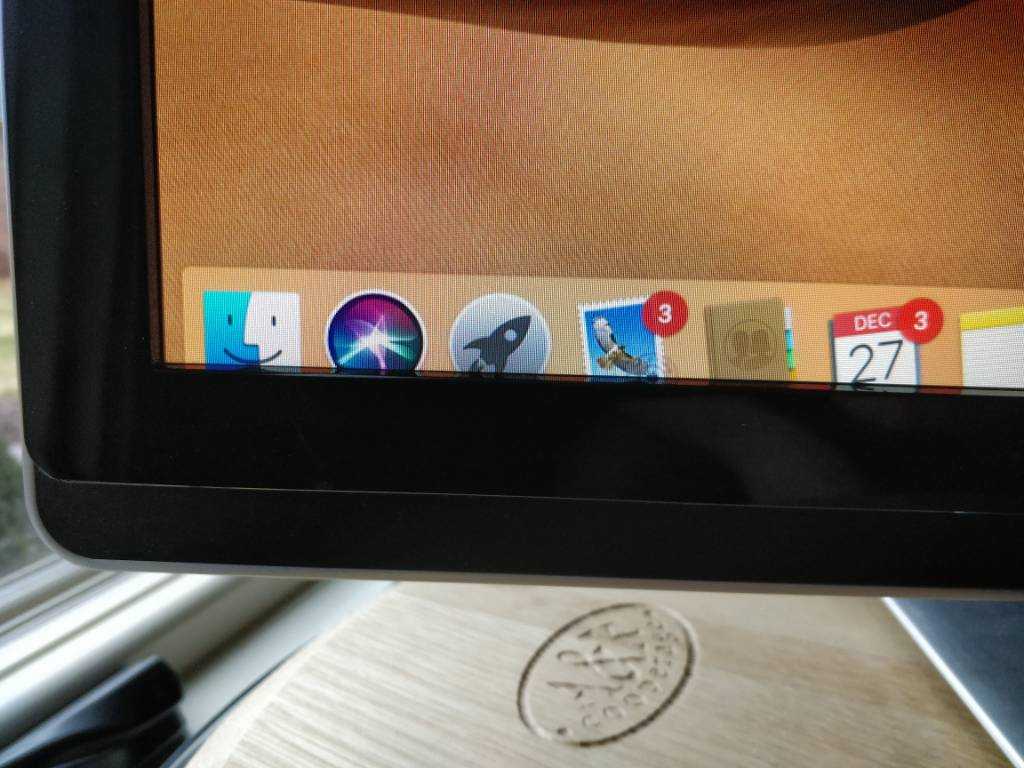
Having trouble with your monitor not displaying everything correctly? This common issue can be frustrating, especially when you’re trying to get work done or enjoy your favorite games. The quick fix is often adjusting your screen resolution or scaling settings, updating your graphics driver, or checking your monitor’s own settings. These simple steps usually resolve the problem without the need for technical support.
If your monitor isn’t scaling properly, it’s likely due to incorrect display settings, outdated drivers, or a mismatch between your graphics card and monitor resolutions. By tweaking these settings and ensuring your software is up to date, you can quickly restore perfect display scaling and enjoy crisp, clear visuals again.
When your monitor isn’t scaling correctly, it can make text blurry, images stretched, or elements cut off, disrupting your viewing experience. This issue might stem from incompatible resolution settings, driver problems, or display configuration errors. Identifying the root cause and adjusting the right settings can resolve this frustrating problem efficiently and improve your overall display quality.

Why Is My Monitor Not Scaling Properly? Understanding the Causes and Solutions
What Is Monitor Scaling and Why Is It Important?
Monitor scaling adjusts the size of text, icons, and other elements on your screen so they appear clearly and comfortably. Proper scaling makes using your computer easier and reduces eye strain. When scaling doesn’t work well, everything can look too small, too big, or blurry, making it hard to work or enjoy content.
Common Reasons Why Your Monitor Isn’t Scaling Correctly
There are several reasons why your monitor might not display content properly. Understanding these causes helps you find the right fix. These include incorrect display settings, outdated drivers, hardware issues, and software conflicts.
Incorrect Display Resolution Settings
One of the main causes of scaling problems is choosing the wrong resolution. When your monitor’s resolution doesn’t match its native resolution, images and text can appear blurry or stretched. Always setting your display to its recommended resolution ensures the best quality.
How to Check and Change Resolution on Windows
- Right-click on your desktop and select Display Settings.
- Scroll down to Display resolution.
- Choose the recommended resolution marked as (Recommended).
- Apply the changes and see if scaling improves.
Making sure the resolution matches your monitor’s native specifications is crucial.
Incorrect Scaling Options
Even with the correct resolution, scaling settings may be off. Windows and other operating systems allow you to adjust the size of text, apps, and other elements. If these settings are too low or too high, content can look distorted.
How to Adjust Scaling on Windows
- Go to Display Settings.
- Look for the Scale and Layout section.
- Select a scaling percentage such as 125%, 150%, or a custom value.
- Test the new setting to see if it improves the display.
Start with a moderate setting and adjust until it feels comfortable for your eyes.
Outdated or Incompatible Graphics Drivers
Graphics drivers manage how your system communicates with your display. Outdated drivers can cause scaling issues or display artifacts. Keeping your drivers up-to-date improves compatibility and fixes known bugs.
How to Update Graphics Drivers
- Open Device Manager from the Start menu.
- Expand Display Adapters.
- Right-click your graphics card and select Update Driver.
- Choose Search automatically for updated driver software.
- Follow on-screen instructions to install updates.
Alternatively, visit your graphics card manufacturer’s website for the latest drivers.
Monitor Hardware Limitations and Compatibility
Some monitors have limitations affecting scaling. Older or lower-quality displays might not support certain scaling options properly. Check your monitor’s specifications for supported resolutions and scaling features.
Identifying Hardware Issues
- Ensure your monitor cables are securely connected and in good condition.
- Test your monitor with another device to see if scaling issues persist.
- Use the monitor’s built-in menu to reset settings to default.
If hardware limitations are the cause, replacing or upgrading your monitor might be necessary.
Software Conflicts and Third-Party Applications
Some software, especially screen management tools or custom display drivers, can interfere with scaling settings. These conflicts often cause elements to appear incorrectly sized or blurry.
Steps to Troubleshoot Software Conflicts
- Boot your system in Safe Mode to see if scaling issues remain.
- Disable or uninstall third-party display or graphics software temporarily.
- Reboot and check if the scaling problem is resolved.
If the issue disappears in Safe Mode, identify and remove problematic software.
Adjusting Advanced Settings and Using Compatibility Modes
Windows offers advanced options to fix scaling problems. Compatibility modes can help if older apps don’t scale correctly.
How to Use Compatibility Mode
- Right-click on the application icon and select Properties.
- Navigate to the Compatibility tab.
- Check Override high DPI scaling behavior.
- Choose System or System (Enhanced) from the dropdown.
- Apply the changes and restart the app.
This can improve the appearance of legacy programs that do not support modern scaling.
Additional Tips for Better Scaling
To ensure your display looks perfect, consider these extra tips:
- Update your operating system regularly for the latest scaling features.
- Use recommended display settings for your specific monitor model.
- Adjust text size and display density for improved readability.
- Use built-in monitor calibration tools for optimal color and clarity.
Combining these approaches often results in the best visual experience.
Summing Up Common Fixes
| Issue | Solution |
|---|---|
| Incorrect resolution | Set to native resolution in Display Settings |
| Scaling options too low/high | Adjust scaling percentage in Display Settings |
| Outdated drivers | Update drivers via Device Manager or manufacturer website |
| Hardware limitations | Check monitor specs or consider replacement |
| Software conflicts | Boot in Safe Mode or uninstall problematic software |
When to Seek Professional Help
If none of these solutions work, the issue might be hardware-related or complex. Contact a technician or the manufacturer for further assistance. Sometimes, a professional repair or replacement is the best choice for persistent scaling problems.
Overall, fixing scaling issues requires patience and systematic troubleshooting. By verifying display settings, updating drivers, checking hardware, and managing software conflicts, you can usually resolve the problem effectively. Remember, a properly scaled display makes your computer use much more comfortable and visually clear.
Zoomed in Display? No Problem! Try these fixes on your Monitor! 📺📺
Frequently Asked Questions
How can display resolution settings affect my monitor’s scaling?
If your monitor isn’t scaling properly, check your display resolution settings. Using a resolution that doesn’t match your monitor’s native resolution can cause images and text to appear blurry or improperly scaled. Set your resolution to the recommended value for your monitor to ensure optimal scaling and clarity.
What role do graphics card drivers play in display scaling issues?
Outdated or incompatible graphics card drivers can hinder proper scaling. Make sure you update your graphics driver regularly from the manufacturer’s website. Proper driver updates often include fixes that improve scaling performance and resolve display inconsistencies.
Could the monitor’s physical settings be causing scaling problems?
Yes, physical adjustments on the monitor, such as aspect ratio or zoom settings, can impact scaling. Verify that your monitor’s settings are configured to auto or native mode. Resetting these options to default may resolve any scaling discrepancies caused by manual adjustments.
How does operating system display scaling affect how images appear?
Operating systems allow you to adjust scaling levels to make text and icons larger or smaller. If the scaling setting is set too high or too low, it can cause blurriness or improper image display. Adjust the scaling to a recommended percentage that matches your preference and monitor resolution for the best results.
Why do certain applications appear misaligned or blurry on my screen?
Some applications may not support high DPI settings or optimized scaling, leading to misaligned or blurry visuals. Check if the software has specific scaling options or updates that improve compatibility. Running applications in compatibility mode or adjusting their DPI settings can also help improve appearance.
Final Thoughts
In conclusion, why is my monitor not scaling properly can result from outdated graphics drivers or incorrect display settings. Sometimes, the issue stems from incompatible resolution options or faulty cables. Updating your drivers and adjusting display settings often resolve scaling problems. Recognizing these common causes can help you fix the issue quickly and enjoy a seamless viewing experience.



