


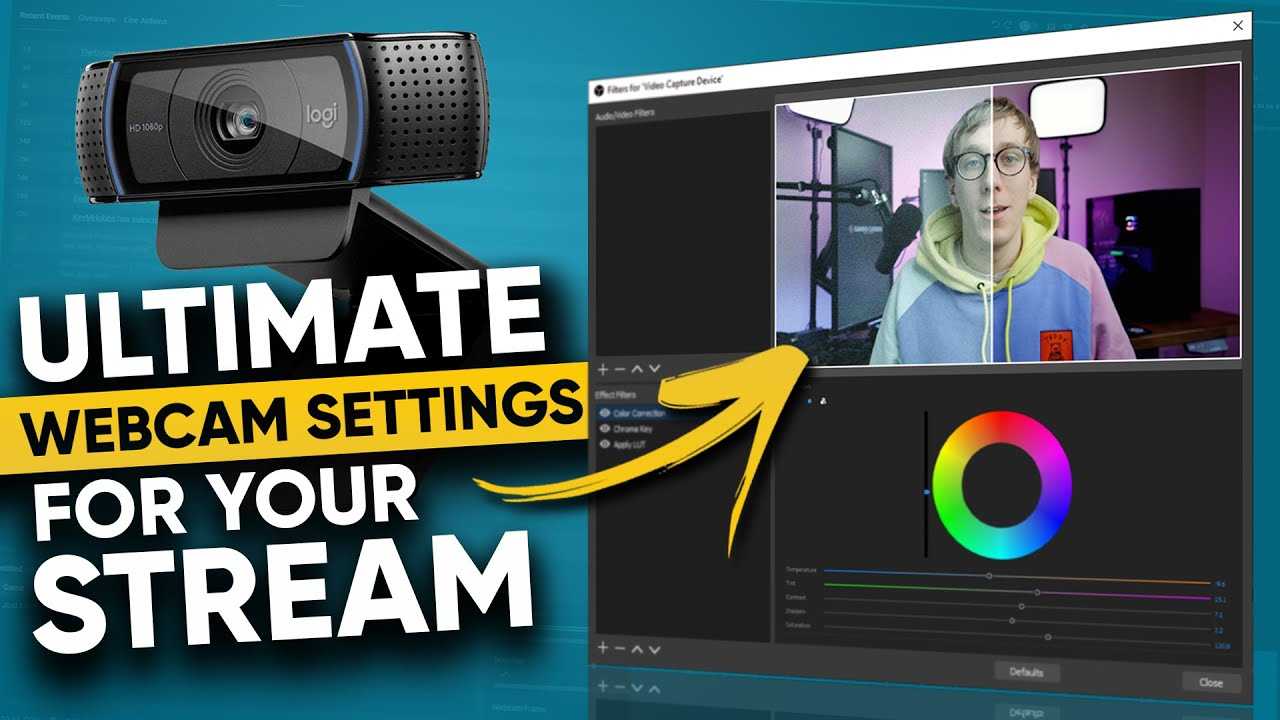
A blurry or poorly lit webcam can ruin your Twitch streams and turn viewers away. The good news is, often it’s a quick fix—whether it’s adjusting your settings, improving your lighting, or upgrading your gear. By troubleshooting common issues like poor lighting, low resolution, or outdated drivers, you can significantly boost your webcam quality and make your streams look professional.
In short, bad webcam quality on Twitch usually stems from inadequate lighting, low resolution settings, or hardware limitations. Addressing these areas will help you achieve clearer, sharper visuals that engage your audience and elevate your streaming game.
Struggling with webcam quality on Twitch? You’re not alone! Many streamers face similar challenges, but the good news is that most problems can be fixed with a few simple adjustments. Whether your video looks grainy, blurry, or pixelated, understanding the common causes and solutions can help you improve your stream instantly. From lighting and camera placement to software settings and hardware upgrades, this guide will walk you through practical steps to enhance your webcam quality. No need to spend a fortune—just a little tweaking can make a huge difference in how your viewers see you.

Why Is My Webcam Quality Bad on Twitch?
Understanding the Common Causes of Poor Webcam Quality
Many streamers notice that their webcam looks blurry or pixelated during their Twitch broadcasts. This problem can happen for several reasons, and identifying these causes is key to improving the quality. Poor camera settings, low internet speed, and outdated equipment all play a role.
Your webcam’s image clarity depends heavily on both hardware and software. If your camera isn’t set up correctly or is of low quality, your viewers might see a grainy or fuzzy image. Additionally, technical issues like connection problems can degrade the video stream. Addressing these common causes can make a big difference.
Camera Resolution and Frame Rate Settings
One of the most important factors affecting webcam quality is resolution. Using a low resolution, such as 640×480 pixels, results in a blurry image. Ideally, you want to stream at a minimum of 720p, which is 1280×720 pixels, for clearer visuals.
Frame rate also impacts video smoothness. A frame rate of 30 frames per second (fps) provides decent quality, but 60 fps delivers a more fluid look. Check your camera’s settings and your streaming software to make sure they match your preferred resolution and frame rate.
Impact of Internet Speed on Webcam Performance
Your internet upload speed plays a vital role in stream quality. If your upload bandwidth is limited, your webcam might be compressed heavily, leading to low image quality. Streaming at high resolutions requires stable, fast upload speeds.
To achieve the best results, aim for an upload speed of at least 5 Mbps for 720p streaming and 10 Mbps or higher for 1080p. Use speed testing tools to measure your current connection and consider upgrading your internet if needed.
Quality and Type of Webcam
Not all webcams are created equal. Cheap, low-resolution cameras often produce grainy images, especially in low light. Investing in a higher-quality webcam with features like autofocus, better lens quality, and higher native resolution can significantly improve your visuals.
Popular options among streamers include webcams that support 1080p or higher resolutions and have good low-light performance. Remember, a good webcam is a long-term investment in your stream’s professionalism.
Lighting Conditions and Their Effect
Lighting has a huge influence on webcam image quality. Poor lighting causes graininess and low contrast, making your face appear dark or fuzzy. Proper lighting setup improves clarity and color accuracy.
Use soft, diffuse light sources positioned in front of you. Natural daylight works well, but ring lights or softbox lights are excellent choices for consistent, even illumination.
Streaming Software and Encoding Settings
Your choice of streaming software and its encoding settings can affect webcam quality. Settings like bitrate and keyframe intervals determine how well your video streams to viewers.
A low bitrate can cause pixelation, while improper encoding settings may reduce image sharpness. Use software like OBS Studio or Streamlabs OBS to optimize your stream by adjusting these parameters for higher quality.
Background and Screen Interference
Cluttered or distracting backgrounds can make your webcam appear worse. Focus on a clean, well-lit area to make your face stand out better. Background noise and reflections may also interfere with your camera’s focus.
Using a backdrop or green screen can help create a tidy look and enhance overall video presentation. Keep your background simple to avoid drawing attention away from your face.
Camera Position and Framing
Proper camera placement ensures your face is well-centered and clearly visible. Position your webcam at eye level for the most natural look. Avoid extreme angles or excessive zoom which can reduce image clarity.
Check your framing and focus regularly. Make sure your face fills the frame without cutting off parts or leaving too much empty space.
Updating Drivers and Software
Outdated webcam drivers can cause compatibility issues, resulting in poor-quality video. Make sure to keep your camera drivers up to date by visiting the manufacturer’s website.
Additionally, update your streaming software to benefit from the latest performance improvements and features that improve webcam functionality.
Hardware Troubleshooting and Maintenance
Regularly clean your webcam’s lens to prevent dust and smudges that can impair image quality. Confirm that your camera’s USB connection is stable and seated properly.
If your webcam is still struggling despite adjustments, consider testing it on another device or upgrading to a newer model for better results.
Optimizing Your Streaming Setup for Best Quality
Combine all these factors for optimal results. Use a webcam that supports high resolution and frame rate, and ensure your internet can handle the upload demands.
Arrange your lighting, camera position, and background thoughtfully. Keep your software settings in check and maintain your hardware regularly for the best possible webcam quality on Twitch.
Additional Tips for Better Webcam Quality
- Use a tripod or stable mount to keep your camera steady.
- Adjust camera focus manually if available for sharper images.
- Test your setup regularly before going live to spot issues early.
- Consider using an external capture card for higher-end webcams or DSLRs.
- Experiment with different lighting setups to find what works best for your environment.
Maintaining good webcam quality is a balance between hardware, lighting, settings, and internet connection. Making small adjustments in each area can dramatically improve your broadcast’s visual clarity. Remember, consistent testing and tweaking will keep your streams looking sharp and professional.
Easily FIX Your Webcam Lag Issues TODAY
Frequently Asked Questions
How can lighting affect the clarity of my webcam on Twitch?
Proper lighting plays a crucial role in webcam quality. If your space lacks sufficient lighting or the light source creates shadows, your webcam struggles to capture clear images. Using soft, evenly distributed lighting can significantly improve video sharpness and color accuracy. Avoid harsh or direct light that can cause overexposure or glare, and consider positioning lights in front of you rather than behind to achieve a well-lit appearance.
What impact does internet bandwidth have on my webcam’s video quality during Twitch streams?
Limited or unstable internet bandwidth can cause your webcam video to appear pixelated or choppy. When your upload speed isn’t fast enough to handle high-quality video data, Twitch automatically downgrades the stream quality, leading to fuzzy or delayed footage. Upgrading your internet plan or closing other applications that consume bandwidth can help ensure your webcam feed maintains a clear and steady appearance.
Why does my webcam appear blurry or out of focus during my Twitch broadcast?
Many webcams have autofocus features, but they can struggle to focus properly under certain conditions. Factors such as poor lighting, dirty lens, or a camera placed too close or too far from your face can cause blurriness. Cleaning the lens regularly and adjusting the camera’s position to be within its optimal focus range can improve clarity. Additionally, check your webcam settings to ensure autofocus is enabled and configured correctly.
How does camera resolution influence the quality of my Twitch webcam feed?
The resolution your webcam captures determines the level of detail visible during your stream. Lower resolution settings produce more pixelated and less sharp images, especially on larger screens. Using a webcam that supports at least 720p or higher resolution makes your video appear more professional and clear to viewers. Ensuring your streaming software is configured to use the maximum supported resolution also plays a key role.
In what ways do background and camera settings affect my webcam quality on Twitch?
A cluttered or distracting background can detract from the overall quality of your webcam feed. Properly configuring your camera settings, such as brightness, contrast, and exposure, helps produce a clearer image. Using a clean, well-lit background or a dedicated green screen can improve focus on you and enhance overall video quality. Regularly testing and adjusting these settings ensures your webcam consistently provides a sharp and professional appearance.
Final Thoughts
The main reason your webcam quality may be poor on Twitch often relates to insufficient lighting or low-quality equipment. Poor lighting makes the video appear grainy and dull, while outdated webcams struggle to produce sharp images.
Network issues or low bitrate settings can also cause video lag or pixelation, reducing overall quality. Additionally, incorrect camera settings or outdated drivers hinder the webcam’s performance.
In conclusion, why is my webcam quality bad on Twitch? Several factors like lighting, hardware, and settings influence it. Improving these aspects will enhance your streaming clarity and viewer experience.



