


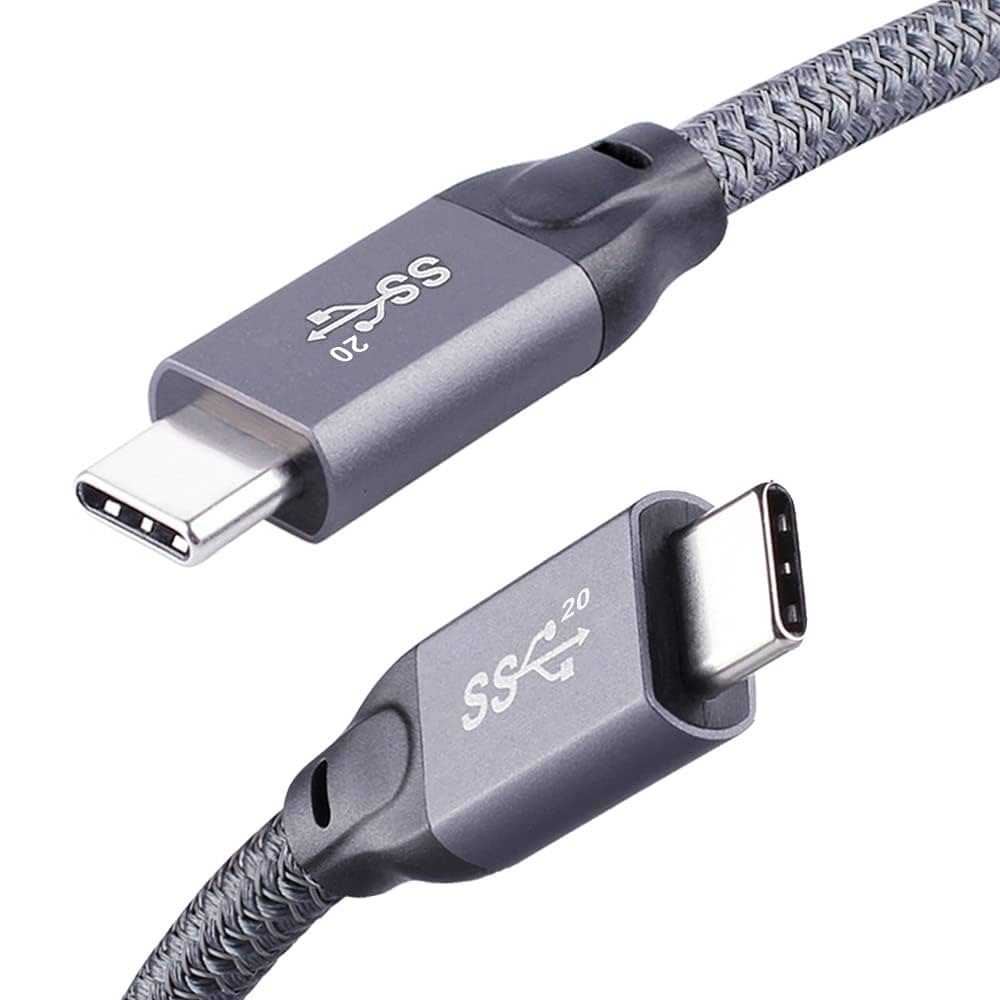
Yes, many USB-C monitors can charge your MacBook Pro while you work, making it a seamless experience. However, not all USB-C monitors provide enough power to fully charge your MacBook Pro’s battery, so it’s essential to check the wattage. Generally, a monitor with a power delivery (PD) of 85W or higher can efficiently charge a MacBook Pro.
A USB-C monitor can indeed charge your MacBook Pro, but the charging capacity depends on the monitor’s power delivery specifications. If you’re looking to keep your MacBook Pro fully charged during use, opt for a monitor that offers at least 85W of power. Keep reading to discover how to choose the right monitor and ensure your workspace stays clutter-free, with your MacBook staying energized for all your tasks.

Can USB C Monitor Charge MacBook Pro? All You Need to Know
Many MacBook Pro users wonder if their USB C monitors can do more than just display images. Specifically, they want to know if these monitors can also charge their MacBook Pro while connected. The answer depends on several factors, including the monitor’s specifications and the MacBook Pro’s power requirements. In this article, we will explore the capabilities and limitations of USB C monitors regarding charging MacBook Pro models.
Understanding USB C and Power Delivery
USB C is a versatile port that handles data, video, and power transfer. The key feature that allows a monitor to charge a MacBook Pro is the USB Power Delivery (USB PD) technology. USB PD enables higher wattages to be delivered through the USB C cable, powering laptops like MacBook Pro.
Not all USB C ports or monitors support USB PD. To charge your MacBook Pro, the monitor must supply enough power, which varies depending on your MacBook model. For example, newer MacBook Pro models often need between 61W and 96W of power.
Can a USB C Monitor Actually Charge a MacBook Pro?
Yes, some USB C monitors can charge MacBook Pro while in use. However, this mainly depends on two factors: the monitor’s power output and whether the MacBook Pro supports charging through USB C. Many modern monitors include a Power Delivery feature that can deliver sufficient wattage for charging.
For MacBook Pro models with higher power needs, only monitors with higher wattage support can effectively charge the device. If the monitor provides less wattage than required, the MacBook Pro might only operate at a normal level without charging or might charge very slowly.
Factors Influencing Charging Capability
Monitor’s Power Output
The most important factor is the wattage the monitor can deliver via USB C. Monitors with at least 60W are considered suitable for charging most MacBook Pro models. Some high-end monitors provide up to 85W or even 96W, matching or exceeding the power adapters supplied by Apple.
MacBook Pro Model and Power Needs
Older MacBook Pro models typically require 60W to 85W of power, while newer models may need up to 96W. Check your MacBook’s specifications to ensure your monitor supplies the necessary wattage for effective charging.
Cable Quality and Compatibility
Using a high-quality USB C cable that supports USB PD is crucial. Cheap or non-standard cables might not transfer power efficiently, limiting charging capability or causing connection issues.
Examples of USB C Monitors That Charge MacBook Pro
| Monitor Model | Power Output (W) | Additional Features |
|---|---|---|
| LG UltraFine 5K (27MD5KL) | 85W | High-resolution display, Thunderbolt 3 support |
| Dell UltraSharp U2723QE | 90W | 4K resolution, USB-C hub features |
| Acer Predator X27 | 94W | G-Sync, HDR support |
| ASUS ProArt Display PA32UCX | 60W | Color accuracy, professional-grade display |
These monitors showcase that high wattage support can enable charging during use, but always verify the specifications before purchase.
Limitations and Potential Issues
Power Limitations
If your monitor supplies less wattage than your MacBook Pro needs, charging will be limited. When connected to a monitor with lower wattage, your Mac may not charge at all or charge very slowly, especially during intensive tasks.
Compatibility Concerns
Some older monitors or lower-quality cables may claim to support USB PD but fail to deliver stable power. Double-check compatibility and reviews before buying or relying on a monitor for charging.
Impact on Performance and Display
Charging your MacBook Pro through a monitor may introduce some performance considerations. If the power supplied is inadequate, your MacBook might run out of battery faster than it charges, especially during demanding workloads.
Best Practices for Charging Your MacBook Pro via USB C Monitor
- Choose a monitor with at least 60W to 85W power output for reliable charging.
- Use high-quality, certified USB C cables supporting USB PD.
- Check your MacBook Pro’s power requirements before selecting a monitor.
- Ensure your monitor’s firmware is up to date for optimal performance.
- Combine charging with other monitor features like multiple USB-C ports for greater connectivity.
Related Topics to Explore
- Best USB C hubs for MacBook Pro: Expanding port options while maintaining power delivery.
- Thunderbolt 3 vs. USB C: Understanding the differences and how they affect charging and data transfer.
- Optimizing MacBook Pro performance: Best settings when using external monitors with charging capabilities.
- Choosing the right monitor: Features beyond power delivery, such as color accuracy, resolution, and refresh rate.
Future Trends in USB C Charging for Monitors and MacBooks
Manufacturers are pushing toward higher wattage support in monitors, making it easier to use a single cable for display, data, and charging. We expect future monitors to offer even faster charging capabilities, possibly up to 120W or more, compatible with upcoming MacBook Pro models.
As technology advances, the integration of Power Delivery with high-resolution displays will become more seamless, providing users with a clean, cable-efficient workspace. Keep an eye on new releases and updates for the best compatibility and performance.
Overall, the ability of a USB C monitor to charge your MacBook Pro depends heavily on the monitor’s wattage support, your MacBook’s power needs, and the quality of the cables used. Choosing the right monitor can reduce clutter and streamline your workspace while ensuring your device stays powered up during work sessions.
Forgot your charger? Magsafe charging tip! #macbook #macbookpro #usbC #apple
Frequently Asked Questions
Can a USB-C monitor provide enough power to charge a MacBook Pro during use?
Whether a USB-C monitor can charge a MacBook Pro depends on the monitor’s power delivery capabilities. Some monitors offer up to 96W or higher, which can sufficiently charge or power a MacBook Pro during operation. However, lower wattage monitors might only provide partial charging or may not support charging at all, especially when performing intensive tasks.
Does the MacBook Pro’s charging depend on the monitor’s specifications when connected via USB-C?
Yes, the ability of a USB-C monitor to charge your MacBook Pro depends on the monitor’s power delivery specification. A monitor with a higher wattage output ensures that your MacBook Pro receives enough power to stay charged, especially during usage. If the monitor’s power output falls below the MacBook’s charging requirements, you’ll need an additional charger to maintain full battery life.
Can connecting to a USB-C monitor affect the battery life of a MacBook Pro?
Connecting your MacBook Pro to a USB-C monitor that supplies power can help preserve battery life by providing continuous charging. Conversely, if the monitor does not supply power or supplies insufficient power, your MacBook Pro’s battery may drain faster during use. Properly matched power delivery ensures better battery management while working with external displays.
Is it possible to charge a MacBook Pro using a USB-C hub connected to the monitor?
Yes, using a USB-C hub connected to the monitor can facilitate charging your MacBook Pro if the hub supports adequate power delivery. Ensure the hub provides sufficient wattage, typically 85W or more, to effectively charge your device. This setup can also expand connectivity options but always verify the hub’s power specifications before use.
What should I consider regarding compatibility between my MacBook Pro and a USB-C monitor for charging purposes?
Check that both your MacBook Pro and the monitor support USB-C Power Delivery (PD). The monitor should supply enough wattage to meet your MacBook’s charging needs. Also, ensure that the USB-C cable you’re using supports high data transfer rates and power transmission. Proper compatibility guarantees efficient charging and seamless performance.
Final Thoughts
In summary, many USB-C monitors can indeed charge a MacBook Pro while in use. The ability to ‘can usb c monitor charge macbook pro’ depends on the monitor’s power delivery specifications. Check the monitor’s wattage capacity to ensure it meets your MacBook Pro’s charging needs.
This feature offers convenience, reducing cable clutter and providing a single connection for power and display. Confirm that the monitor supports sufficient power delivery to keep your MacBook Pro charged during prolonged use.



