


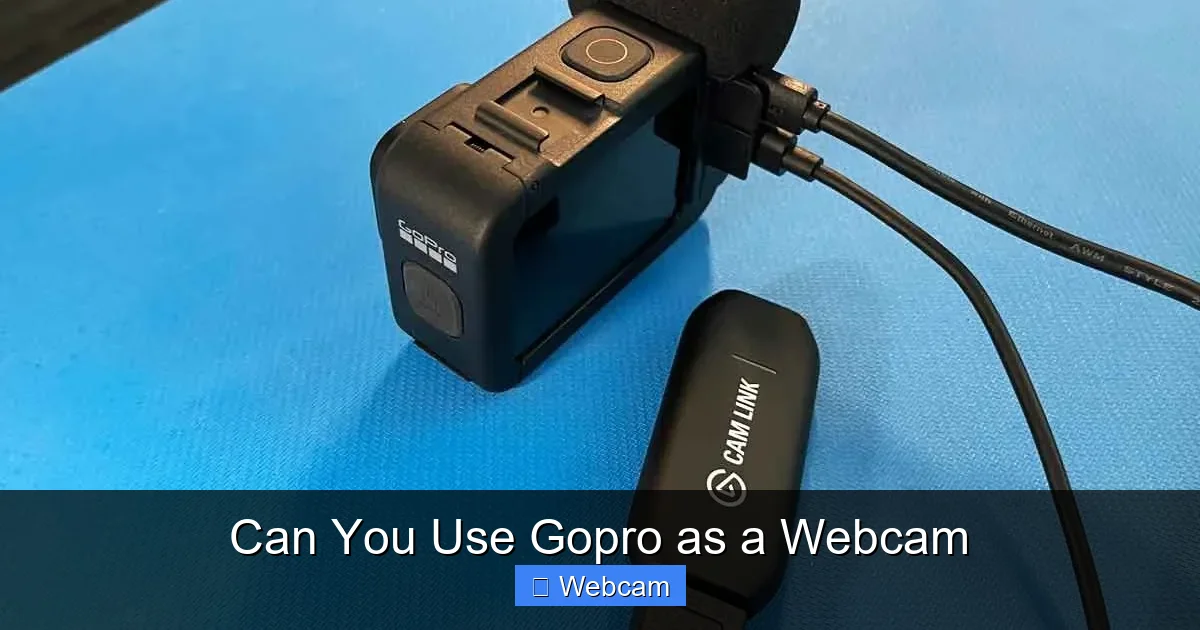
Yes, you can use your GoPro as a webcam! With the right apps and a USB cable, your high-quality GoPro camera becomes a powerful webcam for Zoom, Teams, or YouTube. This guide walks you through the setup, tools, and tips to get crisp, clear video in seconds.
Key Takeaways
- You can use your GoPro as a webcam with the right software and connection. It’s a cost-effective way to upgrade your video quality.
- Popular apps like EpocCam, Camo, and OBS Studio turn your GoPro into a plug-and-play webcam.
- A USB cable is required for most setups. Some models support Wi-Fi, but wired is more reliable.
- Your GoPro must be charged and in webcam mode to function properly during calls or streams.
- Adjust settings like resolution and frame rate for the best balance between quality and performance.
- Use a tripod or mount to keep your GoPro stable and at the right angle for clear video.
Can You Use a GoPro as a Webcam?
Have you ever wanted better video quality for your Zoom calls, YouTube streams, or online classes? Your old webcam might be outdated or low-resolution. But what if you already own a GoPro? Yes—you can use a GoPro as a webcam! This powerful action camera, known for recording high-definition video, can be transformed into a professional-grade webcam with a few simple steps.
In this guide, you’ll learn how to turn your GoPro into a webcam using free and paid apps, how to connect it to your computer, and how to troubleshoot common issues. Whether you’re a content creator, teacher, or remote worker, using your GoPro as a webcam is easier than you think.
Why Use a GoPro as a Webcam?
Most built-in webcams don’t offer the image quality of a GoPro. GoPros are designed to capture sharp, stable video in various lighting conditions. When used as a webcam, they deliver:
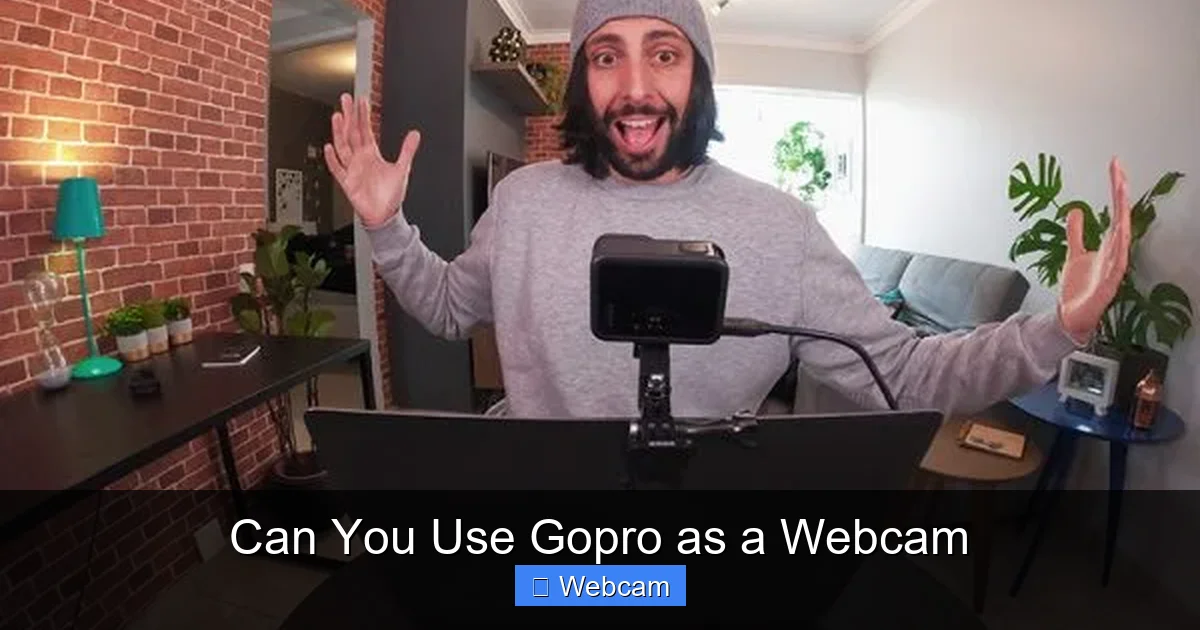
Visual guide about Can You Use Gopro as a Webcam
Image source: projectgo.pro
- High-resolution video (up to 4K on newer models)
- Wide-angle lens for a more engaging view
- Smooth, steady footage thanks to built-in stabilization
- Better low-light performance than most webcams
Plus, you’re reusing equipment you already own—saving money and reducing clutter. It’s a smart, practical solution for anyone who wants professional-looking video without buying a new webcam.
Which GoPro Models Work as Webcams?
Almost all GoPro models can be used as webcams, but newer ones offer better performance. Here’s a quick list:
- GoPro Hero 7 and newer – Full support with USB or Wi-Fi
- GoPro Hero 6 and earlier – Limited support; may require workarounds
- GoPro MAX – Excellent for 360-degree streaming (with software)
Check your GoPro’s manual or settings to confirm webcam mode is available. Most modern GoPros support this feature out of the box.
How to Use Your GoPro as a Webcam: Step-by-Step Guide
Step 1: Choose the Right App
The first step is installing a software tool that turns your GoPro into a webcam. Here are the best options:
- EpocCam (iOS/Android) – Free app that uses Wi-Fi to stream video
- Camo by Reincubate (Windows/Mac) – Reliable, easy-to-use, supports USB and Wi-Fi
- OBS Studio (Free, Open Source) – Great for streaming, but more technical
For beginners, Camo is the most user-friendly option. It works with USB and Wi-Fi and supports multiple GoPro models.
Step 2: Connect Your GoPro to Your Computer
Option A: USB Connection (Recommended)
- Turn on your GoPro and press the Source button until Webcam mode appears on the screen.
- Use a USB-C to USB-A or USB-C cable (depending on your GoPro model and computer).
- Plug the cable into your GoPro and your computer.
- Open the app (like Camo or EpocCam). It should detect your GoPro automatically.
Option B: Wi-Fi Connection (Less Reliable)
- Turn on your GoPro and connect to its Wi-Fi network from your phone or computer.
- Open the GoPro app or the webcam app on your device.
- Follow the app’s instructions to link your GoPro and computer.
Tip: USB is faster and more stable. Wi-Fi can lag or disconnect during long calls.
Step 3: Set Up Your Webcam in Apps
- Open the app you installed (e.g., Camo).
- Select your GoPro from the list of devices.
- Adjust settings like resolution (720p, 1080p, or 4K) and frame rate (30fps or 60fps).
- Test the video preview to make sure the image is clear and properly framed.
Step 4: Use Your GoPro in Video Calls
- Open your video conferencing app (Zoom, Teams, Google Meet, etc.).
- Go to Settings > Video.
- Select the GoPro as your camera source.
- Start your meeting or call.
Your GoPro will now appear as your webcam. You’re ready to look sharp and sound professional!
Best Apps to Use GoPro as a Webcam
Choosing the right app makes all the difference. Here’s a breakdown of the top options:
1. Camo by Reincubate
- Pros: Easy setup, supports USB and Wi-Fi, works with most GoPro models
- Cons: Free version has watermarks; full version costs $19.99/year
- Best for: Most users who want simplicity and reliability
2. EpocCam
- Pros: Free version available, works well with iOS and Android devices
- Cons: Wi-Fi only, can be laggy
- Best for: iPhone or Android users with Wi-Fi setups
3. OBS Studio
- Pros: Free, powerful, great for streaming and recording
- Cons: Steep learning curve, not ideal for simple video calls
- Best for: Advanced users who want full control over video settings
4. GoPro Webcam App (Official)
- Pros: Official support, simple interface
- Cons: Limited to newer GoPro models, may not work with all apps
- Best for: GoPro Hero 8 and newer users
Recommendation: Start with Camo. It’s reliable, works with most GoPros, and has a clean interface.
Tips for the Best GoPro Webcam Experience
To get the most out of your GoPro as a webcam, follow these tips:
- Use a tripod or mount to keep your GoPro stable and at eye level.
- Lighting matters. Face a window or use softbox lights to avoid shadows.
- Keep your GoPro charged. It draws power when used as a webcam.
- Close background apps on your computer to avoid lag.
- Use a wired USB connection for smoother video and less lag.
- Clean the lens before use for clearer video.
Troubleshooting Common Issues
Sometimes things don’t work as expected. Here’s how to fix common problems:
Issue: GoPro not detected by the app
- Make sure your GoPro is in Webcam mode.
- Try a different USB cable or port.
- Restart both your GoPro and computer.
- Update the app and your GoPro’s firmware.
Issue: Poor video quality or lag
- Switch from Wi-Fi to USB.
- Lower the resolution to 1080p if your computer struggles.
- Close other apps using the camera.
Issue: Audio not working
- Your GoPro’s mic may pick up wind or background noise.
- Use an external microphone for clearer audio.
- Adjust mic settings in your video app.
Issue: GoPro keeps disconnecting
- Ensure the USB cable is fully plugged in.
- Avoid using extension cables.
- Try a different USB port (preferably USB 3.0).
Conclusion
Yes, you can absolutely use a GoPro as a webcam—and it’s a game-changer for anyone who wants better video quality without spending money on a new device. With tools like Camo, EpocCam, or OBS Studio, turning your GoPro into a webcam is simple, fast, and effective.
Whether you’re hosting virtual meetings, teaching online, or streaming on YouTube, your GoPro delivers sharp, stable, high-definition video. Just connect it with a USB cable, open the right app, and you’re ready to go.
So next time you’re in a video call, think twice before using that old webcam. Your GoPro might just be sitting in your drawer, waiting to become your new favorite webcam.
Frequently Asked Questions
Can I use any GoPro as a webcam?
Most GoPro Hero 7 and newer models support webcam mode. Older models like Hero 6 may work with some apps, but full support isn’t guaranteed. Check your model and app compatibility before starting.
Do I need special software to use my GoPro as a webcam?
Yes. Apps like Camo, EpocCam, or OBS Studio are required to turn your GoPro into a webcam. These apps communicate between your GoPro and your computer.
Is using a GoPro as a webcam better than a regular webcam?
Yes, usually. GoPros offer higher resolution, better stabilization, and wider-angle lenses. They also perform better in low light, making your video look more professional.
Can I use my GoPro as a webcam on both Windows and Mac?
Yes. Apps like Camo and EpocCam support both Windows and Mac. Just download the version for your operating system.
Will using my GoPro as a webcam drain the battery quickly?
Yes. Your GoPro will consume more power when used as a webcam. Keep it plugged in with a USB cable to avoid shutdowns during long calls.
Can I use my GoPro as a webcam while recording video?
No. When your GoPro is in webcam mode, it cannot record video or photos at the same time. You must choose one function at a time.



