


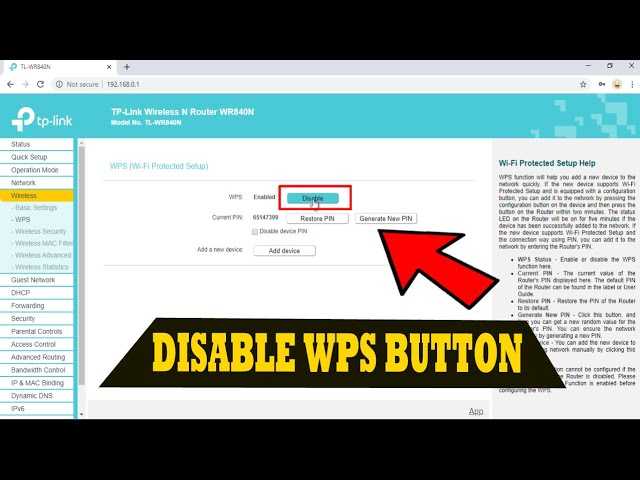
To disable WPS on your router, simply access the router’s admin panel and turn off the WPS feature in the wireless settings. This quick step enhances your network security by preventing potential vulnerabilities linked to WPS.
Disabling WPS on your router is a straightforward way to bolster your home network’s safety. WPS, or Wi-Fi Protected Setup, was designed for easy device connection, but it can also be a security loophole. Turning it off helps protect your Wi-Fi network from unauthorized access or hacking attempts. In this guide, you’ll learn how to easily disable WPS, ensuring your internet connection remains secure and less vulnerable to threats. Don’t worry—by following simple instructions, you can enhance your network’s safety without any technical hassle.

How to Disable WPS on Router: A Complete Guide
Understanding WPS and Its Role in Your Network
WPS stands for Wi-Fi Protected Setup. It is a feature designed to make connecting devices to your Wi-Fi network easier. Instead of entering a long password, WPS allows devices to connect with just a push of a button or a PIN.
While WPS simplifies connecting new devices, it also introduces security risks. Hackers can exploit vulnerabilities in WPS to access your network. Disabling WPS is a good step to protect your Wi-Fi from unauthorized access.
Why You Should Disable WPS on Your Router
Security is the primary reason to turn off WPS. WPS has known weaknesses that make it easier for attackers to break into your network.
Another reason is that WPS can be accidentally enabled or forgotten, leaving your network vulnerable. Disabling WPS ensures your Wi-Fi password remains the main line of defense.
Disabling WPS also helps maintain control over device connections, making your network more secure and private.
How to Access Your Router Settings
Before disabling WPS, you need to access your router’s admin panel. Most routers have a web-based interface that you can open through a web browser.
Open a browser and type your router’s IP address, which is usually 192.168.0.1 or 192.168.1.1. Check your router’s manual if these addresses don’t work.
Enter your username and password. If you haven’t changed these, they are usually set to “admin” for both fields. Change the default credentials once you log in for better security.
Locating WPS Settings in Your Router’s Interface
Once inside the admin panel, find the section related to wireless settings. This may be labeled as “Wireless,” “Wireless Settings,” or “Wi-Fi.”
Look for options related to WPS. These might be named “WPS,” “Wi-Fi Protected Setup,” or similar. On some routers, the WPS option is under a sub-menu like “Advanced Settings.”
If you can’t find WPS options, consult your router’s manual or manufacturer’s website for guidance specific to your model.
Steps to Disable WPS on Different Router Brands
Disabling WPS on TP-Link Routers
Log into your TP-Link router by entering its IP address in your browser. Navigate to “Wireless” or “Wireless Settings.”
Locate the “WPS” tab or section. Find the toggle switch or checkbox labeled “Enable WPS” and uncheck or disable it. Save your settings.
Disabling WPS on Netgear Routers
Access your Netgear router’s admin panel via the IP address or web address provided. Go to “Wireless” or “Advanced Wireless Settings.”
Find the WPS option and select “Disable.” Save changes to ensure WPS is turned off.
Disabling WPS on Linksys Routers
Enter your Linksys router’s IP address in a browser. Navigate to the “Wireless” tab.
Look for “WPS” settings and disable the feature by selecting “Off” or unchecking the box. Confirm and save your settings.
Disabling WPS on Asus Routers
Log into your Asus router through its IP address. Go to “Advanced Settings” then “Wireless.”
Find the “WPS” settings and disable them. Remember to save your configuration to apply changes.
Confirming WPS is Disabled
After turning off WPS, verify that the feature is no longer active.
Access the WPS section again in your router’s interface. It should show as disabled or turned off.
Some routers might display an indicator or message confirming the change. Restart your router if necessary to ensure settings update correctly.
Additional Security Tips for Your Wi-Fi Network
Disabling WPS is just one step toward securing your Wi-Fi. Use a strong, unique password for your Wi-Fi network.
Enable WPA3 or WPA2 encryption, depending on what your router supports. Regularly update your router’s firmware to patch security vulnerabilities.
Limit access to your network by enabling MAC address filtering. Consider changing your Wi-Fi password periodically for added security.
Benefits of Disabling WPS and Enhancing Your Wi-Fi Security
Turning off WPS reduces the risk of unauthorized access. It makes it harder for hackers to exploit known vulnerabilities.
Enhanced security increases your peace of mind while browsing, streaming, or working online. Ensuring your network is safe protects your personal data and devices.
Disabling unnecessary features like WPS also prolongs your router’s lifespan and performance by reducing potential security breaches.
Troubleshooting Common Issues When Disabling WPS
If your device cannot connect after disabling WPS, you may need to reconnect manually using your Wi-Fi password.
Some routers might require a restart to fully apply the changes. Clear your browser cache if you cannot access the admin panel.
In case WPS is still enabled, double-check your router’s settings or update its firmware for bug fixes and improved security.
Summary of Key Actions
- Access your router’s admin interface via IP address.
- Locate the wireless or advanced settings section.
- Find the WPS option and disable it.
- Save your settings and verify that WPS is turned off.
- Enhance overall Wi-Fi security with strong passwords and encryption.
Keeping your Wi-Fi router’s WPS disabled adds an important layer of protection to your home or office network. Following these steps ensures your connection remains private and secure from common threats.
How Do I Disable WPS On My Router? – SecurityFirstCorp.com
Frequently Asked Questions
What steps can I take to turn off WPS on my router’s interface?
Access your router’s admin panel by typing its IP address into a web browser. Log in with your username and password. Locate the wireless settings section, then find the WPS option. Disable it by selecting the ‘Off’ or ‘Disable’ option, and save your changes. This process ensures WPS no longer allows device connections through its feature.
Is it possible to disable WPS using a physical button on the router?
Some routers include a physical WPS button that can be turned off or disabled. Check your router’s manual to see if pressing the button in a specific way or holding it for a few seconds disables WPS. If your device doesn’t support this feature, use the web interface to disable WPS instead.
Will disabling WPS affect my current wireless devices?
No, disabling WPS does not disconnect devices already connected to your network. It simply prevents new devices from connecting via the WPS method. You can continue to use your Wi-Fi network as usual, but you’ll need to connect new devices using traditional password authentication.
How can I verify that WPS has been successfully turned off on my router?
After disabling WPS through your router’s settings, look for the WPS status indicator in the admin panel. It should show as disabled or turned off. Additionally, check your device connection options; devices won’t see WPS as an available method when connecting to your network.
Are there security benefits to disabling WPS on my router?
Yes, disabling WPS enhances your network security by removing a common attack vector. WPS can be exploited through brute-force attacks, so turning it off helps protect your Wi-Fi from unauthorized access and improves overall network safety.
Final Thoughts
To disable WPS on your router, access the admin panel through your web browser. Locate the WPS settings under wireless or advanced options. Turn off the WPS feature and save the changes.
Disabling WPS enhances your network security by preventing unauthorized access. Ensure you keep your router firmware updated for added protection. Regularly review your network settings to stay secure.
In conclusion, knowing ‘how to disable WPS on router’ helps you safeguard your Wi-Fi. Following these simple steps ensures your network remains private and protected.



