


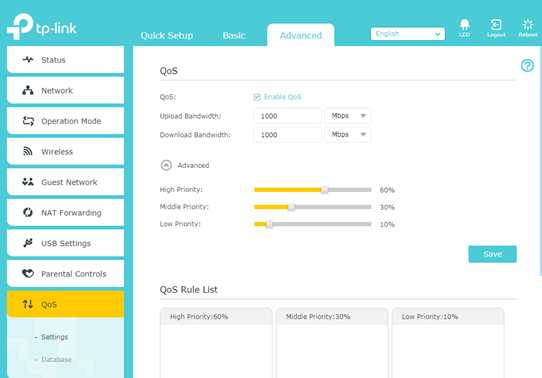
To enable QoS on your router, simply access your router’s settings, find the QoS section, and activate it. Then, prioritize the devices or applications that need the most bandwidth. It’s a straightforward process that can significantly improve your internet experience, especially during high traffic times or gaming sessions.
Enabling QoS (Quality of Service) on your router helps manage your internet traffic more efficiently, ensuring that essential activities like streaming, gaming, or video calls get the bandwidth they need. This feature allows you to prioritize certain devices or apps so your connection remains smooth and responsive. Setting it up is easy—just log into your router, locate the QoS settings, turn it on, and customize your priorities. Whether you’re battling lag or trying to optimize your home network, configuring QoS can make a noticeable difference in how your internet performs.

How to Enable QoS in Router
Enabling Quality of Service (QoS) on your router is a simple way to improve your internet experience. It helps prioritize critical devices and applications, ensuring smooth performance for gaming, streaming, or video calls. This guide walks you through the steps to enable QoS effectively on your router.
Understanding QoS and Why It Matters
QoS stands for Quality of Service. It is a feature that manages network traffic by giving priority to specific devices or activities. When your network is busy, QoS prevents lag and buffering by allocating bandwidth where it is needed most.
Imagine multiple people using the internet at home. Without QoS, everyone shares the same bandwidth, which can slow down important tasks. With QoS, streaming videos get higher priority over downloads, creating a better experience for everyone.
Types of QoS
There are mainly two types of QoS settings you will encounter in a router:
- Packet-based QoS: This method classifies and manages individual data packets based on their type or source. It is more precise and works well for advanced setups.
- Application-based QoS: This method prioritizes traffic by application. For example, it can give priority to video calls or online gaming apps.
Preparation Before Enabling QoS
Before you activate QoS, it’s important to gather some information. First, check your internet speed using tools like Speedtest. Write down your upload and download speeds for reference.
Next, list the devices and applications that require higher priority. For example, your gaming console, work laptop, or streaming device. This will help you set up QoS rules more accurately.
Accessing Your Router’s Admin Panel
To enable QoS, you first need to log into your router’s admin panel. Open a web browser and enter your router’s IP address, usually something like 192.168.1.1 or 192.168.0.1.
Log in with your username and password. Often, the default credentials are “admin” for both, but it’s best to change them for security reasons. Check your router’s manual if needed.
Locating QoS Settings in Your Router
Once logged in, navigate to the QoS section. This may be under headings like “Advanced Settings,” “Traffic Management,” or “Bandwidth Control.” Each router brand has a different layout.
If your router has a search function, type “QoS” to find it faster. Some routers have a dedicated QoS tab, making setup easier. If you cannot locate QoS, consult your router’s manual or support website.
Enabling QoS on Your Router
Activate the QoS feature by checking the enable box or toggling the switch. Save your settings before proceeding to the configuration step. It’s important to turn it on before customizing priorities.
Configuring QoS Rules and Priorities
Setting Bandwidth Limits
Enter your internet’s upload and download speeds into the router’s QoS settings. This helps the router allocate bandwidth accurately. Be sure to use the speeds you noted earlier from your speed test.
Prioritizing Devices
Identify devices that need higher priority, such as gaming consoles or streaming devices. Assign them to the highest priority tier in your QoS settings. Less critical devices like smart thermostats can be set lower.
Prioritizing Applications and Services
If your router supports application-based QoS, specify apps like Skype, Netflix, or online games. This way, the router can recognize and prioritize their traffic automatically.
Applying and Saving QoS Settings
After configuring device and application priorities, save your settings. Your router may restart or require you to reboot it for changes to take effect. Confirm that QoS is active by checking the status in the admin panel.
Testing Your QoS Configuration
Once enabled, test your network’s performance. Use online tools or run a speed test while multiple devices are active. Observe if high-priority activities maintain a stable connection.
If you notice issues, revisit your QoS settings. Adjust device priorities or bandwidth allocations to optimize performance further.
Additional Tips for Effective QoS Usage
- Update Your Router’s Firmware: Keep your router firmware current to access the latest QoS features and performance improvements.
- Limit Device Access: Disconnect devices not in use to reduce congestion. Fewer devices mean better bandwidth management.
- Use Wired Connections When Possible: Ethernet connections provide more stable speeds for high-priority devices, enhancing QoS effectiveness.
- Regularly Monitor Network Performance: Use your router’s status page or third-party tools to check the impact of QoS over time.
Common Troubleshooting and FAQs
If you encounter problems, restart your router after making changes. Reset QoS settings to default if necessary, and reconfigure from scratch for better results.
Some routers might not have QoS options. In such cases, consider installing third-party firmware like DD-WRT or Tomato, which offer advanced QoS controls. Always ensure your router supports third-party firmware before attempting this.
Remember, enabling QoS is a straightforward process, but fine-tuning may take time. Experiment with different priorities to find what works best for your home network.
By carefully setting up QoS on your router, you can significantly enhance your internet experience, especially during peak usage times. Proper configuration ensures that your most important online activities perform smoothly, without interruptions or delays.
How To Optimize Your Wi-Fi Speed: Setting Up Qos On Your Router
Frequently Asked Questions
What steps should I follow to locate the QoS settings on my router?
First, connect to your router’s admin interface by entering its IP address into your web browser. Log in using your username and password. Once logged in, navigate to the advanced settings or the Quality of Service section. If you cannot find it, consult your router’s user manual or look for a section labeled ‘QoS,’ ‘Traffic Management,’ or ‘Bandwidth Control.’ This area typically contains options to enable and customize QoS features.
How can I prioritize specific devices or applications on my network?
Access the QoS settings within your router’s admin interface. Locate the device or application you want to prioritize, which might be listed under device management or applications. Assign a higher priority level or set custom bandwidth limits to ensure these devices or services receive sufficient resources during heavy network usage. Save your changes to activate these settings.
Are there specific configurations needed to optimize QoS for gaming and streaming?
Yes, to optimize QoS for gaming and streaming, identify the relevant applications or ports associated with these services within your router’s QoS menu. Assign high priority to these applications or ports to minimize lag and buffering. Additionally, you can set bandwidth limits to prevent other devices from consuming excessive resources, ensuring smooth performance.
What should I consider when setting bandwidth limits in QoS?
Evaluate your total available internet bandwidth and determine the requirements of your most used applications and devices. Set bandwidth limits that prevent any single device from monopolizing the connection while allowing critical services like gaming, streaming, or work-related applications to function smoothly. Adjust these limits based on your network activity and performance needs.
How can I troubleshoot QoS issues if I notice no improvement in network performance?
Start by verifying that QoS is enabled and correctly configured in your router settings. Ensure that device priorities and bandwidth limits are properly assigned. Restart your router after making changes and test the network performance. If issues persist, update your router’s firmware, consult the manufacturer’s support resources, or reset the QoS settings to default and reconfigure them based on your specific needs.
Final Thoughts
To enable qos in router, access your router’s admin dashboard through a web browser. Locate the QoS settings, typically found under the Advanced or Traffic Management section. Enable QoS and prioritize devices or applications based on your needs.
In conclusion, knowing how to enable qos in router helps optimize your network performance efficiently. Follow these steps to assign priority, ensuring smooth usage for all devices.



