


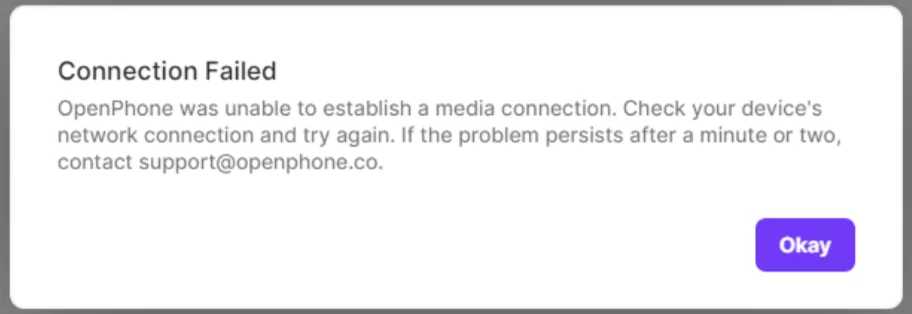
If your WiFi calls keep dropping unexpectedly, you’re not alone—frustrating, right? The good news is, there are simple steps you can take to improve your connection and keep your calls steady. First, ensure your router is updated, and try moving closer to it during calls. Additionally, reducing interference from other devices and switching to a less congested WiFi channel can make a big difference. Restarting your router or upgrading your network equipment might also help stabilize your connection. With a few quick adjustments, you can enjoy clearer, uninterrupted WiFi calls.
A dropped call on WiFi can be caused by network interference or poor signal strength. The solution involves optimizing your WiFi setup—like updating your router, reducing interference, and improving signal quality. Implementing these tips will help ensure your calls stay connected without constant drops.
If you’re experiencing dropped calls over WiFi, it can be incredibly disruptive, especially when you rely on internet-based communication for work or staying in touch with loved ones. The good news is that most issues stem from common problems, like interference, weak signals, or outdated hardware. By taking a few proactive steps—such as updating your router’s firmware, repositioning your device closer to the WiFi source, or switching to a less crowded channel—you can significantly enhance your network’s stability. These straightforward fixes can turn frustrating call drops into smooth, continuous conversations, making your digital communication seamless and more reliable.

How to Fix Dropped Calls on WiFi Networks
Understanding Why Calls Drop on WiFi
Dropped calls on WiFi happen when the connection between your device and the WiFi network becomes unstable. Several factors can cause this, including weak WiFi signals, network congestion, or interference from other devices. Recognizing these causes is the first step to fixing the problem.
Check Your WiFi Signal Strength
A weak WiFi signal can lead to dropped calls. Use your device’s signal indicator to see the strength of your WiFi connection. If the signal is low, move closer to your router or access point for a stronger connection.
How to Improve WiFi Signal Strength
- Place your router in a central location away from walls and obstructions.
- Remove objects like metal furniture or appliances that may block signals.
- Elevate your router to a higher position for better coverage.
A stronger signal minimizes interruptions during calls, resulting in fewer dropped connections.
Reduce Network Congestion
Many devices connected to the same WiFi network can cause congestion, leading to call drops. When too many users are online, bandwidth becomes limited, affecting call quality.
Steps to Alleviate Network Traffic
- Limit the number of devices connected to your WiFi during calls.
- Pause downloads or streaming activities while on a call.
- Use Quality of Service (QoS) settings on your router to prioritize voice traffic.
Prioritizing voice data helps ensure your calls stay connected without interruptions.
Update Your Router Firmware and Device Software
Outdated firmware or software can cause compatibility issues, resulting in dropped calls. Regular updates improve network stability and fix bugs that affect call quality.
How to Update Firmware and Software
- Access your router’s admin panel and check for firmware updates.
- Update your device’s operating system and relevant apps.
- Reboot your router and device after updates to ensure changes take effect.
Keeping everything up to date ensures your devices run smoothly on your WiFi network.
Optimize Your WiFi Network Settings
Adjusting certain settings can enhance WiFi performance, reducing call drops.
Key Settings to Adjust
- Switch to a less congested WiFi channel, especially on 2.4 GHz bands.
- Use 5 GHz bands if your device and router support it for faster speeds and less interference.
- Enable dual-band WiFi for better distribution of devices.
These changes can significantly decrease latency and improve call stability.
Reduce Interference from Other Devices
WiFi signals can interfere with other electronic devices, causing connection disruptions. Common culprits include microwaves, cordless phones, and Bluetooth gadgets.
How to Minimize Interference
- Keep your router away from such devices.
- Change your WiFi channel to avoid overlapping signals.
- Switch from 2.4 GHz to 5 GHz if possible, as it’s less prone to interference.
Minimizing interference helps maintain a stable connection during calls.
Use a Wired Connection for Critical Calls
When important calls are frequent, consider using a wired Ethernet connection, which offers a more consistent and reliable link compared to WiFi. This approach entirely eliminates wireless interference issues.
Setting Up Wired Connections
- Connect your device directly to the router using an Ethernet cable.
- If using a laptop or desktop, ensure the Ethernet port is functional.
- Use a powered Ethernet switch if multiple wired devices need connection.
This method guarantees a stable network, especially for high-priority or long-duration calls.
Improve Your Device’s Network Configuration
Sometimes, device settings can affect WiFi stability, leading to dropped calls. Configuring network preferences properly can help.
Steps to Optimize Device Settings
- Disable power-saving modes that limit WiFi performance.
- Forget and reconnect to your WiFi network to refresh the connection.
- Ensure your device’s network adapter drivers are up-to-date.
Proper configuration reduces the likelihood of lost connections during calls.
Reboot and Reset Your Network Equipment
Many WiFi issues resolve by simply restarting your modem and router. Resetting can clear temporary glitches affecting call quality.
How to Restart Your Network Equipment
- Turn off your modem and router, then unplug them from power.
- Wait for at least 30 seconds to clear caches.
- Plug them back in and turn them on, allowing time to sync.
This process often restores the stability needed for seamless calls.
Consult Your Internet Service Provider (ISP)
If issues persist, contacting your ISP can identify broader network problems or service outages. They can also check for issues specific to your account or infrastructure.
What to Ask Your ISP
- Are there ongoing outages in my area?
- Can they enhance my connection or suggest upgrades?
- Do they support specific settings for better WiFi performance?
Professional support can dramatically improve your WiFi’s ability to handle calls smoothly.
Use WiFi Extenders or Mesh Networks
Expanding your WiFi coverage helps eliminate dead zones that cause dropped calls. Mesh systems distribute signal evenly across larger spaces.
Benefits of WiFi Extenders and Mesh Networks
- Provide consistent coverage throughout your home or office.
- Reduce the need to move closer to the router for calls.
- Help maintain a stable connection for uninterrupted conversations.
Investing in these solutions can make a noticeable difference in call quality.
Test Your Network Regularly
Monitoring your WiFi performance helps identify recurring issues before they affect your calls. Use tools to analyze signal strength, speed, and stability.
Effective Testing Tools
- Speed test apps to evaluate your internet speed.
- WiFi analyzer apps to identify interference and congestion.
- Ping tests to measure latency and packet loss.
Regular testing ensures your network remains optimized for voice calls.
Summary of Key Tips
- Ensure strong WiFi signal by optimal router placement.
- Reduce network congestion during calls.
- Keep firmware and device software updated.
- Adjust WiFi settings for less interference.
- Limit interference from other gadgets.
- Consider wired connections for critical calls.
- Reboot your network equipment regularly.
- Work with your ISP for persistent issues.
- Expand coverage with extenders or mesh systems.
- Conduct regular network performance tests.
By implementing these strategies, you can significantly reduce dropped calls and enjoy clearer, more reliable WiFi-based conversations. Remember, a stable connection depends on good network management and ongoing attention to your setup.
Wi-Fi Calling Not Working On iPhone? Here's The Fix!
Frequently Asked Questions
Why does my WiFi call keep disconnecting unexpectedly?
WiFi calls may disconnect if there is interference from other electronic devices, outdated firmware, or a weak WiFi signal. Ensuring your router is placed centrally and free from obstructions can improve connectivity. Additionally, updating your device and router firmware helps resolve known bugs that cause call drops.
How can I improve my WiFi signal strength to prevent dropped calls?
Place your router in a central location away from thick walls and metal objects. Reduce the number of connected devices that use bandwidth simultaneously. Using a WiFi extender or mesh network can also help strengthen the signal in areas where calls tend to drop.
What settings should I adjust on my device to reduce call interruptions over WiFi?
Ensure your device’s WiFi calling feature is enabled and set to prefer WiFi over cellular networks. Turning off other background data-consuming apps during calls helps maintain a stable connection. Also, disable any power-saving mode that might restrict WiFi performance.
Are there specific router configurations that can minimize call drops?
Yes, enabling Quality of Service (QoS) settings on your router prioritizes voice traffic, reducing latency and packet loss during calls. Using the 5 GHz frequency band, when possible, can also improve stability, as it is less crowded and offers faster speeds.
What should I do if my WiFi calls still disconnect frequently despite troubleshooting?
If issues persist, try restarting your router and device. Check with your internet provider for any outages or network issues. Upgrading your router to a newer model that supports the latest WiFi standards can also enhance connection stability for calls.
Final Thoughts
To fix dropped calls on WiFi networks, start by moving closer to your router to ensure a strong signal. Restart your device and router to resolve temporary glitches. Adjust your WiFi settings to select less congested channels.
Keeping your firmware updated and reducing interference from other electronics can also improve call stability. Remember, a stable internet connection is key for clear and uninterrupted calls. Following these steps will help maintain smoother WiFi calls and reduce dropouts effectively.



