


If your keyboard keys suddenly stop responding, don’t panic! Many issues can be quickly fixed with some simple troubleshooting steps. First, try cleaning the keyboard, checking connections, or restarting your device. If these don’t work, updating drivers or resetting the keyboard might do the trick, and in some cases, replacing the keyboard could be necessary.
To fix unresponsive keys on a keyboard, start by cleaning the keyboard thoroughly to remove dust or debris. Ensure all connections are secure, and restart your device to refresh the system. If problems persist, update your device drivers or test the keyboard on another computer. For persistent issues, replacing the faulty keyboard may be the best solution.
When your keyboard suddenly refuses to respond, it can be frustrating, especially when you’re in the middle of work or gaming. Keys may become unresponsive due to dirt, worn-out components, outdated drivers, or software glitches. Fortunately, most of these problems are fixable with some simple steps. Whether it’s cleaning a sticky key, updating your drivers, or checking your connection, identifying the root cause can save you time and money. Understanding these common issues and solutions will help you get your keyboard back in top shape quickly, ensuring you stay productive and connected without the hassle of unresponsive keys.

How to fix unresponsive keys on a keyboard
Understanding why keys become unresponsive
Unresponsive keys usually happen because of dirt, dust, or debris buildup underneath the keys. Sometimes, it’s due to a software glitch or a connection issue. Identifying the cause helps you choose the right fix quickly.
Common reasons for unresponsive keys
- Accumulation of dirt and debris
- Sticky or damaged keys from spills or wear and tear
- Software conflicts or outdated drivers
- Loose or damaged keyboard connection
- Hardware failure inside the keyboard
Preliminary steps before fixing unresponsive keys
Start by restarting your device to see if the issue resolves. Check if the keys are physically stuck or visibly damaged. If necessary, test the keyboard on another device to determine if it’s a hardware problem.
Cleaning your keyboard to fix unresponsive keys
Cleaning may solve many issues caused by dirt or debris.
Tools needed for cleaning
- Compressed air can
- Soft brush or toothbrush
- Microfiber cloth
- Isopropyl alcohol or specialized keyboard cleaner
Steps for cleaning keys
- Turn off your device and unplug the keyboard if it’s external.
- Use compressed air to blow out dust from between the keys.
- Gently brush around and under keys with a soft brush.
- Moisten a microfiber cloth with isopropyl alcohol and wipe the keys lightly.
- Allow the keyboard to dry completely before reconnecting or turning on the device.
Fixing physically sticky or damaged keys
If a key feels sticky or doesn’t press properly, it might need repair or replacement.
Removing and inspecting keys
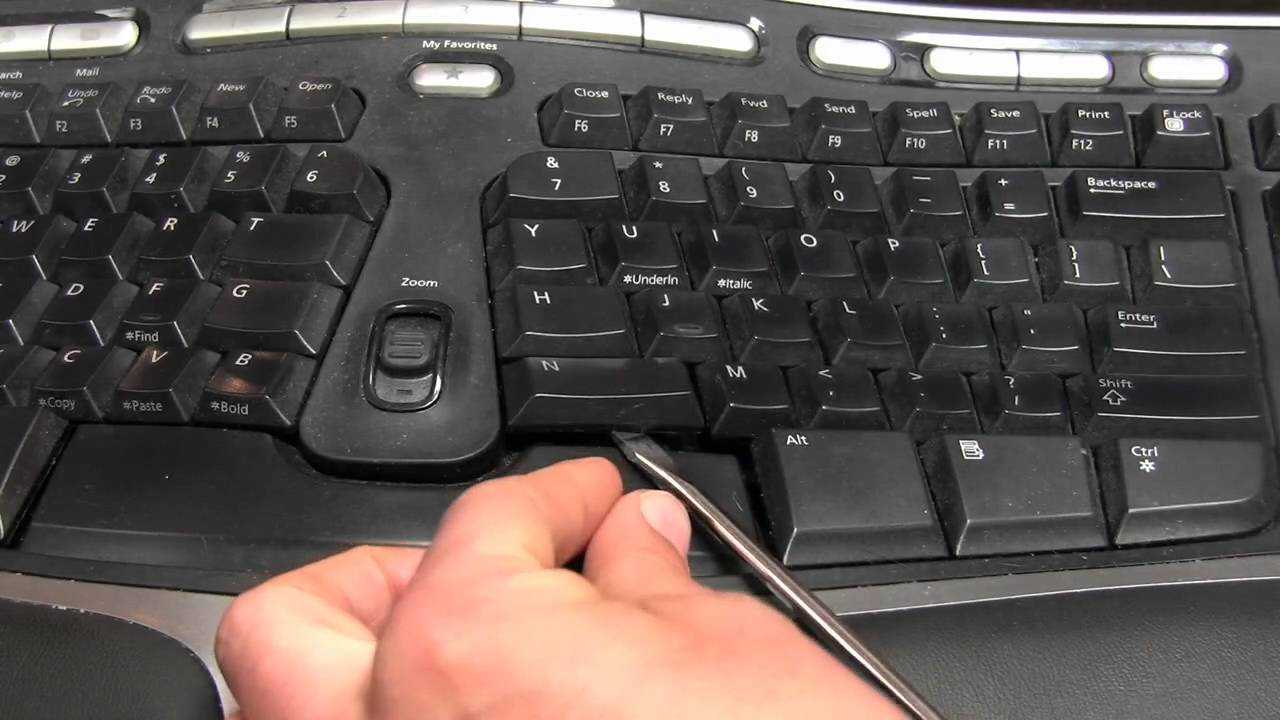
Most external keyboards allow easy removal of keys with a small tool or by gently prying with your fingers. Check for stuck objects or residue beneath the key.
Cleaning or replacing damaged parts
Clean the stem and the underside of the keycap thoroughly. If the key or switch is broken, consider replacing it or seek professional repair.
Updating or reinstalling keyboard drivers
Software issues are common causes of unresponsive keys, especially after updates.
How to update keyboard drivers
- Open Device Manager on your computer.
- Find your keyboard in the list of devices.
- Right-click and select ‘Update driver.’
- Choose ‘Search automatically for updated driver software.’
- Follow prompts to complete the update and restart your device.
Reinstalling drivers for a fresh start
If updating doesn’t help, try uninstalling the driver first, then restarting your computer. The system will reinstall the driver automatically.
Checking hardware connections
Loose or damaged connections cause keys to stop responding.
External keyboards
Ensure the USB or Bluetooth connection is secure. If using a wired keyboard, try plugging it into a different port.
Built-in or laptop keyboards
For laptops, check the internal connection if comfortable opening the device. Otherwise, seek professional repair.
Performing hardware resets and troubleshooting
Resetting hardware can clear glitches that cause unresponsive keys.
Full system restart
Shut down your device completely, wait a few seconds, then turn it back on.
Resetting the keyboard (for external models)
Some keyboards have reset buttons or key combinations. Check the manual for instructions.
Replacing your keyboard or key switches
If all else fails, hardware damage might be the issue.
Choosing a new keyboard
Opt for a model compatible with your device, considering whether you prefer wired or wireless options.
Replacing individual keys or switches
High-quality mechanical keyboards allow individual key switch replacement. Use keycap pullers and compatible switches for DIY repairs.
Preventing future keyboard issues
Regular cleaning, avoiding eating or drinking near your keyboard, and safeguarding from spills extend its lifespan. Keep your device updated with the latest software to prevent glitches. Consider investing in a keyboard cover for added protection.
Additional tips for troubleshooting unresponsive keys
Keep your operating system up to date. Run a virus scan if you suspect malware affecting your input devices. Use troubleshooting tools built into your OS for quick diagnosis.
Recognizing when to seek professional repair services
If your keyboard is still unresponsive after trying these steps, it’s best to consult professionals. Hardware failures often need expert repairs or replacements to resolve fully.
By following these detailed steps, you can address most issues causing unresponsive keys on your keyboard. Regular maintenance and cautious use help prevent future problems, keeping your device working smoothly.
How to fix keys not working on a mechanical keyboard (RedDragon K552)
Frequently Asked Questions
What steps can I take to clean sticky or debris-covered keys on my keyboard?
Start by turning off your device and disconnecting it from any power source. Use compressed air to blow away dust and crumbs from between the keys. Dampen a soft cloth with a small amount of rubbing alcohol or water and gently wipe the key surfaces. For stubborn grime, you can carefully remove individual keys using a key puller or a small flat tool, clean underneath with a cotton swab dipped in isopropyl alcohol, then reattach the keys securely.
How do I identify if a key’s malfunction is due to hardware issues or software problems?
Test the key on different applications or programs to see if the problem persists across platforms. Connect an external keyboard to your device; if the key works properly on the external keyboard, the issue likely resides in hardware. If the key remains unresponsive even with an external device, check for software or driver issues by updating your keyboard driver or reinstalling the device software. This approach helps determine whether hardware repair or software troubleshooting is necessary.
Can updating or reinstalling keyboard drivers help resolve unresponsive keys?
Yes, updating or reinstalling drivers can often fix issues caused by outdated or corrupted software. Access your device’s device manager, locate the keyboard device, and choose to update the driver. If updating doesn’t work, uninstall the driver and restart your computer, allowing the system to automatically reinstall the default driver. This process can resolve conflicts or errors that prevent keys from responding correctly.
What are some quick fixes I can try if a specific key stops working suddenly?
First, turn off your device and gently clean around the key using compressed air or a soft brush. Check if debris or dirt is blocking the key’s mechanism. Next, reconnect or restart your device to see if that restores functionality. If the key remains unresponsive, try using an external keyboard to determine if the problem is hardware-related. In some cases, resetting keyboard settings or performing a system update can also resolve sudden issues.
When should I consider replacing my keyboard instead of repairing it?
If your keyboard continues to have unresponsive keys after cleaning and software troubleshooting, and especially if multiple keys are affected, replacing the keyboard might be more practical. Physical damage, such as broken or bent keys, also indicates the need for a replacement. Consider the age of the device and the cost of repairs; if repairs are expensive or not guaranteed, replacing the keyboard ensures reliable performance.
Final Thoughts
How to fix unresponsive keys on a keyboard is straightforward with some simple steps. Start by cleaning your keyboard thoroughly to remove dust and debris that may cause keys to stick. If cleaning doesn’t work, try reconnecting or replacing the keyboard if it’s external. For laptop keyboards, updating drivers or resetting the device can often solve the issue. Addressing these basic fixes quickly restores full functionality, ensuring your keyboard works smoothly again.



