


Tired of unwanted blur distracting from your webcam feed? This comprehensive guide will show you exactly how to stop webcam background blur in popular video conferencing applications and dedicated webcam software. Discover simple, step-by-step instructions to disable blur features, optimize your camera settings, and troubleshoot persistent issues for a consistently clear and professional appearance. Say goodbye to blurry backgrounds and hello to crisp, clear video calls.
How to Stop Webcam Background Blur
In today’s world of virtual meetings and online interactions, your webcam is your window to the world. A clear, crisp video feed is essential for professionalism and effective communication. However, sometimes you might find your webcam automatically blurring your background, and while this feature is popular for privacy or hiding clutter, there are many times you’ll want to stop webcam background blur entirely. Perhaps you want to showcase your home office, a clean professional setting, or just prefer a natural look without any artificial effects.
If you’re wondering how to stop webcam background blur and get back to a natural, sharp background, you’ve come to the right place. This comprehensive guide will walk you through all the necessary steps, from checking your video conferencing app settings to delving into dedicated webcam software and troubleshooting common issues. We’ll help you regain control over your video feed, ensuring your background is as clear or as intentionally blurred as you desire.
Key Takeaways
- Disable Blur in Apps: The most common way to stop webcam background blur is by turning off the feature directly within video conferencing software like Zoom, Microsoft Teams, or Google Meet.
- Check Webcam Software: Many dedicated webcams come with their own software (e.g., Logitech G Hub, Razer Synapse) where background blur settings might be enabled and need to be disabled.
- Update Drivers & Software: Outdated webcam drivers or application software can sometimes cause unexpected blurring or prevent settings from sticking. Always ensure everything is up to date.
- Optimize Your Environment: Good lighting, a simple background, and appropriate distance from your camera can help software blur algorithms perform better (or make them unnecessary).
- Distinguish Blur Types: Understand the difference between software-generated blur and natural optical bokeh from higher-end cameras. Most unwanted blur is software-related.
- Troubleshoot Persistent Issues: If blur persists, check for conflicting settings across different apps, try rebooting, or consider reinstalling drivers for a fresh start.
Understanding Why Your Webcam Background Blurs
Before we dive into the solutions, it’s helpful to understand why your background might be blurring in the first place. There are primarily two reasons:
- Software-Generated Blur: This is by far the most common reason. Most video conferencing applications (Zoom, Teams, Google Meet, Skype) and some webcam utility software include a feature that artificially blurs your background using algorithms. This feature detects your face and separates it from the background, applying a blur effect to everything behind you. This is what most people are trying to disable when they want to stop webcam background blur.
- Hardware-Generated Blur (Optical Bokeh): Less common with standard webcams, but higher-end cameras (like DSLR or mirrorless cameras used as webcams) or webcams with larger sensors and faster lenses can naturally create a shallow depth of field. This means objects closer to the camera (like your face) are in sharp focus, while objects further away (your background) are naturally blurred. This is known as “bokeh” and is often a desired effect in photography and videography. If you’re using a high-quality camera and experiencing this, it might be a natural characteristic rather than a setting to “turn off.” However, sometimes an incorrect focus setting can also make the entire scene appear blurry, which is different from intentional bokeh.
Our focus will primarily be on disabling the software-generated blur, as that’s the unwanted effect most users encounter.
Step 1: Disable Blur in Your Video Conferencing Applications
The first place to check when you want to stop webcam background blur is within the application you’re using for your video calls. Each platform has its own settings for background effects.
Visual guide about How to Stop Webcam Background Blur
Image source: resource-cdn.obsbothk.com
Disable Blur in Zoom
Zoom is one of the most popular platforms, and its background blur feature is widely used. To disable it:
- Start a Zoom meeting or join one.
- Look for the video icon in the bottom-left corner of the Zoom window. It usually looks like a small video camera.
- Click the small upward arrow (^) next to the video icon. This will open a menu.
- Select “Choose Virtual Background…” or “Video Settings…” from the menu.
- In the Virtual Background/Video Settings window, locate the “Background & Effects” tab.
- Make sure “None” is selected under the “Virtual Backgrounds” or “Blur” options. If “Blur” is selected, simply click “None” to instantly remove the background blur.
- Close the settings window. Your background should now be clear.
It’s important to remember that Zoom sometimes remembers your last setting. So, if you previously turned on blur, you might need to manually turn it off each time until you ensure “None” is the default.
Disable Blur in Microsoft Teams
Microsoft Teams also offers robust background effects. Here’s how to stop webcam background blur in Teams:
- Before or during a Teams meeting, click on the “More actions” icon (three dots) in the meeting controls.
- Select “Apply background effects.”
- In the “Background settings” pane that appears on the right, you’ll see various options.
- Choose “None” from the available options. This will remove any background blur or virtual background.
- Click “Apply” to save your changes.
You can also access this setting before joining a meeting. When you’re in the pre-join screen, look for the background filters icon (a person with a blurred background) and click it to select “None.”
Disable Blur in Google Meet
Google Meet provides similar options to manage your background:
- Before or during a Google Meet call, click on the “More options” icon (three vertical dots) in the bottom-right corner.
- Select “Apply visual effects.”
- In the panel that opens, look for the “Blur your background” or “Slightly blur your background” options.
- Ensure that both “Blur your background” and “Slightly blur your background” are deselected or turned off. You might see a “None” option as well; click that if it’s present.
- Close the effects panel. Your background should now be sharp.
Disable Blur in Skype
Skype users can also control their background blur:
- During a Skype call, hover over the video button or click the “More” button (three dots).
- Select “Choose background effect.”
- In the options that appear, select “No background effect” or ensure the “Blur” toggle is off.
To set this globally for all calls, go to Skype Settings > Audio & Video > Background effects and select “No background effect.”
Other Platforms (Webex, Discord, etc.)
Most other video conferencing platforms that offer background blur will have a similar setting within their video or background effects menu. Always look for icons related to video settings, background, or effects, and choose “None” or disable the blur option.
Step 2: Check Your Webcam’s Dedicated Software
Sometimes, the blur isn’t coming from your video conferencing app but from the software that controls your webcam itself. Many premium webcams come with their own utilities.
Visual guide about How to Stop Webcam Background Blur
Image source: i.ytimg.com
Logitech Capture or G Hub
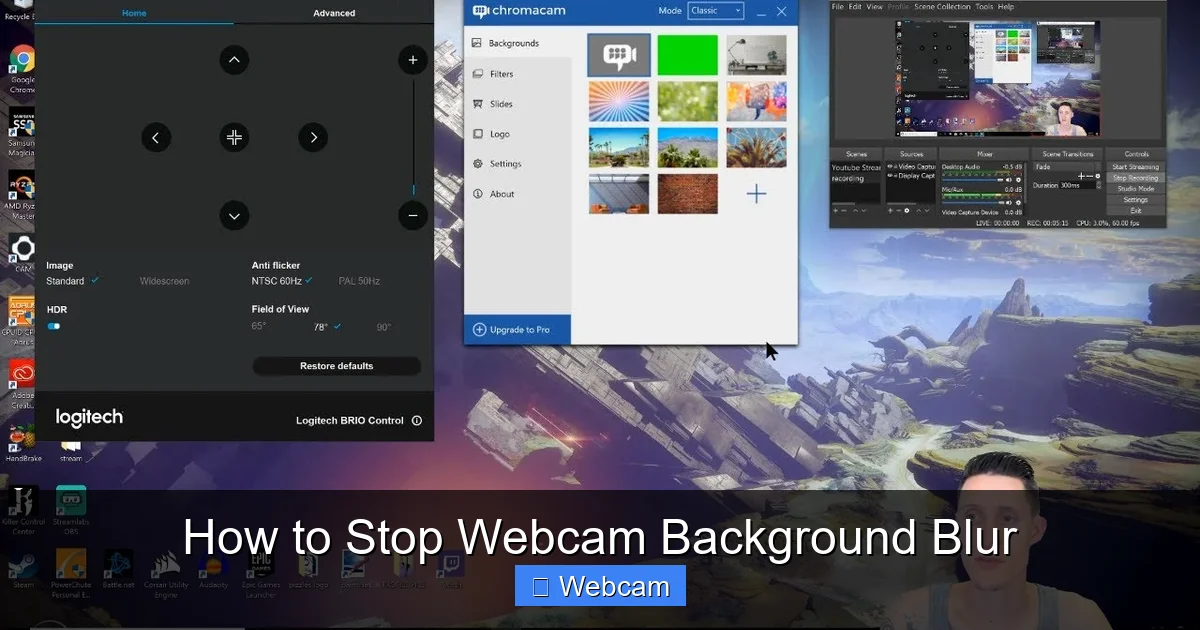
If you use a Logitech webcam, you might have Logitech Capture or G Hub installed. These applications can apply effects globally:
- Open Logitech Capture or G Hub.
- Navigate to your webcam’s settings. Look for sections like “Effects,” “Background,” or “Video Filters.”
- Check for any background blur or virtual background options and ensure they are turned off or set to “None.”
- Save your changes if prompted.
Razer Synapse
Razer webcams like the Kiyo Pro often use Razer Synapse:
- Launch Razer Synapse.
- Select your Razer webcam from the devices list.
- Look for “Image” or “Streaming” settings.
- Disable any “Background Removal” or “Blur” features.
OBS Studio (if used as a Virtual Cam)
If you’re using OBS Studio to process your video before sending it to a conferencing app (via OBS Virtual Camera), any blur effects might be originating here. You’d need to:
- Open OBS Studio.
- Check your “Sources” list for any filters applied to your webcam source.
- Right-click on your webcam source and select “Filters.”
- Remove or disable any “Background Removal,” “Blur,” or “Green Screen” filters that might be active.
Step 3: Update Your Webcam Drivers and Software
Outdated or corrupt drivers can sometimes lead to unexpected behavior, including persistent background blur or settings that don’t apply correctly. To ensure optimal performance and to stop webcam background blur:

Visual guide about How to Stop Webcam Background Blur
Image source: obsbot-static-resource.oss-accelerate.aliyuncs.com
- Update Windows/macOS: Make sure your operating system is fully updated. OS updates often include updated generic drivers for peripherals.
- Update Webcam Drivers:
- For external webcams: Visit the manufacturer’s website (e.g., Logitech, Razer, Microsoft) and download the latest drivers for your specific webcam model.
- For built-in webcams (laptops): Go to your laptop manufacturer’s support website (e.g., Dell, HP, Lenovo, Apple) and search for webcam drivers for your model.
- Update Video Conferencing Apps: Ensure Zoom, Teams, Meet, Skype, etc., are running their latest versions. Updates often fix bugs related to video effects.
Step 4: Optimize Your Environment for a Clear Background
While these steps don’t directly disable a blur setting, they can sometimes influence how software-generated blur behaves, or they can simply make a clear background look its best.
Proper Lighting
Good lighting is crucial. When you’re well-lit, the software can more easily distinguish you from your background. If you’re poorly lit, the software might struggle and apply an inconsistent or unwanted blur. Aim for:
- Frontal Lighting: Position a light source in front of you, facing your face.
- Even Illumination: Avoid harsh shadows on your face or strong backlighting that silhouettes you.
Simple and Consistent Background
Complex or busy backgrounds can confuse the AI algorithms that try to separate you from the background. A plain wall, a bookshelf, or a tidy workspace behind you will give the blur algorithms less to “think” about, or simply look better when clear.
Distance from Background
If you’re using a camera with a very shallow depth of field (more common with professional cameras than typical webcams), increasing the distance between yourself and your background can increase the natural bokeh effect. However, for most users trying to stop *software* webcam background blur, this tip is less about controlling bokeh and more about providing a cleaner separation for the software.
Camera Placement and Angle
Position your camera at eye level. This is generally the most flattering angle and provides a straightforward view for the software to process your background without awkward angles or distortions.
Step 5: Address Potential Hardware or Focus Issues (Rare)
If you’ve gone through all the software steps and your entire video feed, including yourself, appears blurry, then you might have a different issue than intentional background blur.
Checking Manual Focus
Some higher-end webcams or dedicated cameras used for streaming might have a manual focus ring or a software focus adjustment. If your camera has this:
- Locate the focus control. This might be a physical ring on the lens or a setting within the camera’s utility software.
- Adjust the focus until your face and the immediate foreground are sharp.
- Test in your video conferencing application.
Most standard webcams are fixed-focus or autofocus automatically, so this is less likely to be the issue for them.
Understanding Natural Bokeh
As mentioned, if you’re using a professional camera, a naturally blurred background (bokeh) is often a desired quality. This isn’t something you “turn off” but rather a characteristic of the lens and sensor. If you absolutely want everything in focus with such a setup, you’d need to use a lens with a larger f-stop number (smaller aperture) or move your subject further from the background.
Troubleshooting: When Blur Won’t Go Away
Sometimes, despite your best efforts, the background blur just won’t seem to disappear. Here are a few troubleshooting steps to take:
Conflicting App Settings
Make sure you’ve checked all potential sources of blur. If you’re using Zoom, but also have Logitech Capture running in the background, one might be overriding the other. Check both simultaneously to ensure no blur is active in any software controlling your camera feed.
Reboot and Re-test
The classic IT solution, but often effective! A simple restart of your computer can clear temporary glitches, reset software states, and allow new settings to take effect. After rebooting, open your video conferencing app and check the blur settings again.
Reinstall Webcam Drivers/Software
If updating didn’t help, a clean reinstall might be necessary.
- Uninstall your webcam’s drivers from Device Manager (Windows) or by removing associated software (macOS).
- Uninstall any dedicated webcam utility software (e.g., Logitech Capture, Razer Synapse).
- Restart your computer.
- Download and install the latest drivers and software directly from the manufacturer’s website.
This ensures there are no corrupted files interfering with your settings.
Check for Third-Party Overlay Software
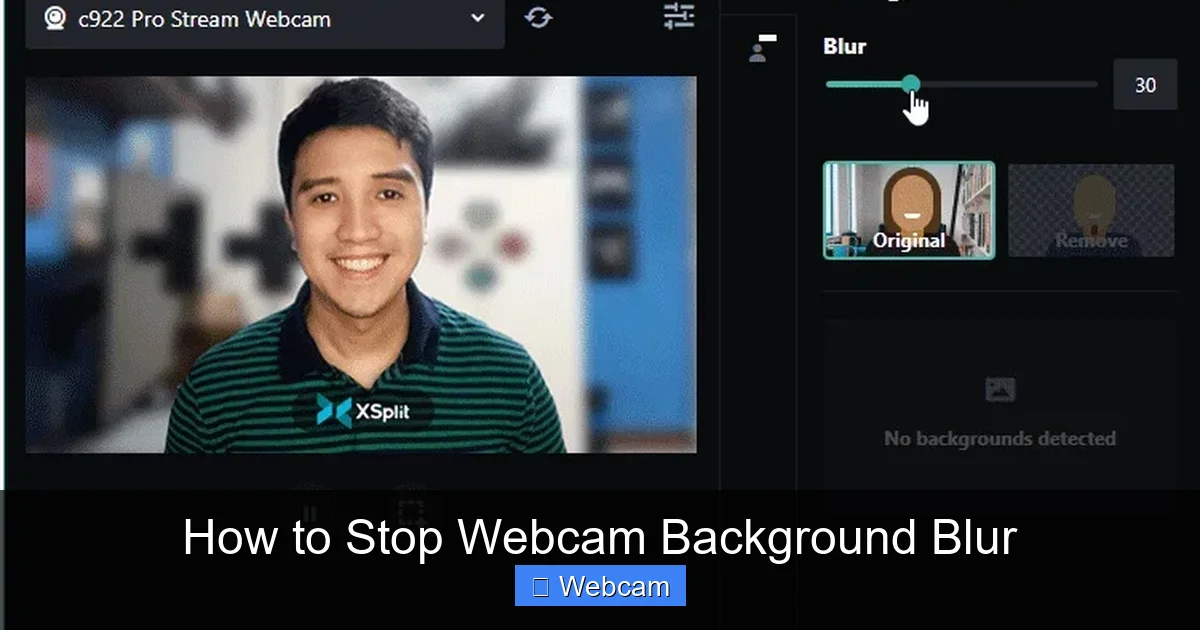
If you’re a streamer or content creator, you might be using third-party software like Streamlabs OBS, XSplit, or NVIDIA Broadcast. These applications often have their own background removal or blur features that can be applied before the video feed even reaches your conferencing app. Ensure these are also disabled if you want to stop webcam background blur.
Test with a Different Application
Try using your webcam in a different application (e.g., try Google Meet if you were having issues with Zoom). If the blur is gone in the second app, the problem is specific to the first app’s settings. If the blur persists across all apps, it points to a webcam driver issue or a system-wide setting.
Conclusion
Knowing how to stop webcam background blur gives you full control over your video presence. Whether you’re presenting to clients, catching up with family, or attending online classes, a clear and intentional background can significantly enhance your communication. By systematically checking your video conferencing application settings, dedicated webcam software, and ensuring your drivers are up to date, you can easily disable unwanted blur. Follow the steps in this guide, and you’ll be able to enjoy crisp, professional, and blur-free webcam video whenever you need it.



