


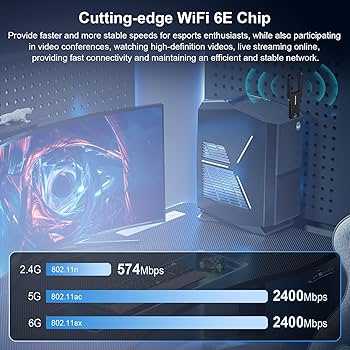
Quick fix: Access your router’s settings and select the 5GHz band to enjoy smoother, lag-free video calls. Make sure your device supports 5GHz Wi-Fi, then connect to that network for a more stable video conferencing experience.
Switching to the 5GHz band can dramatically improve your video calls by reducing interference and providing faster data speeds. If your Wi-Fi router supports dual-band functionality, you can easily switch to the 5GHz network through your device’s Wi-Fi settings. This simple change can make a huge difference in the quality of your online meetings, especially in crowded Wi-Fi environments. Whether you’re working from home or attending a virtual class, a stable connection is essential, and the 5GHz band is your best bet for that. Keep reading for step-by-step instructions on how to make the switch and get the most out of your internet setup.

How to switch to 5GHz band for stable video conferencing
Choosing the right Wi-Fi band is key to having smooth and uninterrupted video calls. The 5GHz band offers faster speeds and less interference than the 2.4GHz band, making it ideal for video conferencing. Here’s a clear guide to help you switch to the 5GHz band and improve your online meetings.
Understanding the differences between 2.4GHz and 5GHz Wi-Fi
The 2.4GHz band has been around longer and covers a larger area, but it often faces more interference from household devices like microwaves and cordless phones. The 5GHz band provides faster data transfer speeds and is less crowded, but its range is shorter. Knowing these differences helps you decide why switching to 5GHz can boost your video call stability.
Check if your router supports 5GHz Wi-Fi
Not all routers have dual-band capabilities. Look at your router’s model name and specifications to confirm if it supports 5GHz. You can also log into your router’s admin panel to see if the 5GHz option is available. If your router does not support it, consider upgrading to a dual-band or tri-band router for better performance.
Locate the 5GHz network on your router
Many routers broadcast separate network names for 2.4GHz and 5GHz. These are often called SSIDs. Find your router’s manual or access its settings via a web browser to identify or customize the network names. Clear names like “HomeWiFi-5G” or “MyNetwork-5GHz” make it easier to select the right one.
Access your device’s Wi-Fi settings
On your computer, smartphone, or tablet, open the Wi-Fi settings. Look for available networks and find the 5GHz network name. If you see only one network, your device might automatically connect to the strongest signal, so you may need to manually select the 5GHz network for a better connection.
Connect your device to the 5GHz network
Tap or click on the 5GHz network name. If prompted, enter the password. Once connected, your device will prioritize this band for faster, more stable video calls. Remember to disconnect from the 2.4GHz network if you want to ensure all traffic goes through the 5GHz band.
Optimize your device and router settings for the best connection
Adjust your router settings to improve 5GHz performance. Enable features like Band Steering if available, which automatically directs devices to the optimal band. Additionally, update your router firmware regularly to fix bugs and boost compatibility.
Placement tips for better 5GHz Wi-Fi coverage
The 5GHz signal weakens as it travels through walls and furniture. Position your router in a central, open location to maximize coverage. Avoid placing it near metal objects or appliances that may cause signal interference.
Troubleshooting common issues when switching to 5GHz
If your device does not see the 5GHz network, verify that your router supports dual-band Wi-Fi and that the feature is enabled. Restart both your router and device. Sometimes, updating the device’s network drivers or software improves connectivity.
Using Wi-Fi extenders or mesh networks for better coverage
If your home is large, and 5GHz coverage is limited, consider adding Wi-Fi extenders or switching to a mesh network system. These solutions help extend the range of your 5GHz band, maintaining high speeds across multiple rooms.
Additional tips for a stable video conference experience
- Limit the number of devices connected to your Wi-Fi during calls
- Pause downloads or streaming activities while on a video call
- Use wired Ethernet connections for desktops or laptops, if possible
- Regularly reboot your router to keep connections fresh and responsive
Related topics: Enhancing your Wi-Fi setup for meetings
Besides switching to 5GHz, consider updating your router to a newer model with better antenna technology. Invest in a high-quality modem for faster internet speeds. Use Quality of Service (QoS) settings on your router to prioritize video conferencing traffic for smoother calls.
By following these steps, you can significantly improve your Wi-Fi connection for video conferencing. Enhancing your understanding of your network and optimizing settings ensures a more reliable and clear communication experience during all your virtual meetings.
change from 2.4ghz to 5ghz,wifi band selectionhow to enable 5g,redminote 10,
Frequently Asked Questions
What steps can I take to identify if my router supports 5GHz frequency?
Check your router’s specifications in the user manual or on the manufacturer’s website to confirm if it supports 5GHz. You can also access the router’s settings page and look for wireless band options. If your router displays both 2.4GHz and 5GHz bands, it likely supports dual-band connectivity. Additionally, use a device that scans available Wi-Fi networks to see if 5GHz networks appear alongside 2.4GHz networks.
How do I access my router’s settings to enable the 5GHz band?
Open a web browser and enter your router’s IP address, often something like 192.168.0.1 or 192.168.1.1. Log in with your administrator credentials. Navigate to the wireless or Wi-Fi settings section, where you can find options to enable or configure the 5GHz band. Make sure the 5GHz SSID (network name) is activated and set up with a secure password. Save your changes before exiting.
What are common issues that prevent devices from connecting to the 5GHz network?
Devices may fail to connect if they do not support 5GHz Wi-Fi or if the 5GHz network is disabled or misconfigured. Signal interference from other electronics or physical obstructions can also reduce the network’s signal strength. Ensure your device supports dual-band Wi-Fi and that the 5GHz network has a distinct SSID. Confirm that the network is active and within a reasonable range for your device.
How can I optimize my device’s connection to the 5GHz network?
Position your device closer to the router to improve signal strength. Ensure that your device’s Wi-Fi adapter is updated with the latest drivers or firmware. Use the 5GHz network’s SSID to manually connect, avoiding automatic connections to the 2.4GHz network. Reduce physical obstructions and avoid interference from other electronic devices operating on similar frequencies for a more stable connection.
Are there any security considerations when switching to the 5GHz band?
Make sure to use strong encryption protocols like WPA3 or WPA2 when configuring your 5GHz network. Change default passwords and use unique, complex passphrases to protect your network from unauthorized access. Regularly update your router’s firmware to patch security vulnerabilities and maintain a safe Wi-Fi environment.
Final Thoughts
How to switch to 5GHz band for stable video conferencing improves your connection quality. First, access your router’s settings via a web browser or app. Locate the wireless or Wi-Fi options and select the 5GHz network. Connect your device to this band for less interference and faster speeds. By following these steps, you ensure a smoother video conferencing experience with fewer disruptions.



