


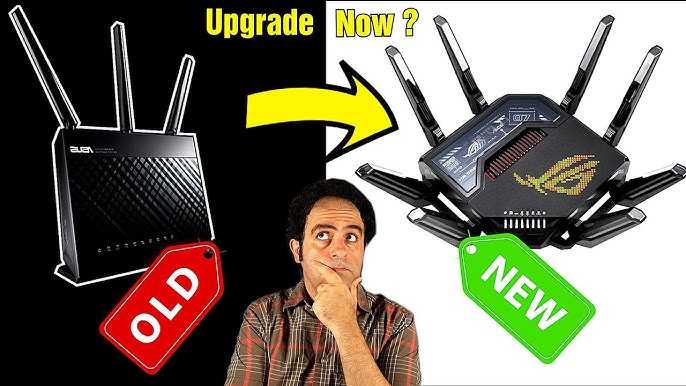
To upgrade your old WiFi router quickly and effectively, start by choosing a newer model that supports the latest standards like WiFi 6. Then, update its firmware, optimize settings, or consider a full replacement if it’s outdated or underperforming. Upgrading ensures faster speeds, better coverage, and improved security for all your devices.
Upgrading your old WiFi router is simple and rewarding. The key is selecting a modern device that matches your needs, updating or configuring it properly, and replacing it when necessary. This can significantly enhance your internet experience, making streaming, gaming, and browsing smoother and more reliable.
If your WiFi has become sluggish or your coverage is patchy, it’s time to consider an upgrade. An old router can bottleneck your internet, causing slow downloads and dropped connections. Upgrading is a straightforward process: choose a compatible, high-performance model, update its software, and fine-tune the settings. Whether you’re replacing outdated hardware or just improving your current setup, a new router will give your home network a big boost. Just select the right model for your space, follow the setup instructions, and enjoy faster, more stable WiFi throughout your home.

How to upgrade your old WiFi router
Understanding Why You Need a New Router
Many people keep using their old WiFi routers even when their internet speed slows down or connection issues happen often. An outdated router can cause slow downloads, buffering videos, and dropped connections. Upgrading your router can fix these problems and improve your overall internet experience.
Signs Your WiFi Router Is Old
Recognizing when it’s time for an upgrade helps you avoid frustrating internet issues. Look for these signs:
- Slow internet speeds even with a strong broadband connection
- Frequent disconnects or dropped WiFi signals
- Limited coverage in parts of your home
- Incompatibility with modern devices
- Router hardware over five years old
If you notice any of these signs, it’s time to consider replacing your old router.
Choosing the Right WiFi Router for Your Needs
Selecting a new router depends on your household needs and internet usage. Here are some factors to consider:
WiFi Standards
Look for routers supporting at least WiFi 5 (802.11ac) or WiFi 6 (802.11ax). These standards provide faster speeds and better handling of multiple devices.
Speed Ratings
Check the router’s maximum speed rating and match it with your internet plan. Higher Mbps ratings translate to faster connection capabilities.
Coverage Area
Choose a router with sufficient range for your home size. Larger homes may need routers with external antennas or mesh system compatibility.
Number of Devices
Pick a router capable of managing all your devices without slowing down. Modern routers often feature multiple streams and higher capacity.
Security Features
Ensure the router includes WPA3 encryption, guest networks, and automatic firmware updates for safety.
Types of WiFi Routers to Consider
Various routers offer different features suited for particular uses:
| Type | Best For | Features |
|---|---|---|
| Standard Router | Small households or apartments | Affordable, easy setup, basic coverage |
| Gaming Router | Gamers with high-speed needs | Low latency, Quality of Service (QoS) |
| Mesh WiFi System | Large homes | Multiple nodes, seamless coverage |
| Dual-Band or Tri-Band Routers | Multiple device environments | Reduced congestion, better performance |
How to Check Your Current Router’s Compatibility and Performance
Before upgrading, test your current router’s performance. Use online speed test tools to measure your current speeds. Check your device’s WiFi standards and compare them with the features of new routers.
Preparing for Your Router Upgrade
Preparation helps ensure a smooth transition. Follow these steps:
- Back up your current router settings if possible, or note your network name and password.
- Decide where to position your new router for best coverage.
- Check that you have all required cables and power adapters.
- Ensure your internet subscription supports higher speeds if you plan to upgrade your plan as well.
Steps to Replace Your Old Router
Replacing your router involves a few straightforward steps:
Disconnect the Old Router
Power off your current device and unplug all cables. Remove it from your network setup.
Connect the New Router
Plug in your new device and connect it to your modem using an Ethernet cable. Power it on.
Configure Your New Router
Access the setup page via a web browser, usually by typing an IP address or URL provided in the manual. Follow the on-screen instructions to set your network name and password.
Update Firmware and Settings
Check for firmware updates and install the latest version. Reconfigure your network settings and security options.
Test Your Connection
Connect your devices one by one and verify internet speed and coverage areas.
Optimizing Your WiFi Network After Upgrade
Maximize your new router’s performance with these tips:
- Place the router in a central location, away from thick walls and metal objects.
- Ensure it is elevated on a shelf or high spot for better coverage.
- Adjust the antenna angles for optimal signal distribution.
- Use the latest WiFi bands (preferably 5 GHz) for faster speeds, especially for online gaming and streaming.
- Set up guest networks if you have visitors to keep your main network secure.
Additional Tips for Better WiFi Performance
Consider some extra steps to enhance your WiFi experience:
Use a WiFi Analyzer App
Apps can help identify dead spots and suggest the best placement for your router.
Update Device Firmware
Keep all your devices updated to ensure compatibility and security.
Limit Interference
Reduce interference from other electronics, such as cordless phones or microwaves, which can disrupt WiFi signals.
Secure Your Network
Use strong passwords and enable encryption to prevent unauthorized access.
Upgrading Your Internet Plan Alongside Your Router
Upgrading your router sometimes means also upgrading your internet plan. Contact your provider to discuss higher speed options that match your new equipment. This ensures you get the full benefit of your upgraded setup.
Benefits of Upgrading Your WiFi Router
Investing in a better router offers many advantages:
- Faster internet speeds and smoother streaming
- Better coverage throughout your home
- Ability to handle more devices at once
- Enhanced security features
- Support for new WiFi standards and devices
Upgrading your old WiFi router doesn’t have to be complicated. By understanding your needs, selecting the right device, and installing it properly, you can significantly improve your home internet experience. With the right setup, you’ll enjoy faster speeds, better coverage, and a more reliable connection for all your devices.
Frequently Asked Questions
What are the key features to look for when choosing a new WiFi router?
When selecting a new WiFi router, prioritize features like support for the latest WiFi standards (such as WiFi 6 or WiFi 6E), multiple antenna setups for better coverage, high-speed data transfer rates, and advanced security protocols. Additionally, consider the number of concurrent devices it can handle and compatibility with your internet plan to ensure it meets your household’s needs.
How can I properly set up my new router to ensure optimal performance?
To set up your new router effectively, place it in a central location away from thick walls and electronic interference. Connect it directly to your modem, access the router’s configuration page, and update its firmware to the latest version. Customize network settings, including SSID and password, and enable security features such as WPA3. Performing a speed test afterwards helps confirm that your connection runs smoothly.
What steps should I follow to safely replace my old router without losing my network settings?
Before replacing your old router, note down your current network configurations, such as SSID, passwords, and any custom settings. Disconnect the old device and connect the new router directly to your modem. Access the new router’s interface and input your saved settings to replicate your previous network. Restart your devices to reconnect to the new network and verify that all devices function correctly.
Are there any maintenance tips to keep my upgraded router running efficiently?
Regularly update your router’s firmware to benefit from security patches and performance improvements. Keep the router in a ventilated area to prevent overheating, restart it periodically to clear temporary issues, and review connected devices to manage bandwidth usage. If you experience slow speeds, consider relocating the router or adding range extenders to improve coverage.
How can I enhance my WiFi coverage after upgrading my router?
Enhance your WiFi coverage by placing your router in a central location and elevating it to avoid obstructions. Use mesh WiFi systems or additional access points to extend coverage in larger spaces. Adjust the router’s antennas for better signal direction and minimize interference from other electronic devices. Regularly testing signal strength helps identify areas needing improvement.
Final Thoughts
Upgrading your old WiFi router is simple and effective for improving connectivity. Start by researching the latest models that suit your needs and budget. Consider compatibility with your internet service provider and your home setup.
Next, replace your outdated device with the new router, following the manufacturer’s installation instructions. Ensure that firmware is updated for optimal performance.
How to upgrade your old WiFi router can significantly boost your network speed and reliability. Keep your system current to enjoy seamless browsing and streaming.



