


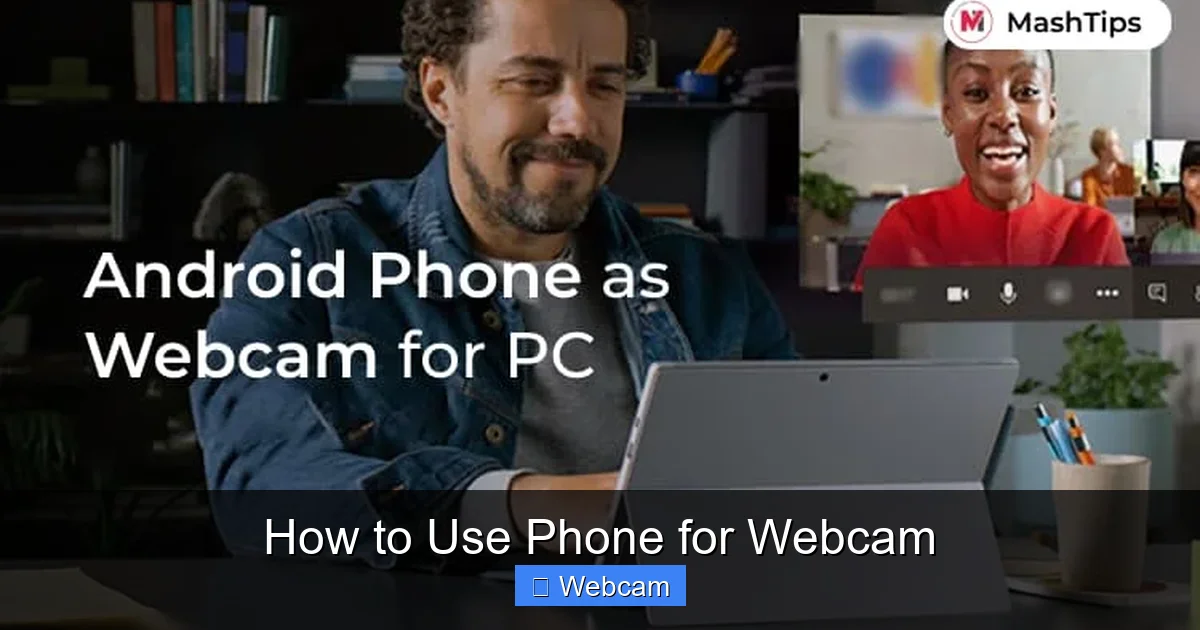
You can turn your smartphone into a high-quality webcam with the right tools and apps. Whether you’re on Zoom, streaming on Twitch, or recording tutorials, using your phone as a webcam is simple and effective. No expensive gear needed—just your phone and a few free apps.
Key Takeaways
- Step-by-step: Easy to follow instructions
How to Use Your Phone as a Webcam: A Complete Guide
Are you tired of blurry, low-quality video during your Zoom calls or YouTube streams? You don’t need to buy a new webcam. Your smartphone can do the job—and often better. In this guide, you’ll learn exactly how to use your phone for webcam functions. Whether you’re a remote worker, a content creator, or a student, turning your phone into a webcam is simple, affordable, and effective.
By the end of this guide, you’ll know the best ways to connect your phone to your computer, choose the right app, and get crystal-clear video and audio. Let’s get started.
Why Use Your Phone as a Webcam?
Modern smartphones have powerful cameras, high-resolution sensors, and excellent autofocus. Many even support 4K video recording. That’s more than most built-in laptop webcams can offer. Using your phone as a webcam gives you:
- Higher video quality
- Better focus and lighting control
- Flexible positioning (tripod or mount)
- Cost savings (no new hardware)
Whether you’re hosting a virtual meeting, recording a tutorial, or streaming gameplay, your phone can step up as a professional-grade webcam.
Step-by-Step: How to Use Your Phone as a Webcam
Choose Your Connection Method
There are three main ways to use your phone as a webcam: USB, Wi-Fi, or Bluetooth. Each has its benefits.
Visual guide about How to Use Phone for Webcam
Image source: bandicam.com
Option 1: USB Connection (Most Stable)
Connecting via USB is the most reliable method. It provides high-quality video with minimal lag and works on both Android and iPhone.
Step 1: Get the Right Cable
Use a USB-C to USB-A cable (for Android) or a Lightning to USB cable (for iPhone). Make sure it supports data transfer—not just charging.
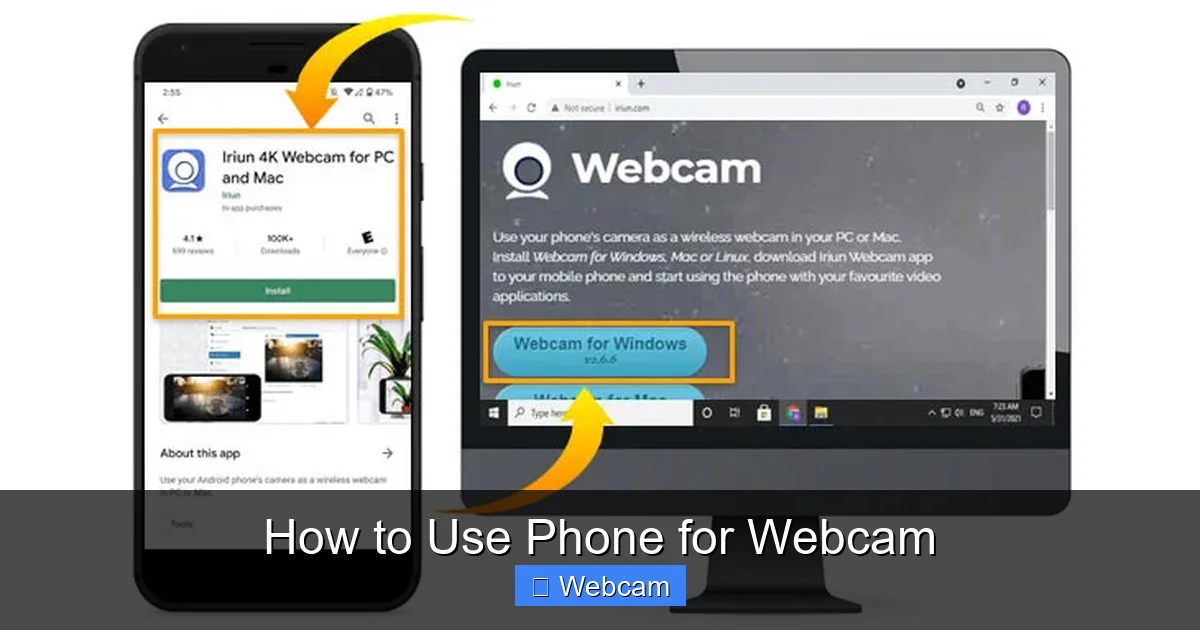
Step 2: Download the App
- Android: Install DroidCam on your phone and computer.
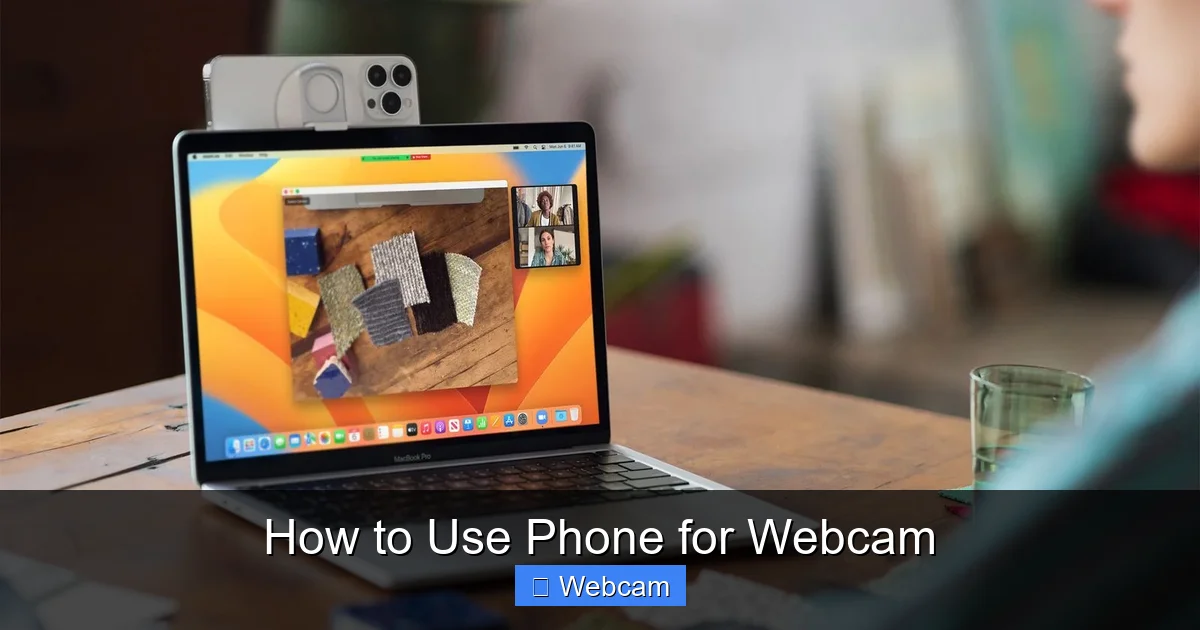
- iPhone: Use EpocCam or iVCam from the App Store.
Step 3: Connect and Launch
Plug your phone into the computer. Open the app on your phone and the desktop app on your PC or Mac. The video feed should appear instantly.
Option 2: Wi-Fi Connection (Wireless Freedom)
Want to place your phone anywhere? Use Wi-Fi. This method is great for streaming or when you don’t want cables.
Step 1: Connect to the Same Network
Make sure your phone and computer are on the same Wi-Fi network.
Step 2: Install a Wireless App
- DroidCam: Works on Android and Windows/Mac.
- EpocCam: Available for iPhone, iPad, and Mac/Windows.
- ManyCam: Supports both platforms and adds filters and effects.
Step 3: Pair Devices
Open the app on your phone and computer. Tap “Start Server” on your phone and “Connect” on your computer. The video will stream wirelessly.
Option 3: Bluetooth (For Audio Only)
Bluetooth is not ideal for video, but it works well for transferring audio. Pair your phone to your computer for better sound quality during calls.
Recommended Apps for Using Your Phone as a Webcam
Not all apps are created equal. Here are the top choices:
Visual guide about How to Use Phone for Webcam
Image source: media.wired.com
- EpocCam: Great for iPhones and Macs. Offers 1080p video and easy setup.
- DroidCam: Best for Android users. Supports USB and Wi-Fi.
- iVCam: Works across iOS and Android. Simple interface and strong performance.
- ManyCam: Adds virtual backgrounds, effects, and screen sharing.
- WebcamToy: Free, browser-based option for quick use.
Most apps are free with premium upgrades for higher resolution or features.
Setting Up Your Phone for Best Video Quality
To get the most out of your phone as a webcam, follow these tips:
Use a Tripod or Mount
Stabilize your phone. A small tripod or phone holder lets you position it at eye level. Avoid shaky hands and blurry video.
Adjust Lighting
Natural light is best. Position yourself near a window, but avoid backlighting (light behind you). Use a ring light for even illumination.
Clean the Lens
Dust and smudges ruin video quality. Wipe the camera lens with a microfiber cloth before use.
Close Background Apps
On your phone, close unused apps to free up processing power. This helps maintain smooth video performance.
Use a Quiet Environment
Background noise affects audio. Use a headset mic or place your phone near a quiet area. Some apps let you adjust audio settings for clarity.
How to Use Your Phone Webcam on Popular Platforms
Your phone webcam works with almost any video app. Here’s how to set it up:
Zoom
- Open Zoom and go to Settings > Video.
- Select your phone as the camera source (e.g., “EpocCam Devcie” or “DroidCam Video”).
- Join or start a meeting. Your phone’s camera will appear.
Microsoft Teams
- Go to Settings > Devices > Camera.
- Choose your phone camera from the dropdown.
- Start your meeting with high-quality video.
OBS Studio (For Streaming)
- Open OBS and add a “Video Capture Device.”
- Select your phone camera.
- Adjust resolution and frame rate in settings for best performance.
YouTube Live Streaming
- Use OBS or Streamlabs to connect your phone camera.
- Go live and enjoy HD video from your phone.
Troubleshooting Common Issues
Even with the best setup, you might face some hiccups. Here’s how to fix them:
Problem: Video Lag or Freezing
Solution: Reduce resolution in the app settings. Use USB instead of Wi-Fi if possible. Close background apps on your computer.
Problem: Audio and Video Out of Sync
Solution: Restart the app and reconnect. Check for app updates. Some apps have a “Sync Audio” option—enable it.
Problem: App Not Detecting Phone
Solution: Reinstall the app. Ensure USB debugging is on (Android) or trust the computer (iPhone). Restart both devices.
Problem: Poor Audio Quality
Solution: Use an external mic or headset. In the app, select “Use Phone Mic” or adjust audio settings.
Problem: Low Frame Rate
Solution: Lower the video resolution. 720p is often enough for clear video. 1080p is best for streaming.
Bonus Tips for Professional Results
- Use a Pop Filter: Reduces plosive sounds (like “p” and “b”) for cleaner audio.
- Enable Grid Lines: Helps you frame yourself properly.
- Update Software: Keep your phone, app, and computer updated.
- Test Before Going Live: Do a trial run to check lighting, audio, and framing.
Conclusion: Your Phone Is a Powerful Webcam
Using your phone as a webcam is easier than ever. With the right app and a simple connection, you can enjoy high-definition video for work, school, or content creation. No need to spend money on expensive equipment—your smartphone already has everything you need.
Whether you choose USB, Wi-Fi, or Bluetooth, the process is straightforward. Follow the steps in this guide, troubleshoot minor issues, and you’ll be broadcasting in HD in minutes.
Now go ahead—turn on your phone’s camera and start using it as a webcam. Your future self will thank you for the better video quality.



