


Achieving peak gaming immersion is simpler than you think when you connect your gaming chair to your Samsung TV. This guide walks you through various methods, from straightforward wired connections using 3.5mm jacks to more advanced wireless Bluetooth pairing and digital-to-analog converters. Understanding your chair’s inputs and your TV’s outputs is key to finding the perfect setup for enhanced audio and haptic feedback, transforming your gaming sessions into truly immersive adventures.
Gaming isn’t just about what you see on the screen anymore; it’s about feeling every explosion, hearing every whisper, and being utterly immersed in the virtual world. For many gamers, the ultimate step towards this immersive nirvana is integrating a high-quality gaming chair into their setup. These aren’t just seats; they’re often sophisticated pieces of tech packed with speakers, subwoofers, and haptic feedback motors designed to pull you deeper into the game.
If you’re rocking a brilliant Samsung TV as the centerpiece of your entertainment hub, you’ve already got a fantastic visual foundation. But how do you bridge the gap between your cutting-edge display and your feature-rich gaming chair to truly elevate your experience? The good news is, connecting your gaming chair to your Samsung TV is entirely possible, and often quite straightforward. This comprehensive guide will walk you through everything you need to know, from understanding your equipment’s capabilities to troubleshooting common issues, ensuring you can seamlessly connect your gaming chair to your Samsung TV for unparalleled audio and haptic feedback.
Whether you’re looking for a simple plug-and-play solution or willing to dabble with a few adapters for the perfect setup, we’ve got you covered. By the end of this article, you’ll be well-equipped to transform your gaming sessions from merely watching to truly *experiencing* them, with every rumble and roar resonating directly through your gaming chair. Let’s dive in and get your ultimate gaming sanctuary ready!
Key Takeaways
- Identify Chair and TV Ports: Before attempting to connect your gaming chair to your Samsung TV, always check the available audio input ports on your chair (e.g., 3.5mm, RCA, Bluetooth) and the output ports on your Samsung TV (e.g., Optical, HDMI ARC, Bluetooth, 3.5mm headphone jack).
- Wired Connections Are Simplest: If both your gaming chair and Samsung TV feature compatible 3.5mm or RCA analog audio jacks, a direct wired connection is often the easiest and most reliable method for transmitting sound.
- Bluetooth Offers Convenience: For modern Samsung TVs and gaming chairs equipped with Bluetooth, a wireless connection provides a clutter-free setup, though you should be mindful of potential audio latency.
- Digital-to-Analog Converters (DACs) Bridge Gaps: If your Samsung TV only has digital audio outputs (like Optical or HDMI ARC) and your gaming chair requires analog input (3.5mm or RCA), a DAC is an essential intermediary device.
- Consider Console Direct Connection: For console gamers, connecting the gaming chair directly to the game console’s audio output can bypass the TV entirely, providing dedicated audio and sometimes better control.
- Optimize TV Sound Settings: After connecting, navigate your Samsung TV’s sound settings to ensure the correct audio output is selected and to fine-tune sound modes or equalizer settings for the best possible experience.
- Troubleshoot Systematically: If you encounter issues, systematically check power, cable connections, input/output selections, and volume levels on both your gaming chair and Samsung TV.
Quick Answers to Common Questions
Can I connect any gaming chair to my Samsung TV?
No, only gaming chairs with built-in audio or haptic feedback features and compatible audio input ports can be connected. Basic ergonomic chairs without these features cannot transmit sound.
What is the easiest way to connect my gaming chair to my Samsung TV?
The easiest way is often a direct wired connection using a 3.5mm audio cable if both your chair and Samsung TV have corresponding 3.5mm input/output jacks.
My Samsung TV only has an Optical Out, but my chair needs a 3.5mm jack. What do I do?
You will need a Digital-to-Analog Audio Converter (DAC). Connect an optical cable from your TV to the DAC, and then a 3.5mm cable from the DAC to your gaming chair.
Will connecting my gaming chair wirelessly via Bluetooth cause audio delay?
Potentially, yes. Bluetooth can sometimes introduce a slight audio latency, which might be noticeable during fast-paced gaming. For critical timing, a wired connection is generally recommended.
Can I connect my gaming chair directly to my game console instead of the TV?
Yes, many game consoles have audio outputs (like 3.5mm or optical) that you can connect directly to your gaming chair. This often provides dedicated audio without needing to route through the TV.
📑 Table of Contents
Understanding Your Gaming Chair’s Connectivity Options
Before you can effectively connect your gaming chair to your Samsung TV, it’s crucial to understand what kind of audio capabilities your chair has and, more importantly, how it expects to receive audio signals. Gaming chairs come in a wide variety, each with unique features.
Types of Gaming Chairs and Their Features
First, identify your chair type:
- Basic Gaming Chairs: These are primarily for ergonomic support and comfort. They usually don’t have built-in audio or vibration features, so connecting them for sound isn’t applicable.
- Audio-Enabled Gaming Chairs: These chairs integrate speakers, often in the headrest, and sometimes a subwoofer in the back or seat. They’re designed to deliver immersive sound directly to you.
- Haptic Feedback Gaming Chairs: Beyond audio, these chairs include rumble motors that vibrate in sync with in-game actions like explosions, gunshots, or engine revs, providing a physical dimension to your gaming experience. Many chairs with haptic feedback also include audio features.
Common Connectivity Ports on Gaming Chairs
Once you know your chair’s features, check its input ports. These are where your Samsung TV’s audio output will connect:
- 3.5mm Audio Jack (Aux): This is perhaps the most common analog audio input, often labeled “Audio IN” or “MP3 IN.” It looks like a standard headphone jack.
- RCA Audio Jacks (Red/White): These are two separate ports, typically red for the right channel and white for the left channel. They are also analog inputs. Some chairs might have a single 3.5mm jack with an included RCA adapter.
- Bluetooth: Many modern gaming chairs offer Bluetooth connectivity for a wireless setup, especially popular with console gamers who want a clutter-free experience.
- USB: While USB is mainly used for powering the chair or charging devices, some advanced chairs might use USB for digital audio input or data transfer, especially when connecting to a PC.
- Proprietary Wireless Transmitters: Some high-end chairs come with their own dedicated wireless transmitter dongles that connect to your audio source and broadcast to the chair.
Knowing these options will guide you on how to connect gaming chair to Samsung TV efficiently.
Exploring Samsung TV Audio Output Options
Now that you’re familiar with your gaming chair, let’s look at your Samsung TV. Samsung TVs are packed with various audio output options, but not all models have every type. Understanding what your specific TV offers is the next critical step to connect your gaming chair to your Samsung TV.
Analog Audio Outputs
These are traditional ports that transmit audio as an electrical signal.
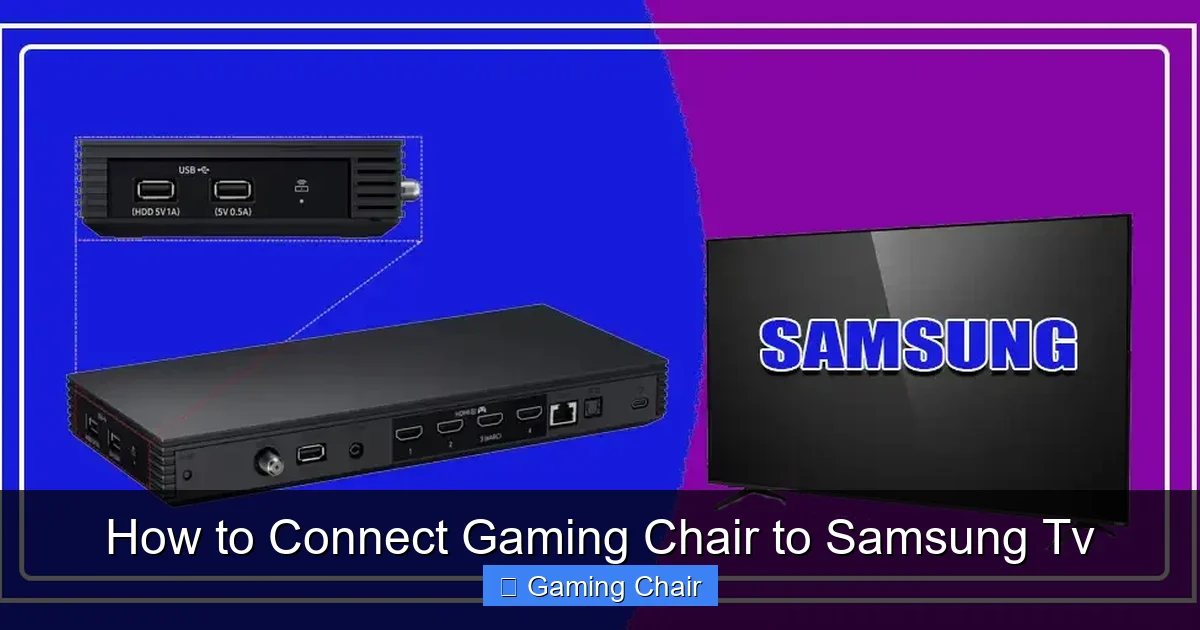
Visual guide about How to Connect Gaming Chair to Samsung Tv
Image source: de.tab-tv.com
- 3.5mm Headphone Jack: While common on older TVs, newer Samsung smart TVs often omit this in favor of digital or wireless options. If your TV has one, it’s usually on the side or back, often labeled with a headphone icon.
- RCA Audio Out (Red/White): Even rarer on modern Samsung TVs than the 3.5mm jack, these were standard for connecting to stereo systems. If your TV has them, they’ll be clearly marked.
Digital Audio Outputs
Modern Samsung TVs primarily rely on digital outputs for higher quality and multichannel audio.
- Optical (TOSLINK) Digital Audio Out: This port, often labeled “Optical Out” or “Digital Audio Out (Optical),” is a small, square port with a red light, found on almost all Samsung TVs. It transmits digital audio using a fiber optic cable.
- HDMI ARC/eARC: HDMI Audio Return Channel (ARC) and Enhanced ARC (eARC) allow your TV to send audio back to an ARC-compatible soundbar or AV receiver through an HDMI cable. Look for an HDMI port specifically labeled “ARC” or “eARC.” This is a versatile option for connecting to a central audio hub.
- Bluetooth: Most modern Samsung Smart TVs come with built-in Bluetooth, allowing you to wirelessly connect headphones, soundbars, and yes, compatible gaming chairs. This is a very convenient way to connect gaming chair to Samsung TV without wires.
Other Audio Sources to Consider
Sometimes, the easiest way to connect your gaming chair isn’t directly through the TV, especially if you’re primarily gaming on a console or PC.
- Game Consoles Directly: PlayStation, Xbox, and Nintendo consoles often have their own audio outputs (3.5mm, optical, or USB) that you can connect your chair to directly, bypassing the TV altogether.
- Soundbars/AV Receivers: If you use a soundbar or AV receiver with your Samsung TV, these devices often have more versatile audio outputs that can be used to feed audio to your gaming chair.
Step-by-Step Connection Methods
Now for the exciting part: actually connecting your gaming chair to your Samsung TV! We’ll cover the most common scenarios. Remember to always turn off both your TV and gaming chair before making any physical connections.
Method 1: Connecting via 3.5mm Audio Jack (Auxiliary)
This is the most straightforward method if both your Samsung TV and gaming chair have compatible 3.5mm ports.
Visual guide about How to Connect Gaming Chair to Samsung Tv
Image source: eu.community.samsung.com
- What you need: A 3.5mm male-to-male audio cable.
- Steps:
- Locate the 3.5mm “Audio OUT” or “Headphone” jack on your Samsung TV.
- Locate the 3.5mm “Audio IN” or “MP3 IN” jack on your gaming chair.
- Plug one end of the 3.5mm cable into your TV’s audio out.
- Plug the other end into your gaming chair’s audio in.
- Turn on your gaming chair and Samsung TV.
- On your Samsung TV, navigate to Settings > Sound > Sound Output. Select “Headphone” or “Audio Out.”
- Adjust the volume on both your TV and your gaming chair.
- Tip: If the sound from your chair seems too low, consider using an inexpensive headphone amplifier between the TV and the chair.
Method 2: Connecting via RCA Audio Cables
This method is less common for direct TV connections nowadays, but still viable if your TV has RCA outputs or if you use an adapter.
- What you need: An RCA stereo cable (red and white plugs) or an adapter (e.g., 3.5mm to RCA).
- Steps:
- If your Samsung TV has dedicated RCA “Audio OUT” ports, connect the red plug to the red port and the white plug to the white port.
- Connect the other end of the RCA cable to your gaming chair’s RCA “Audio IN” ports (red to red, white to white).
- If your TV only has a 3.5mm output but your chair has RCA inputs, use a 3.5mm to RCA adapter cable. Connect the 3.5mm end to the TV, and the RCA ends to the chair.
- Turn on both devices and select the appropriate audio output on your TV’s sound settings, typically “Audio Out” or “External Speaker.”
Method 3: Wireless Bluetooth Connection
This is a popular, clutter-free way to connect gaming chair to Samsung TV, especially for newer models.
- What you need: A Samsung TV with built-in Bluetooth and a Bluetooth-enabled gaming chair.
- Steps:
- Ensure your gaming chair is in Bluetooth pairing mode (refer to your chair’s manual for specific instructions, usually indicated by a flashing light).
- On your Samsung TV, go to Settings > Sound > Sound Output.
- Select “Bluetooth Speaker List” or “Bluetooth Audio.”
- Your TV will scan for nearby Bluetooth devices. Select your gaming chair from the list when it appears.
- Follow any on-screen prompts to confirm pairing.
- Once connected, your TV’s audio will be routed to your gaming chair.
- Considerations: Bluetooth can sometimes introduce a slight audio delay (latency). If this is noticeable and distracting for gaming, a wired connection might be preferable.
Method 4: Using a Digital-to-Analog Audio Converter (DAC)
This is a common solution if your Samsung TV only has digital audio outputs (Optical, HDMI ARC) but your gaming chair requires analog input (3.5mm, RCA).
- What you need: A DAC, an optical cable, an RCA or 3.5mm cable, and a power source for the DAC.
- Steps:
- Connect one end of the optical cable to your Samsung TV’s “Optical Out” port.
- Connect the other end of the optical cable to the “Optical IN” port on the DAC.
- Connect the DAC to its power source (usually a USB port on the TV or a wall adapter).
- Connect the appropriate analog cable (RCA or 3.5mm) from the “Audio OUT” ports on the DAC to the “Audio IN” ports on your gaming chair.
- On your Samsung TV, go to Settings > Sound > Sound Output and select “Optical” or “Digital Audio Out.”
- Turn on your gaming chair and adjust volume levels.
Method 5: Connecting via Game Console (Direct Connection)
If your primary goal is to enhance console gaming, connecting the chair directly to your console can be an excellent option.
- What you need: Varies by console and chair (e.g., 3.5mm cable, optical cable, RCA converter).
- Steps (example for PlayStation/Xbox with 3.5mm):
- Connect a 3.5mm cable from your console’s controller headphone jack or specific audio output port to your gaming chair’s 3.5mm “Audio IN.”
- Adjust the audio output settings on your console to route audio to the connected device.
- Benefit: Dedicated audio pathway, potentially lower latency, and chair’s features only activate when gaming.
- Drawback: The chair will only receive audio from the console, not from other TV sources like streaming apps.
Optimizing Your Audio and Haptic Experience
Connecting your gaming chair to your Samsung TV is just the first step. To truly get the most out of your setup, you’ll want to fine-tune the audio and haptic feedback settings.
Adjusting TV Sound Settings
Your Samsung TV has a powerful audio engine, and you can leverage it to enhance your chair’s performance.
Visual guide about How to Connect Gaming Chair to Samsung Tv
Image source: r1.community.samsung.com
- Sound Output Selection: Always ensure your TV’s sound output is set correctly (e.g., “Optical,” “Bluetooth,” “Headphone”).
- Sound Mode: Experiment with different sound modes like “Game Mode,” “Standard,” “Adaptive Sound,” or “Amplify.” “Game Mode” can often reduce audio latency, while “Adaptive Sound” can optimize sound for your content.
- Equalizer Settings: Some Samsung TVs offer an equalizer. You can adjust bass and treble to suit your preferences and your chair’s capabilities. Boosting bass might enhance the haptic feedback.
- Volume Control: Find the sweet spot between your TV’s volume output and your chair’s internal volume control. Starting with the TV volume at around 70-80% and then adjusting the chair’s volume is a good approach.
Chair Control Adjustments
Your gaming chair itself usually has controls for audio and haptic intensity.
- Master Volume: Controls the overall sound level from the chair’s speakers.
- Bass/Subwoofer Control: Specifically adjusts the low-frequency output, which directly impacts the rumble motors in haptic chairs.
- Vibration/Intensity Control: Some chairs have a dedicated dial for the intensity of the haptic feedback, allowing you to fine-tune how much you feel.
- Power Management: Ensure your chair is always adequately powered, as low power can lead to distorted sound or weak haptic feedback.
Troubleshooting Common Issues
Even with the best planning, sometimes things don’t go perfectly. Here are quick fixes for common problems:
- No Sound/Vibration:
- Check all cables: Are they firmly plugged into the correct ports on both the TV and chair?
- Is the gaming chair powered on and charged?
- Is the correct audio output selected on your Samsung TV (Settings > Sound > Sound Output)?
- Is the volume turned up on both the TV and the chair?
- Audio Lag/Delay (Bluetooth):
- Try switching to a wired connection if possible.
- Ensure your Samsung TV’s firmware is up to date, as updates can sometimes improve Bluetooth performance.
- Check if your chair has a “low latency” mode.
- Distorted Audio:
- Lower the volume on your Samsung TV and increase it on your chair, or vice-versa, to find a balance. Overdriving either device can cause distortion.
- Ensure cables are not damaged or faulty.
- Chair Not Pairing (Bluetooth):
- Make sure your chair is in pairing mode and not already connected to another device.
- Restart both your TV and the chair.
- Remove the chair from your TV’s Bluetooth device list and try pairing again.
Enhancing Your Setup: Accessories and Tips
To truly perfect your immersive gaming experience when you connect gaming chair to Samsung TV, consider these additional tips and accessories.
Audio Extenders and Amplifiers
Sometimes, the cables that come with your chair aren’t long enough, or the audio output from your TV isn’t quite powerful enough.
- Audio Extender Cables: If your chair needs to be further from the TV, a simple 3.5mm or RCA extender cable can solve the problem.
- Headphone Amplifiers: For chairs that require more power or if the TV’s headphone output is weak, a small, powered headphone amplifier placed between the TV and the chair can significantly boost the audio signal, leading to clearer sound and stronger haptic feedback.
Cable Management Solutions
With multiple cables for power, audio, and perhaps an adapter, your setup can quickly become a tangled mess. Good cable management isn’t just about aesthetics; it also prevents damage and tripping hazards.
- Cable Ties/Velcro Straps: Bundle cables neatly together.
- Cable Sleeves/Raceways: Hide and protect cables along walls or under furniture.
- Wireless Power Banks: For chairs that can be USB powered, a portable power bank can reduce one cable running to a wall outlet, especially if you move the chair frequently.
Powering Your Chair
Most gaming chairs with audio/haptic features require external power, usually via an AC adapter or USB. Always ensure your chair has a stable power supply for optimal performance. An overloaded power strip or faulty adapter can impact sound quality and haptic intensity.
Future-Proofing Your Setup
Technology evolves rapidly. When considering future upgrades, look for gaming chairs with modern connectivity options like advanced Bluetooth codecs (for lower latency) or even USB-C audio for direct digital connection to compatible devices. Similarly, a high-quality soundbar or AV receiver with multiple audio outputs can serve as an excellent central hub for all your audio needs, simplifying how you connect gaming chair to Samsung TV and other devices.
Conclusion
Integrating your gaming chair with your Samsung TV setup is a fantastic way to unlock a deeper level of immersion in your favorite games and media. By carefully assessing your chair’s inputs and your TV’s outputs, and choosing the right connection method—be it a simple 3.5mm cable, a wireless Bluetooth link, or a versatile digital-to-analog converter—you can achieve a rich audio and haptic experience.
Remember to experiment with your TV’s sound settings and your chair’s controls to find the perfect balance that suits your preferences. Don’t be afraid to troubleshoot systematically if you encounter any bumps along the way. With a little effort, you’ll transform your living room into a truly dynamic gaming haven where every sound and vibration brings the virtual world to life right beneath you. So go ahead, connect gaming chair to Samsung TV, and prepare to feel the game like never before!
Frequently Asked Questions
What types of audio outputs do Samsung TVs typically have?
Most modern Samsung TVs feature digital audio outputs like Optical (TOSLINK) and HDMI ARC/eARC, as well as built-in Bluetooth. Older models might also include a 3.5mm headphone jack or RCA audio outputs, though these are less common on newer sets.
How do I switch the audio output on my Samsung TV once my chair is connected?
To switch the audio output, go to your Samsung TV’s Settings menu, then navigate to Sound and select Sound Output. From there, you can choose the appropriate option like “Optical,” “Bluetooth Speaker List,” or “Headphone,” depending on your connection method.
Is it better to connect my gaming chair to the TV or directly to my game console?
Connecting directly to the game console ensures that your chair only receives game audio, which can sometimes provide a more direct and lower-latency experience. Connecting to the TV, however, allows your chair to receive audio from all TV sources, including streaming apps and other devices connected to the TV.
Do I need an external power source for my gaming chair?
Most gaming chairs with built-in speakers and haptic feedback motors require an external power source, typically an AC adapter or USB connection. Always check your chair’s manual to ensure it’s properly powered, as insufficient power can lead to poor audio quality or weak vibrations.
Can I use both my Samsung TV’s internal speakers and my gaming chair simultaneously?
Some Samsung TVs allow simultaneous audio output to both internal speakers and certain external devices (like Bluetooth headphones or optical output). You can check this option in your TV’s Sound settings, usually under “Multi-output Audio” or similar, but it’s not available on all models or for all connection types.
What should I do if I get no sound after connecting my gaming chair?
First, double-check all cable connections, ensuring they are securely plugged into the correct input/output ports on both the TV and chair. Next, verify that your gaming chair is powered on and that the correct audio output is selected in your Samsung TV’s sound settings. Finally, ensure volume levels are turned up on both the TV and the chair.



